2.7.4 Log in/log out
This section describes logging in to and logging out of Ops I through external IdPs.
The following are the prerequisites for logging in to Ops I through external IdPs.
- The attribute information of external IdP users can be obtained
To map a user between external IdPs and Ops I, user attribute information needs to be mapped between them. The following is the attribute information that needs to be mapped. If the value is missing, a login error will occur.
For details on the mapping, see “Mapping attributes/groups/roles”.- E-mail address
- First name
- Last name
- The e-mail address of the external IdP user meets the requirements for the characters that can be entered for an e-mail address in Ops I
If the e-mail address does not meet the requirements for the allowed characters, a login error will occur. For information on the allowed characters, see “Notes on characters that can be entered”. - Ops I users linked with external IdPs, and Ops I users linking with external IdPs are enabled
Users with the [Disabled] status in their user profile cannot log in.
The status of a user with the [Disabled] state is different from that of a deleted (non-existent) user. Because the “User data reuse policy” is for operations related to deleted users, even if you select “Do not inherit data and consider a different user”, users with the [Disabled] status will not be able to log in.
(1) Logging in
When connection settings for OIDC or SAML, which are protocols used for authentication with external IdP, are added, the added connection settings will appear as buttons on the Ops I login window (only for enabled connection settings). To log in through an external IdP, select the button for the connection settings of the used external IdPs.
After selecting the external IdP button on the login window, the login action differs depending on whether the user is already linked to an external IdP or not and whether the user logs in from an external IdP or Ops I.
The different login action patterns are as follows.
-
When the user is not linked between the external IdP and Ops I
- Logging in through an external IdP when no Ops I user corresponding to the external IdP user exists
- Logging in through an external IdP when the user is determined the same between Ops I and the external IdP
-
When the user is already linked between the external IdP and Ops I
- Logging in through an external IdP when the user is already linked between the external IdP and Ops I
- Logging in directly to Ops I when the user is already linked between the external IdP and Ops I
On the [User Details] window, you can check if the user is already linked between an external IdP and Ops I. For details, see “Viewing user details”. On the [User Details] window, you can also cancel the user’s linkage with external IdPs.
You can also set the external IdP to be used by default if there is only one external IdP to be used. This eliminates the step of selecting a connection setting on the login window. For details, see “Default identity provider”.
Each of the login action patterns is described in detail below.
[Logging in through an external IdP when no Ops I user corresponding to the external IdP user exists]
The following is the flow of logging in through an external IdP when no Ops I user corresponding to the external IdP user exists.
(Figure) Logging in through an external IdP when no Ops I user corresponding to the external IdP user exists
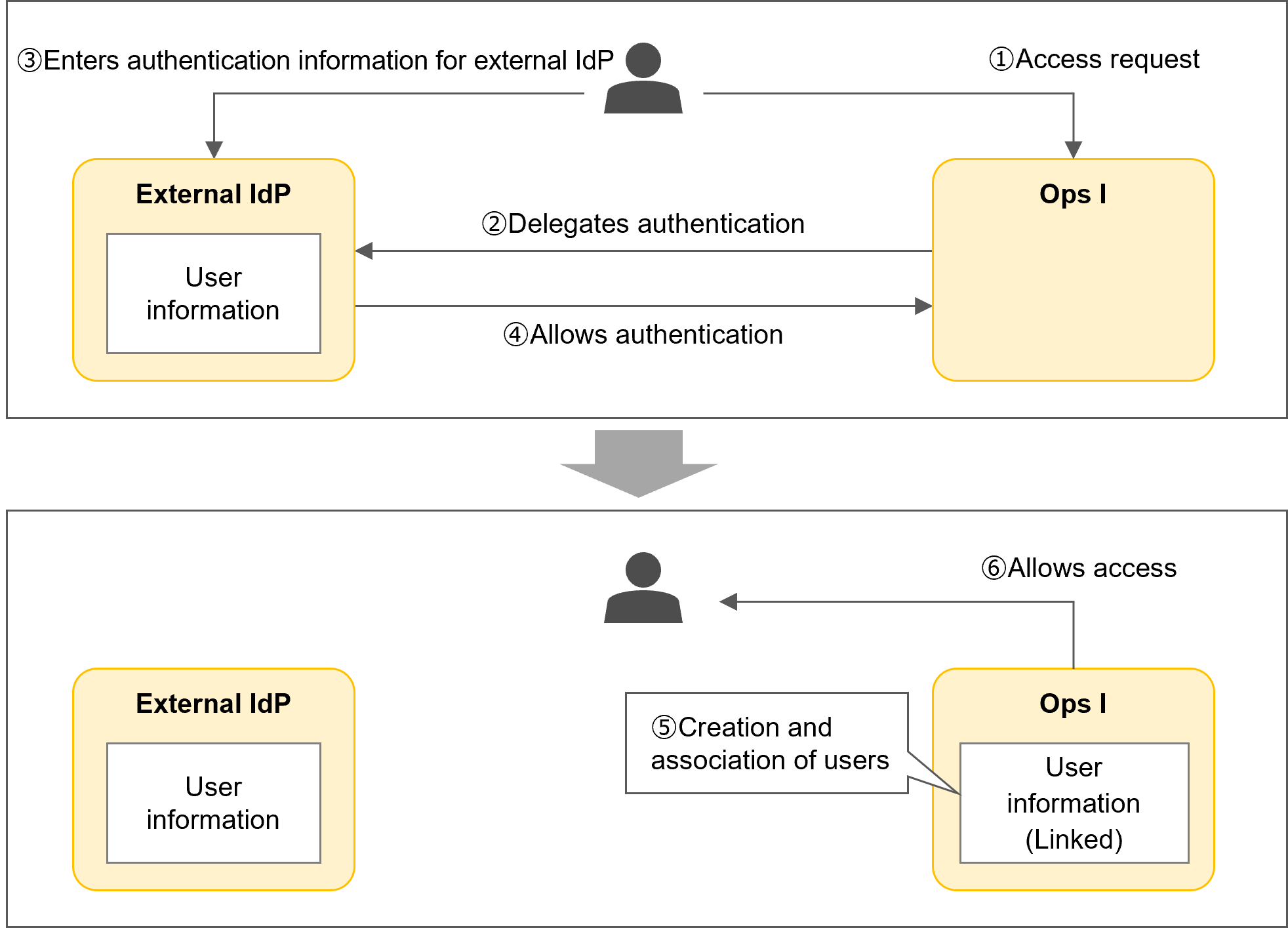
A user name that does not meet the requirements of the characters allowed in Ops I is automatically converted. For details on the conversion, see "Conversion of user names".
If the entered user name or e-mail address matches a user that has been deleted (but still has the user information in OTOBO), whether or not to take over the user information is determined according to the user data reuse policy settings. For details, see "User data reuse policy".
[Logging in through an external IdP when the user is determined the same between Ops I and the external IdP]
The following is the flow of logging in through an external IdP when the user is determined the same between Ops I and the external IdP. When either the user name or e-mail address, or both, match, the user is considered to be the same user.
The following users are reserved users in Ops I. Even if these users are determined the same, login will not be allowed.
- User name: system
E-mail address: system.opsi@example.com - User name: jp1cs_user
E-mail address: jp1cs.opsi@example.com
(Figure) Logging in through an external IdP when the user is determined the same between Ops I and the external IdP
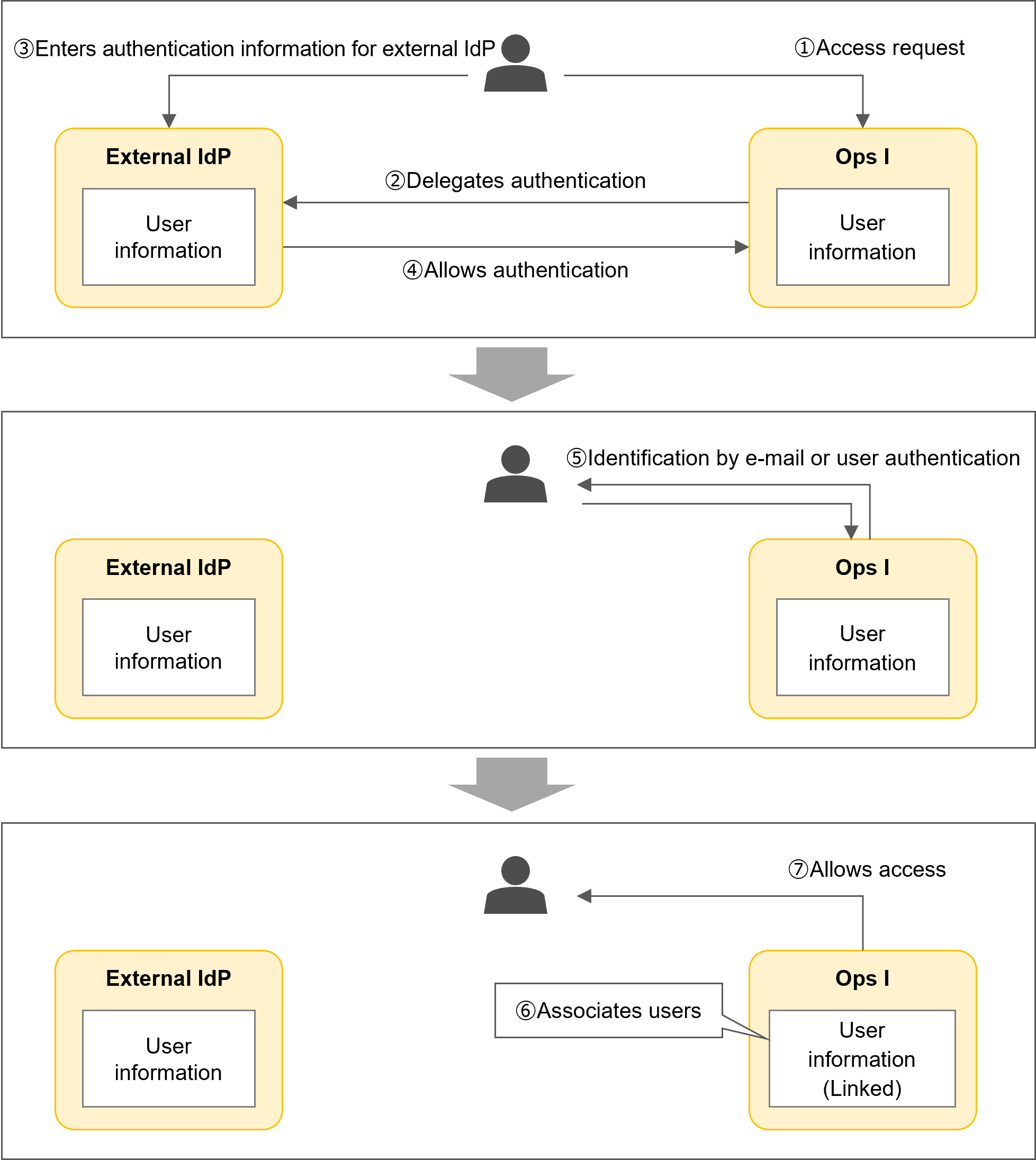
- Confirmation by e-mail
Click the link in the e-mail sent to the e-mail address specified in the Ops I user information to log in to Ops I. - Confirmation using the user name and Ops I password
Log in to Ops I with the Ops I user name and password. If the user is already linked with an external IdP, log in through the external IdP.
[Logging in through an external IdP when the user is already linked between the external IdP and Ops I]
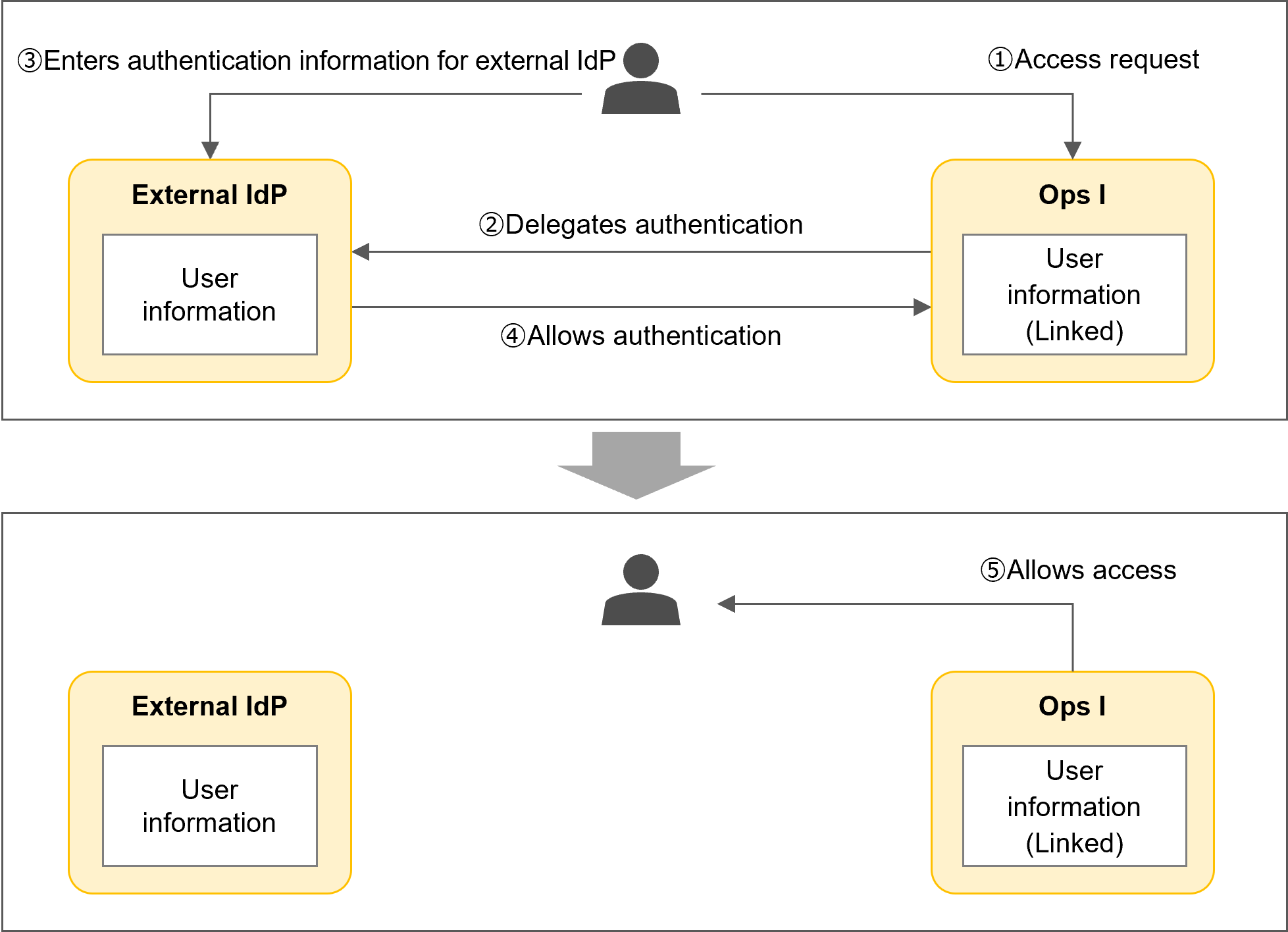
The following is the flow of logging in through an external IdP when the user is already linked between the external IdP and Ops I.
(Figure) Logging in through an external IdP when the user is already linked between the external IdP and Ops I
[Logging in directly to Ops I when the user is already linked between the external IdP and Ops I]
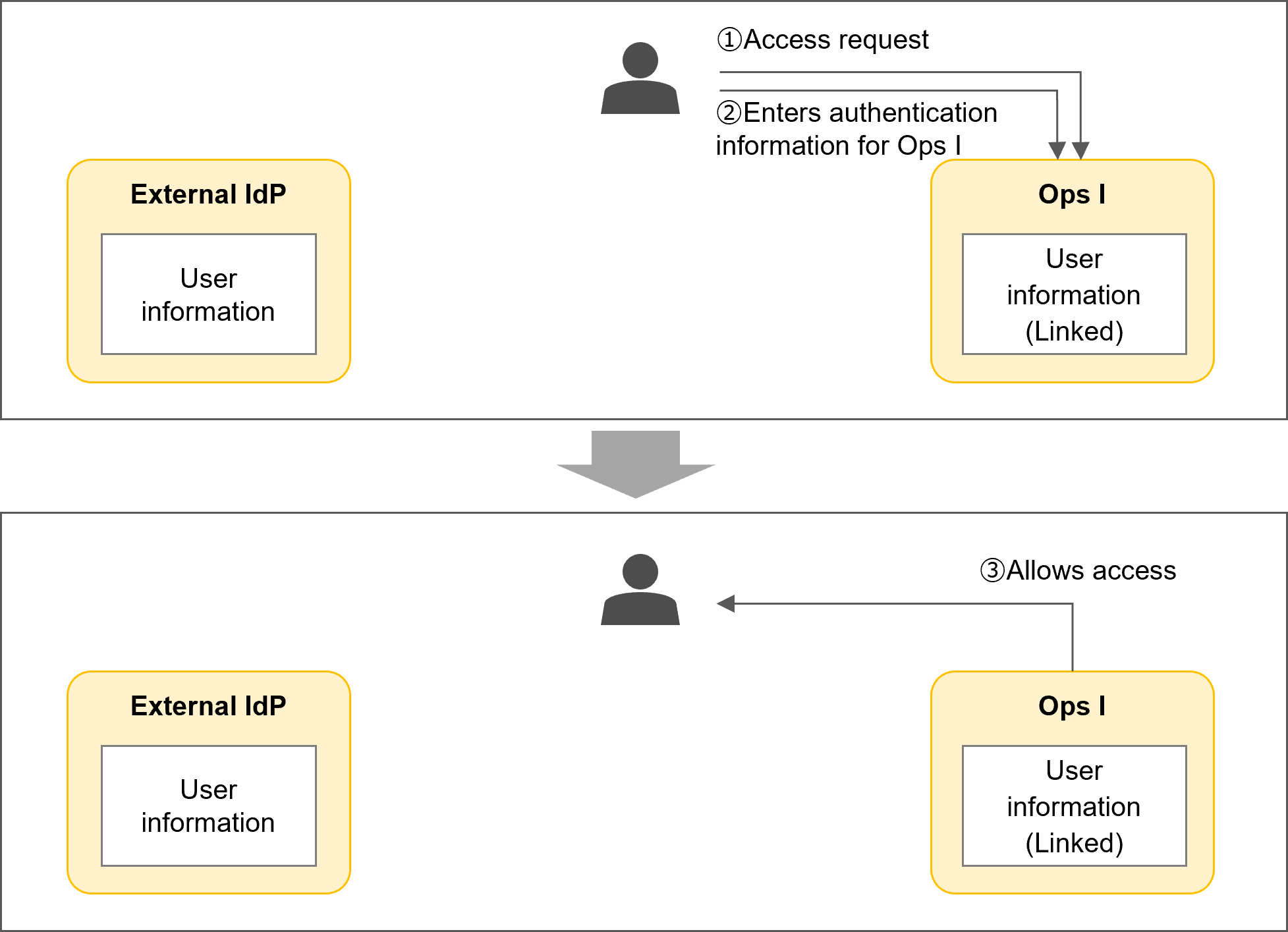
The following is the flow of logging in directly to Ops I when the user is already linked between the external IdP and Ops I.
(Figure) Logging in directly to Ops I when the user is already linked between the external IdP and Ops I
If a user logs in with an external IdP when the external IdP and Ops I user are not linked, the user is created in Ops I or linked to an Ops I user. At this time, if the user name obtained from an external IdP does not meet the requirements for Ops I inputtable characters, the user name will be automatically converted. The conversion details are as follows.
- Uppercase letters are converted to lowercase
- Prohibited characters are converted to “_”
- A sequence of symbols is converted to just the first character
- Leading and trailing symbols are deleted
- If less than the minimum number of characters, “1” is added at the end until the minimum number of characters is met
- If the maximum number of characters is exceeded, the maximum number of characters is trimmed
If users from different external IdPs are converted to the same user name, users converted after the second user will not be able to log in.
For details on the allowed characters, see “Notes on characters that can be entered”.
 Notes
Notes
The conditions for determining whether Ops I and external IdP users are the same user differ depending on whether or not the user is already linked with the external IdP.
- If the user has not yet been linked with the external IdP
Determine whether there is a user for which the e-mail address and user name match, in that order.
Check whether there is a user that matches the e-mail address. If there is none, check whether there is a user that matches the user name. - If the user has already been linked with the external IdP
In the case of linkage using OIDC, whether the users are the same user is determined by the UUID that the OIDC has internally. This allows the users to be determined as the same user even if the user name or e-mail address is changed on the external IdP side, without breaking the linkage.
In the case of SAML, it depends on the settings of the [NameID Policy Format], [Principal Type], and [Principal Attribute] fields in the SAML connection setting.
(2) Logging out
The following is a description of how to log out of Ops I if you have logged in to Ops I with an external IdP. The following method does not log out of an external IdP.
You can log out of Ops I from the [Personal] - [Log out] icon at the upper right of the Ops I window. When the logout process is complete, the [Logout Complete] window will appear. Clicking the button of the [Logout Complete] window to return to the login window takes you back to the Ops I login window. At this time, if [Default Identity Provider] is configured, and you are logged into an external IdP, you will be automatically logged in to Ops I again.
For details on [Default Identity Provider], see “Default identity provider”.
Notes
Single sign-out via external IdP linkage is not supported. Do not configure single sign-out with an external IdP.