4.3.1 Designing a data model
Data model design involves the creation of service catalogs and the definition of data models.
(Table) Data model design items and outline
| Item | Definition method | Key design points |
|---|---|---|
| ・Catalog ・Datamodel |
YAML file | After identifying necessary catalog items, categorize them based on the patterns such as requests and data records. Then, organize the catalog items based on whether they are displayed or not and the order in which they are displayed. Organize managed data records based on the tasks associated with the workflow and design data models for tables, columns, etc. |
(1) Service catalog
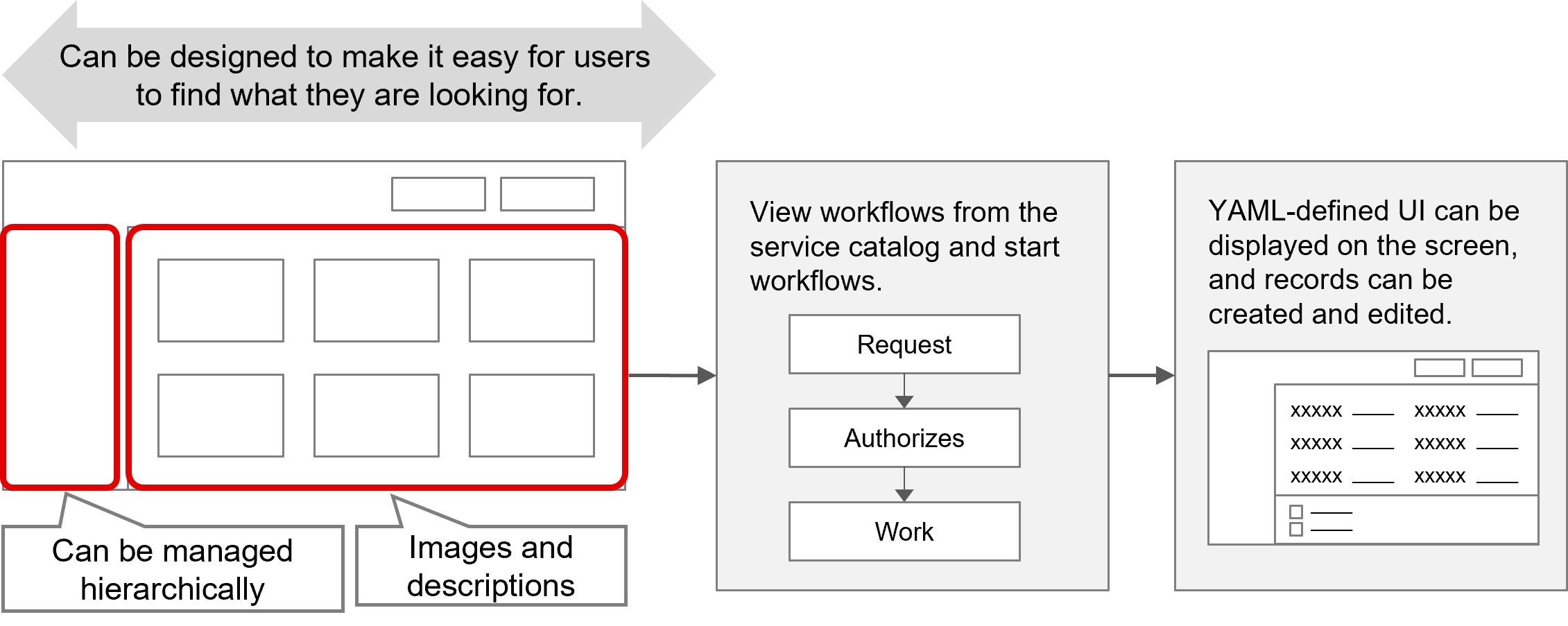
A service catalog consists of several catalog items. Catalog items are grouped by category.
Users can execute workflows from catalog items. Windows defined in UI YAML files can also be called from workflows and data records can be created or edited.
As such, service catalogs allow users to manage any tasks.
Categories and catalog items are defined in Catalog YAML files. For details, see “Catalog”.
(Figure) Service catalog outline
[Display settings for categories and catalog items]
Multiple categories can be configured in a single Catalog YAML file. Also, multiple catalog items can be configured in a single category.
Categories and catalog items are displayed in the order in which they appear in the Catalog YAML file.
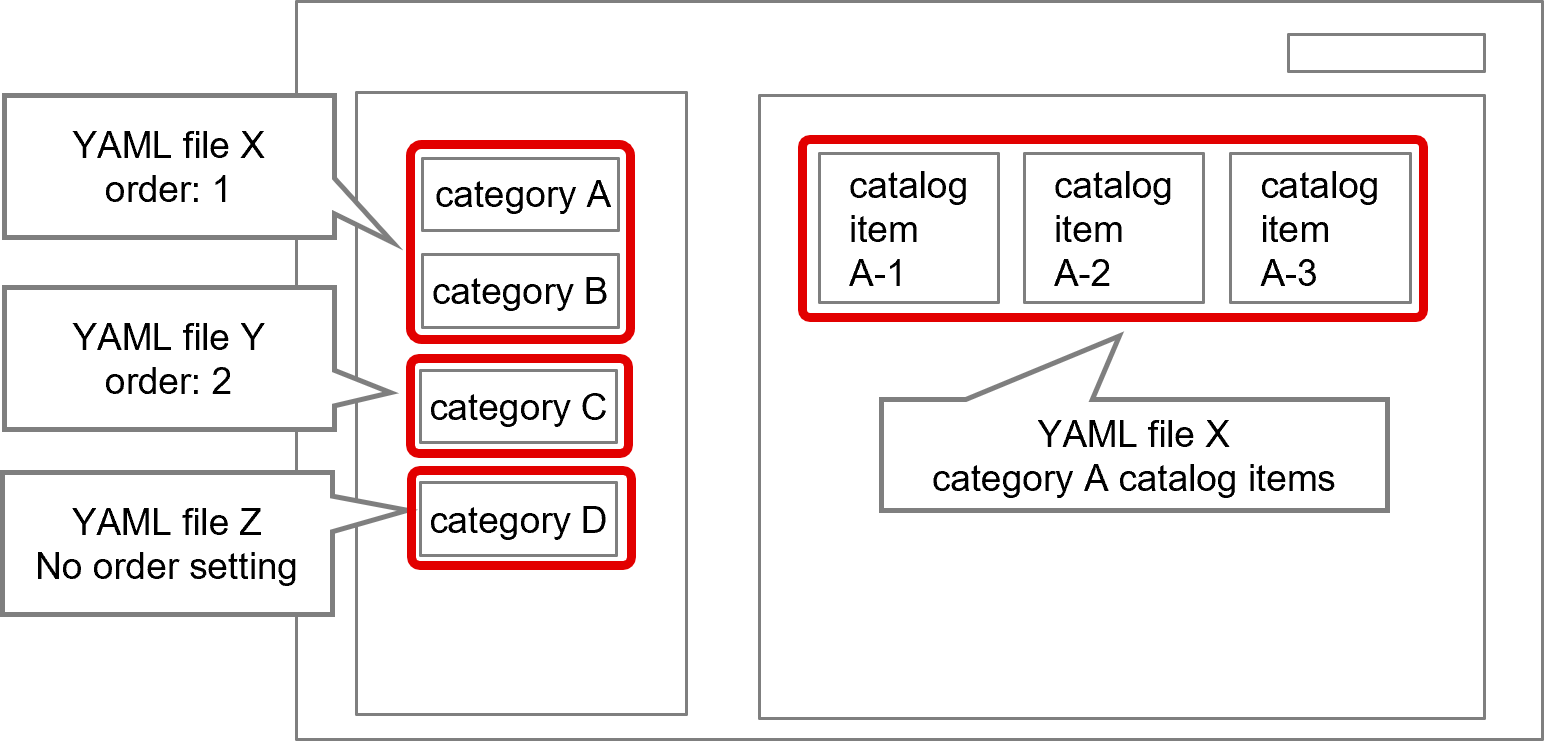
When service catalogs are configured in multiple Catalog YAML files, the catalogs are displayed in the order in which the YAML files were registered in Git. Updating registered YAML files does not affect the display order.
To display YAML files in an order other than the order in which they were registered, set the display priority. For details, see “Display order priority for categories (on a per-YAML file basis)”.
You can also restrict the display of catalogs by customer or group. For details, see “Access control”.
[Display order priority for categories (on a per-YAML file basis)]
In the category area, the order in which categories are displayed can be specified in the following ways.
If categories are listed in multiple Catalog YAML files separately, you can set the display order priority with the label “order” in the Catalog YAML files. If two or more YAML files have the same priority, catalogs will be displayed in the order in which the YAML files were registered in Git. Updates after registration do not affect the display order. Catalog YAML files without priority specified will have the lowest display priority. Categories listed in the same YAML file are displayed in the order in which they appear in the YAML file.
(Figure) Display of categories and catalog items
[Access control]
Access control allows you to specify who can view the catalog items on a per-Catalog YAML file basis. Without access control applied, all users can view all items.
There are two methods of access control: customer-based and group-based. When using customer-based access control and group-based access control at the same time, users who meet both conditions can view the items.
 Notes
Notes
The setting of users who can browse catalog items are specified in the Catalog YAML file. But the setting of users who can perform activities such as requesting, approving, and executing tasks in the workflow associated with the catalog item are specified in the Workflow YAML file.
- Customer-based access control
Customer-based access control is applied to customer users. For details on customer users, see "Users".
Customer-based access control is configured using the "customers" label in Catalog YAML files. With the "customer" label configured, only non-customer users and specified customer users can view the catalog items. Without the label specified, all users can view the catalog items. For details, see "Catalog".
(Table) Customer-based access control
User "customers" label Not configured Customer A specified Non-customer users Displayed Displayed Customer users belonging to Customer A Displayed Displayed Customer users belonging to Customer B Displayed Not displayed
- Group-based access control
Group-based access control is applied to all users.
Group-based access control is configured using the "groups" label in Catalog YAML files.
With the "groups" label specified, only the specified groups can view the catalog items. Without the label specified, all groups can view the catalog items. For details, see "Catalog".
(Table) Group-based access control
User "groups" label Not configured Group A specified Users belonging to Group A Displayed Displayed Users belonging to Group B Displayed Not displayed Only those users who belong to all groups specified in the “groups” label in each YAML file can view all registered catalog items.
[Obtaining service catalog information]
To obtain service catalog information, use the API “GET /api/v1/service-catalogs”. For details on the API and roles to execute it, see “Correspondence between API and Ops I roles” and “Detailed API reference information > Standard API functions” in the “JP1 Cloud Service/Operations Integration API Reference”.
(2) Data models
A data model allows multiple tables to be managed together within the framework of a single data model. To achieve this, it is necessary to define data items to be shared among multiple applications in YAML files. Each column defines information required for fulfilling requests, which is then managed as a table.
For details on datamodel YAML definitions, see “Datamodel”.
(Figure) Data model conceptual diagram
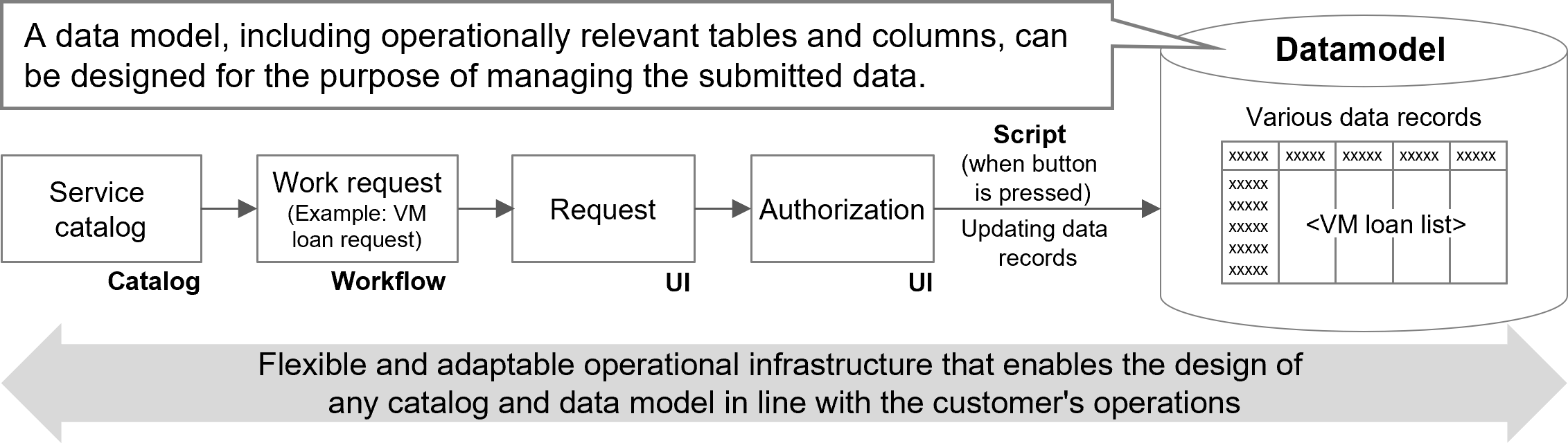
When designing a data model for a VM lending ledger for VM lending request handling, create catalog items for VM lending requests, identify the information required for the requests, and make YAML definitions for the data model for the VM lending ledger. Information required for the requests includes the serial number of the requests, the name of the system using the VM, and the name of the lent VM.
The following is a list of the information and columns as an example.
(Table) Example of columns in VM lending ledger
| Table | Column | Description | Data format | Default value | Entering NULL | enum list |
|---|---|---|---|---|---|---|
| VM lending ledger | Request number | Serial number of request | String varchar(32) |
- | Possible | - |
| System name | Name of the system using the VM | List enum |
- | Possible | Order management system Customer management system Production management system |
|
| VM name | Name of the lent VM | String varchar(32) |
- | Possible | - | |
| OS type | Select Windows or Linux | List enum |
- | Possible | Windows Linux |
|
| CPU | Number of vCPU cores used in the VM | Number integer |
- | Possible | - | |
| Memory | Memory size used by the VM | Number integer |
- | Possible | - | |
| Storage | Storage capacity used by the VM | Number integer |
- | Possible | - | |
| Requester | Name of the VM lending requester | String varchar(256) |
- | Possible | - | |
| Use start date | Start date of use of the VM | Date date |
- | Possible | - | |
| Messages | Messages | String text |
- | Possible | - | |
| Checklist (file) | Completed checklist | File document |
- | Possible | - | |
| Checklist (URL) | URL of the completed checklist | String text |
- | Possible | - |
For information on how the contents defined in the above list are represented on the window, see the section that explains UI design using VM lending requests as an example in “UI design”.