4.3.10.7 Notifications
Customer users can view Ops I notifications in the site. It is also possible to specify a page within the site as the destination when confirming a notification.
The language for Ops I notifications can be changed from [Account] - [Change language of notification], which is displayed by clicking [Manage Account] in [Ops I Menu]. The language selected here will be reflected as the display language for each Ops I account, but the site language is set individually for each site. For details, see “Multilingual support for sites”.
The following details how notifications are displayed.
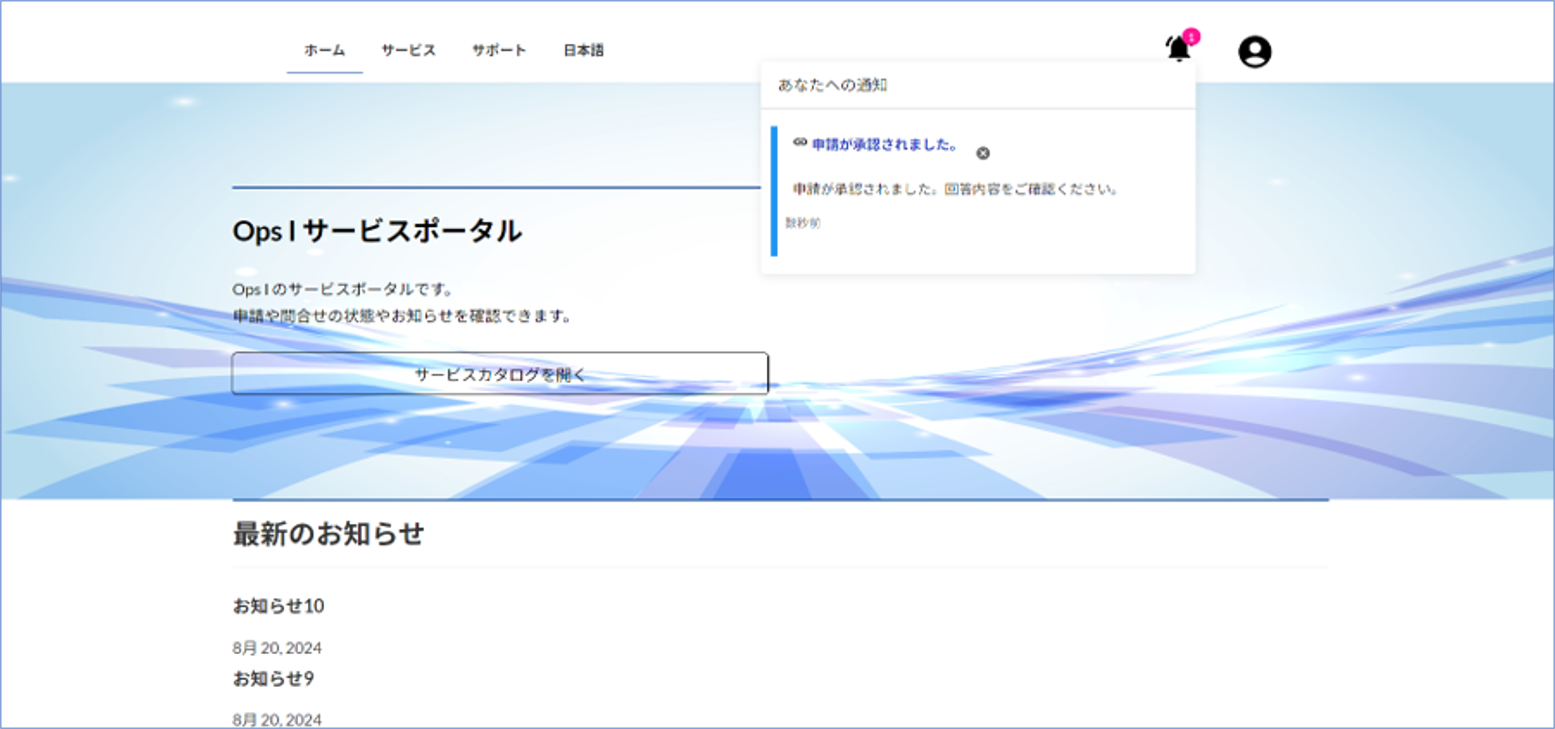
[Notification when the theme is Lightning]
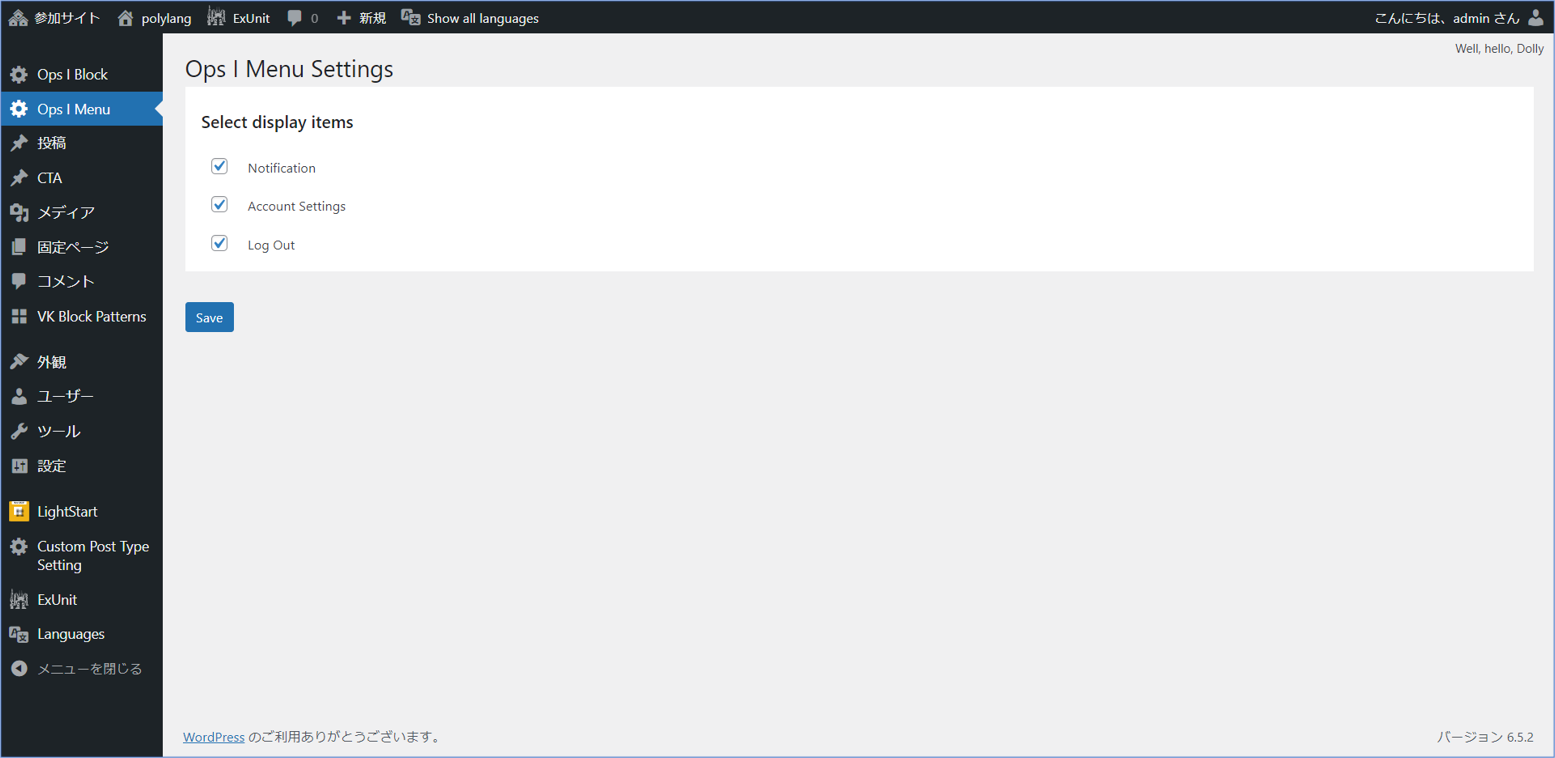
If your site theme is [Lightning] and you have enabled notifications by checking [Ops I Menu]-[Notifications], a notification icon will appear to the left of your avatar.
You can switch the items displayed in the Ops I Menu from the [Ops I Menu] on the [Site Management] window.
[Notification when the theme is not Lightning]
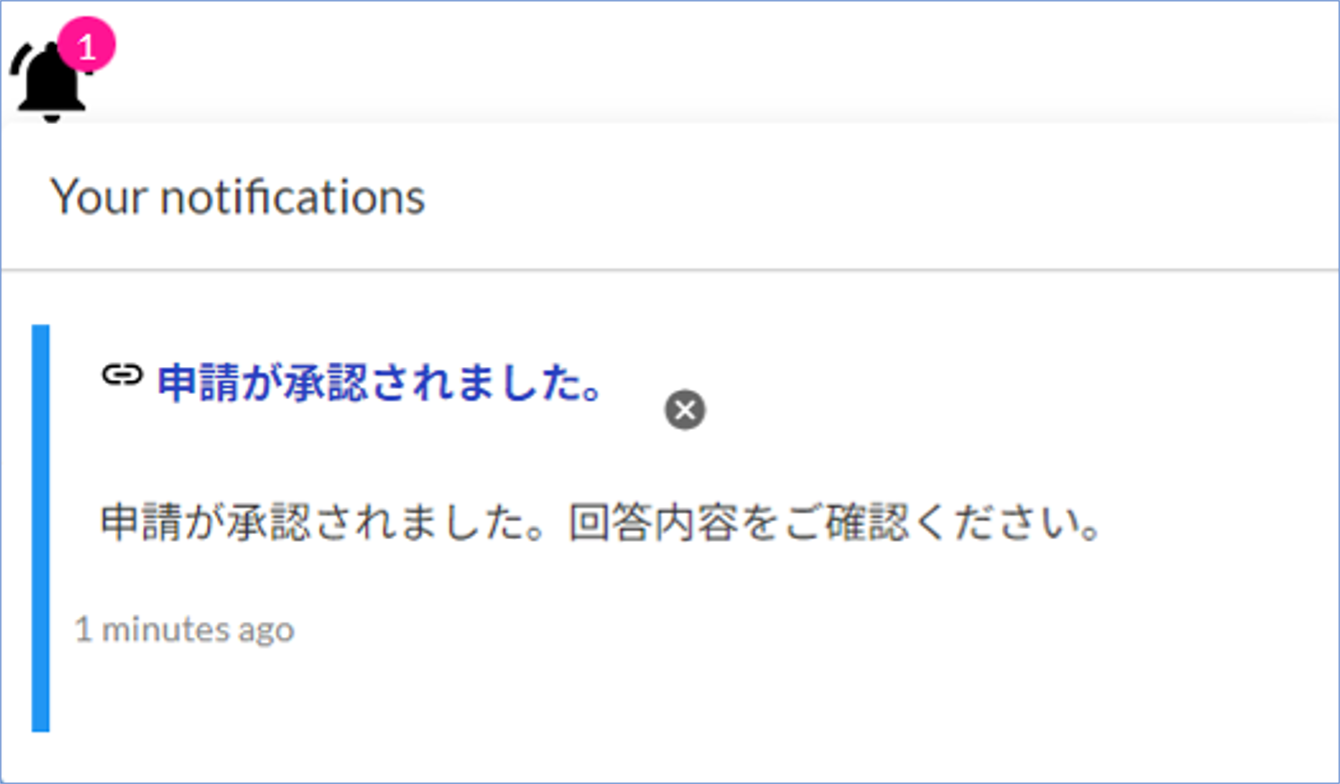
If your site is not themed [Lightning], add an [OpsI Notification] widget for displaying notifications to any location, page, or post where the widget can be placed.
[Notification YAML definition]
The customer field of “sys_context” can be referenced by specifying the following with the GetValue method in the Notification YAML file.
- If event.resource is schedule: .Context.workflow.customer
- If event.resource is workflow: .Context.customer
By creating a Notification YAML file for each customer using the above notation in the conditions label in the Notification YAML file, you can change the URL for notification clicks for each customer user for whom you have created a workflow. For details on the Notification YAML definition, see “Notification, Notifier”.
conditions:
- resource: "{{ .GetValue ".Context.customer" }}"
eq: 1
…
notifications:
- message:
…
referTo: https://portal.Ops I domain/site-customer1