4.3.9 Schedule management
The design of a schedule involves creating a schedule for each (non-regular/regular) routine and as-needed task, assigning agents, and reviewing and updating the schedule.
(Table) Design items and outline of schedule management
| Item | Definition method | Key design points |
|---|---|---|
| Task settings | - | For each of the tasks identified, examine the groups and agents to assign, repetition patterns, and whether or not it is associated with a workflow. |
| How to add a schedule | - | Depending on the type of the task (for example, based on whether it is a routine or as-needed task, or whether it is a non-IT operational task), consider whether to add the schedule as a task-based or user-based schedule. |
| Adding a schedule | ・GUI ・YAML file |
When adding a task-based schedule, consider whether the schedule is to be added from only the GUI or from both the GUI and a calendar template (YAML). |
| Calendar template | ・YAML file | Make YAML definitions for a series of tasks required for the operation as a calendar template. It can be utilized for frequent operations. Assignees and other information are set up in the GUI. |
(1) Outline
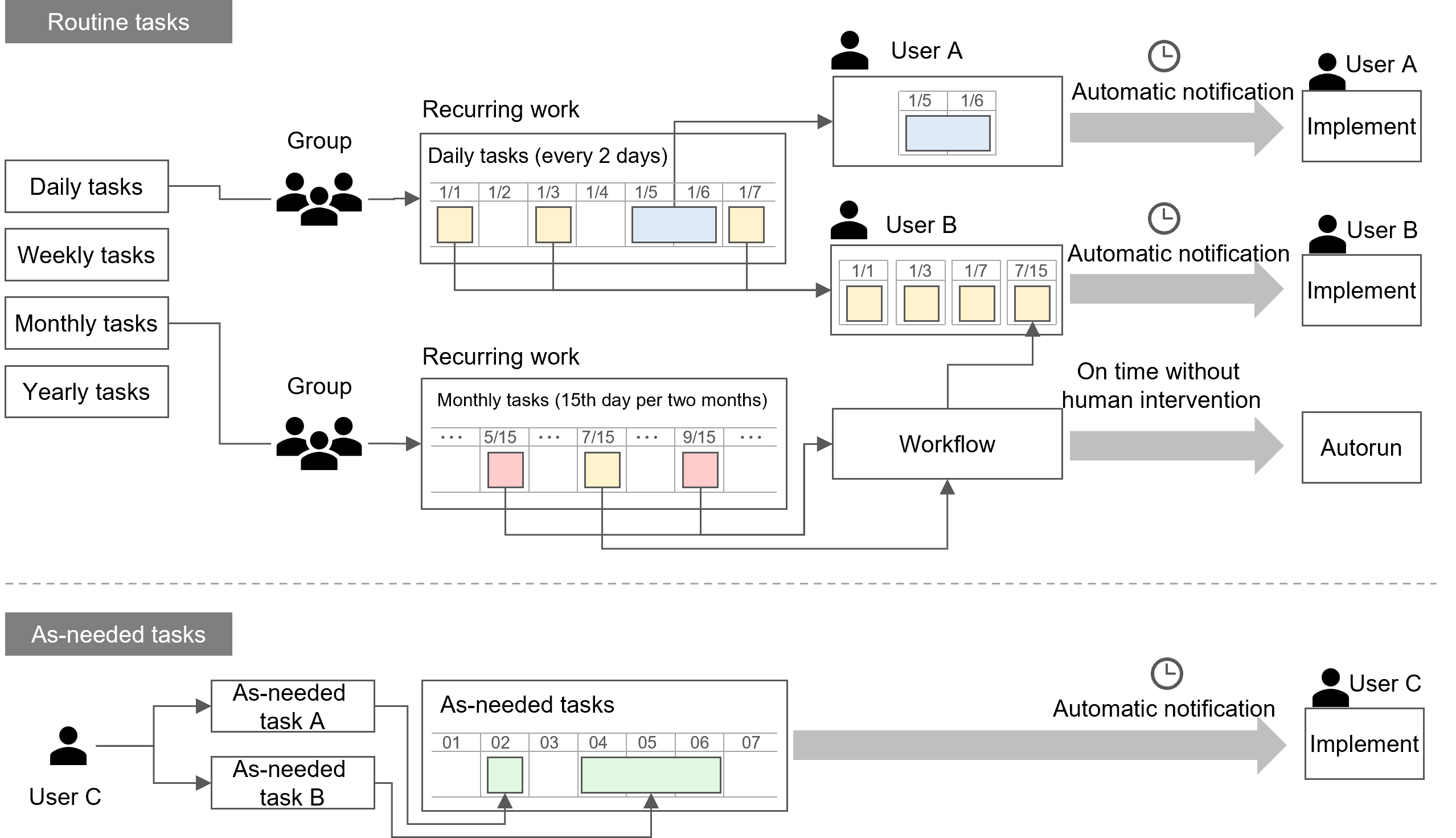
Ops I allows you to integrate and manage schedules for many tasks that occur in IT operations.
Schedules can be categorized and registered as (non-regular/regular) routine and as-needed operations, and all information such as schedule type, progress, and status can be visualized. This allows for efficient management of operations, even when human and non-human operations are mixed.
Operations can be repeated automatically. For such repetitive operations, it is also possible to change what to perform in specific iterations to accommodate irregularities.
In addition, the schedule notification function can be set to automatically notify the agent when the scheduled task should be performed, thereby preventing the task from being missed. For details on schedule notifications, see “Designing notifications” and “Notification, Notifier”.
(Figure) Schedule management outline
Ops I provides the following schedule management functions.
(Table) List of schedule management functions
| Item | Description |
|---|---|
| Calendar management functions | Allows schedules for IT operational tasks to be grouped and managed. |
| Work item management functions | Allows for addition, edition, and review of schedules for individual work items in calendars. |
| Resource-specific scheduling functions | Allows for addition, edition, and view of schedules for IT and non-IT operational tasks on a per-user basis. |
(2) Schedule management basics
This section describes basics of schedule management.
[Primary elements of schedule management]
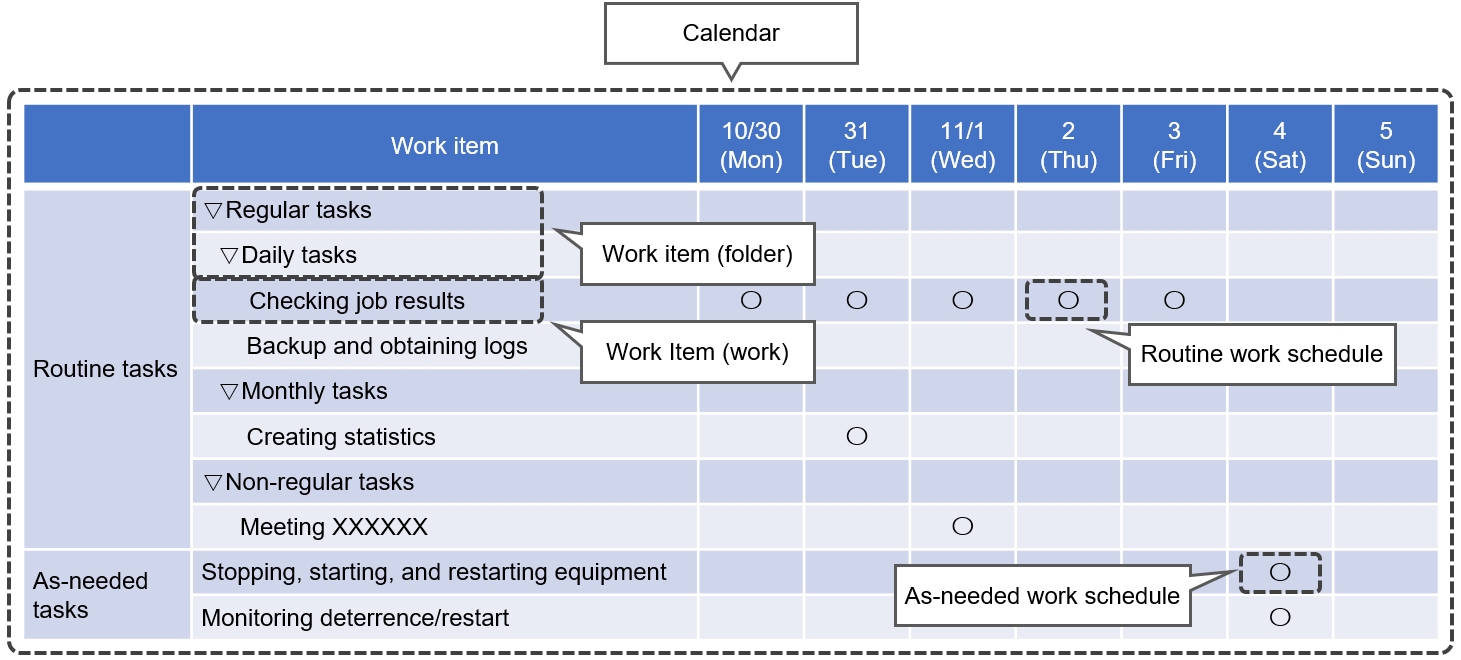
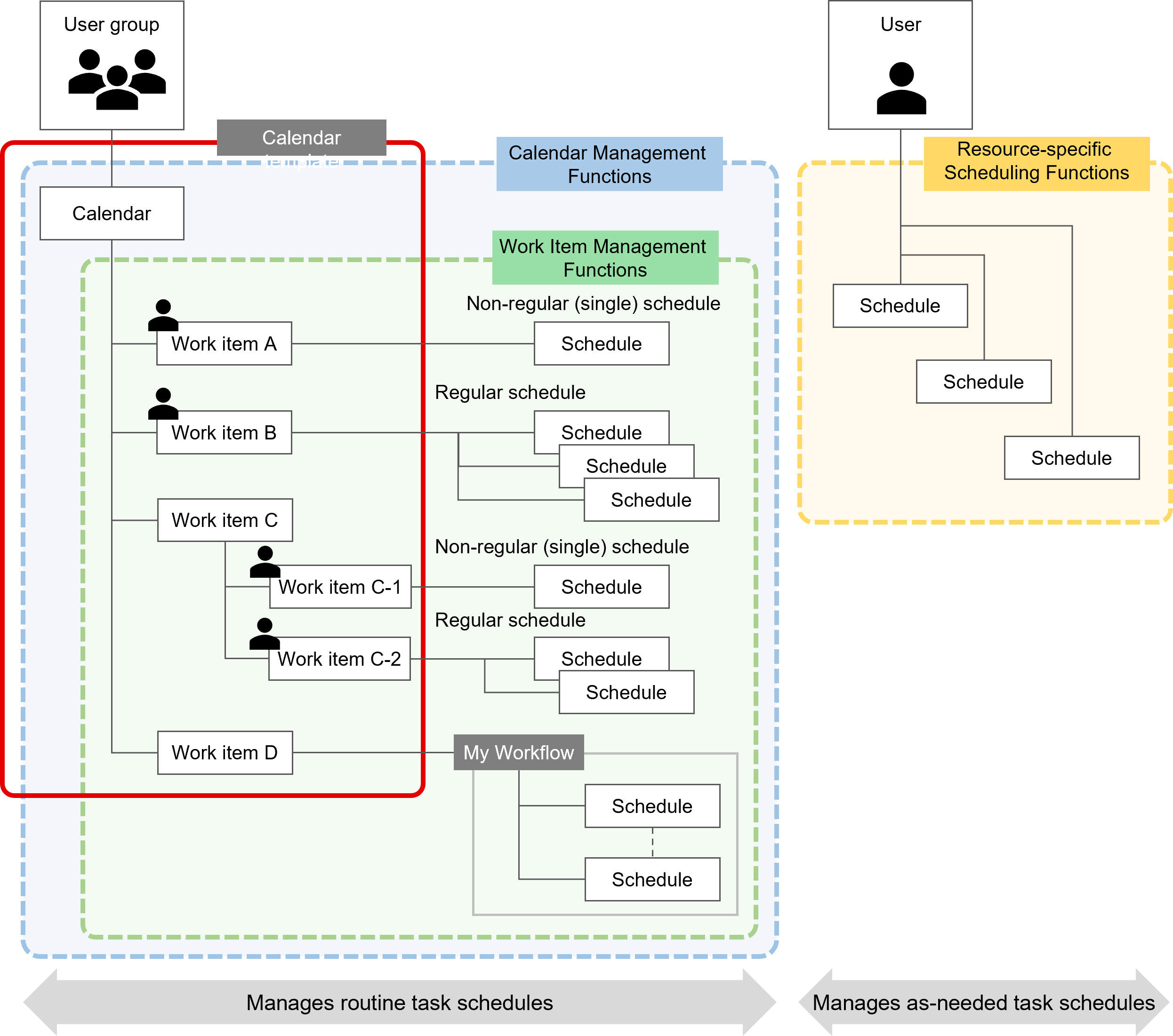
For schedule management, “calendars”, “work items”, and “schedules” are primarily used to create, review, and update schedules. The following shows the configuration relationships of these three elements.
(Figure) Configuration relationships of calendar, work items, and schedule
(Table) Details of calendars, work items, and schedules
| Item | Description |
|---|---|
| Calendars | It consists of a collection of IT operational work items and schedules associated with them. IT operations involve many tasks such as backups, maintenance, audits, and email checks. Calendars can be used to categorize and group these tasks, making them easier to manage. It is also possible to associate together multiple user groups, such as agents who perform tasks, or managers and auditors who only review tasks. A calendar can be created using a calendar template, which can be defined in the GUI and in a YAML file. |
| Work item | A component of a calendar that serves as a box for defining a schedule. Work items can be added via the GUI. Work items can also be registered in a batch using calendar templates. Work items can be managed by grouping folders and tasks using folders and be linked to workflows. |
| Schedule | The entity of a single task (or a single execution of a task) in a work item, representing the progress or performance of the work. It functions as a progress bar, and progress and status can be checked by color. In addition, status icons provide easy access to information about the work. |
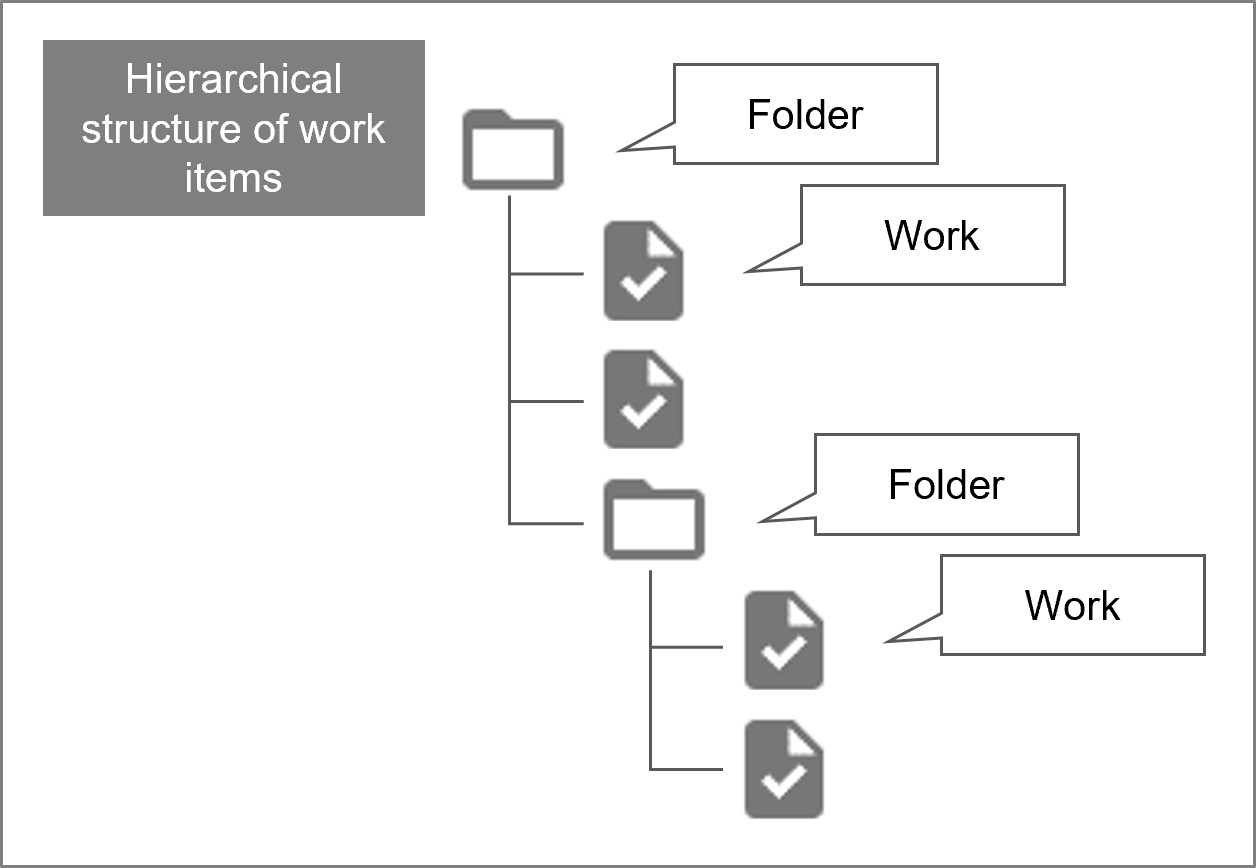
Work items can be managed by grouping folders and tasks using folders. This allows work items to have a hierarchical structure and folders to be created under folders. It is not possible to create folders or tasks under tasks.
(Figure) Work item folders and tasks
[Display and action permissions by role]
There are basically no role-based action restrictions for the calendar, work items, or schedules that can be displayed. However, to create a calendar, the Primitive role “calendar_user” must be assigned.
For roles required to display the Schedule tab, see “Correspondence between roles and support functions in Ops I”. For conditions related to display and actions other than roles, see “(Table) Components of the Calendar Management Functions window”, “(Table) Components of the Work Item Management Functions window”, and “Resource-specific scheduling functions”.
(3) Associating schedules with workflows
For schedule management, schedules can be associated with workflows in the following two ways.
[Setting using work item management functions]
The workflow to be executed can be specified on the [Add Work Item] or [Edit Work Item] window of the “Work item management functions”.
By associating workflows with work items, workflows can be automatically executed according to the specified execution dates and repetition patterns. You can also set workflow parameters and assignees of each step.
Associated workflows can also be executed manually. It is also possible to re-execute the workflow if it failed. For details, see “(Table) Actual Results tab items”.
[Setting from the [Workflow] tab]
From the [Workflow] tab, the start and end date/time and assignees can be set for each workflow step. Schedules that you set are automatically reflected in [Resource-specific scheduling], where schedule assignments can be managed and updated for each resource. For details, see “Workflow operation window (when using Stepper)”.
(4) Calendar templates
Calendars can be created in the GUI or using calendar templates prepared by the user.
A calendar template is a YAML file with work items defined in it. Calendar templates registered in repositories can be configured in the [Calendar Creation] window of “Calendar management functions”, where work items can be registered in a batch. By preparing calendar templates for frequent tasks, schedules and work items can be created faster.
Define calendar templates in “Calendar” YAML files.
Register calendar YAML files in any repositories for managing YAML files.
[Definitions in calendar templates]
The following items are not defined in calendar templates and thus must be configured via the GUI. After creating a calendar template on the [Calendar Creation] window of the “Calendar management functions”, configure the calendar template on the work item edition window of the “Work item management functions”.
- Start date
- End date
- End time
- Assigned group
- Assigned users
- The User Executes The Workflow
If “oneTime” is specified in “type” for “pattern”, the type of the work item will be [Single Work]. If you specify an option other than “oneTime”, the type of the work item will be [Recurring Work] and the [End Date Undetermined] item on the [Recurrence Schedule Settings] tab will be checked.
[Version control of calendar templates]
A calendar created using a calendar template can have the name and version of the calendar template when it was applied recorded in the calendar. Therefore, even if the calendar template is updated, the information of the calendar template when it was applied to the calendar is preserved. There is no upper limit to the number of versions of a calendar.
The name of the calendar template can be checked in [Calendar List] of the “Calendar management functions” and the version can be checked in the [Template] section of [Calendar list].
(5) Repeating schedule execution
For tasks that require regular responses in routine operations, various patterns of repetitive execution can be set for the schedule.
Set repetition patterns using combinations of repetition period, days, weeks, months, and years. The settings can be made on the addition and edition windows of the “Work item management functions”. Patterns can also be set using “Calendar templates”.
[Repetition patterns and concepts of work items]
When adding or editing work items, set the execution timing and intervals of repetitions. Execution timings and intervals can be set mainly in the following items.
- Execution timing: date, day of the week
- Interval: daily, weekly, monthly, yearly
Below are details of repetition patterns.
(Table) Work item repetition patterns
| Pattern | Example | Description |
|---|---|---|
| Daily |
|
Set the interval based on the number of days. |
| Weekly |
|
Set the interval based on the day of the week and the number of weeks. |
| Monthly |
|
Set the interval based on the date in month, the day counted from the end of month, or the number of the week in month and the day of the week. |
| Yearly |
|
Set the interval based on the month and day in year, or the month in year, the number of the week in month, and the day of the week. |
The following explains how to count the number of weeks in the case of “every X weeks”, “Xth week”, etc.
If the pattern of execution timing is monthly or yearly, the number of weeks is counted based on the number of occurrences of the day of the week.
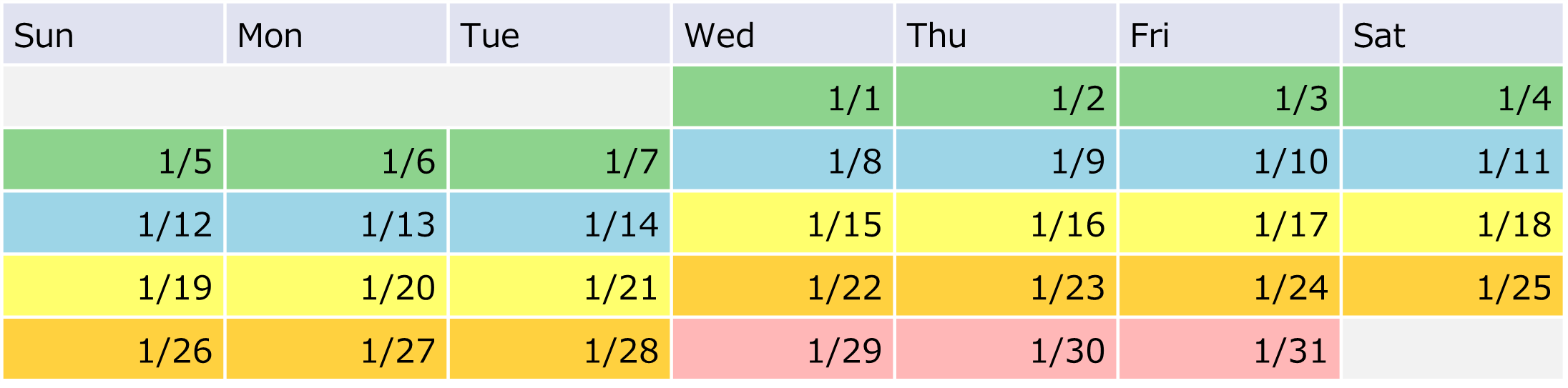
In the case of the calendar shown in the following figure, the first week is counted from 1/1 to 1/7, the second week from 1/8 to 1/14, and so on, as indicated by the color coding. For example, “Tuesday of the second week” refers to 1/14.
The fifth week refers to the period from 1/29 to the last day of the month and can also be referred to as the final week. Only February in non-leap years does not have the fifth week, and the final week begins on a day between 2/22 and 2/28.
(Figure) Example of counting the number of weeks
[Pattern of repetitive execution defined in a calendar template]
The following is an example of defining a pattern of repetitive execution in a YAML file (Calendar) for a calendar template.
(Figure) Pattern of repetitive execution defined in a calendar template
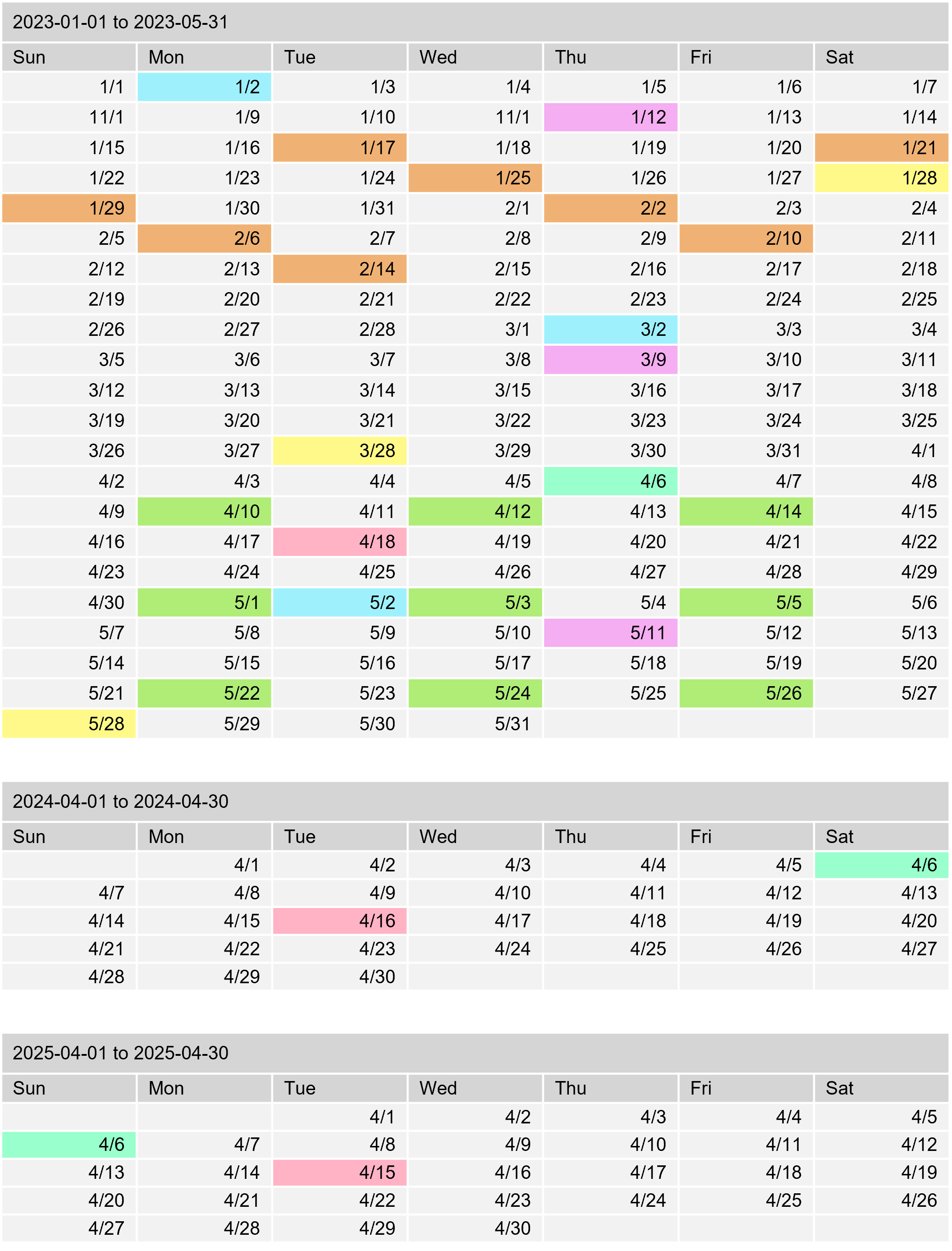
The colors in the calendar above correspond to the colors in the table below.
Absolute and Relative specify whether or not to use the date as the basis for setting schedules, and are specified with “useDayOfMonth” in “(Table) Calendar definitions”. For details, also see “(Table) Work item repetition patterns”.
(Table) Examples of repetition patterns
| Color | type (Daily/weekly/monthly/yearly) |
pattern (Pattern) |
Duration* | Day to execute |
|---|---|---|---|---|
| daily | interval: 4 | Start date 2023-01-17 End date 2023-02-17 |
1/17, 21, 25, 29 2/2, 6, 10, 14 |
|
| weekly | interval: 3 plannedDayOfWeek: ["Monday", "Wednesday", "Friday"] |
Start date 2023-04-10 End date 2023-5-31 |
4/10, 12, 14 5/1, 3, 5, 22, 24, 26 |
|
| monthly (Absolute month) |
interval: 2 plannedDayOfMonth: plannedDay: 2 isFromEnd: false |
Start date 2023-01-01 End date 2023-5-31 |
1/2, 3/2, 5/2 | |
| monthly (Absolute month) |
interval: 2 plannedDayOfMonth: plannedDay: 4 isFromEnd: true |
Start date 2023-01-01 End date 2023-5-31 |
1/28, 3/28, 5/28 | |
| monthly (Relative month) |
interval: 2 plannedDayOfWeek: ["Thursday"] plannedWeekOfMonth: 2 |
Start date 2023-01-01 End date 2023-5-31 |
1/12, 3/9, 5/11 | |
| monthly (Relative month) |
interval: 3 plannedDayOfWeek: ["Thursday"] plannedWeekOfMonth: 5 |
Start date 2023-01-01 End date 2023-12-31 |
There is no 5th Thursday in the corresponding month in this period | |
| yearly (Absolute year) |
interval: 1 plannedDayOfMonth: plannedDay: 6 plannedMonthOfYear: 4 |
Start date 2023-01-01 End date 2025-12-31 |
2023/4/6 2024/4/6 2025/4/6 |
|
| yearly (Relative year) |
interval: 1 plannedDayOfWeek: Tuesday plannedWeekOfMonth: 3 plannedMonthOfYear: 4 |
Start date 2023-01-01 End date 2025-12-31 |
2023/4/18 2024/4/16 2025/4/15 |