4.3.10.9 Changing Ops I password
You can change your Ops I password from the site window without accessing the Ops I window.
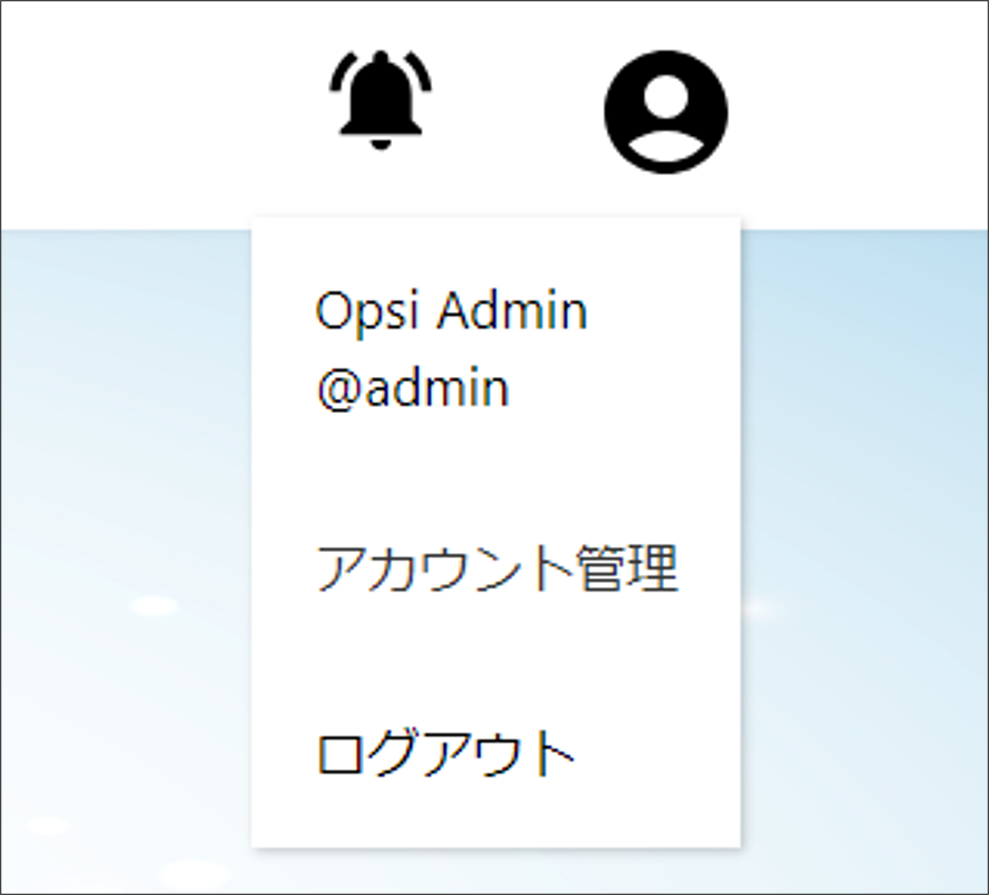
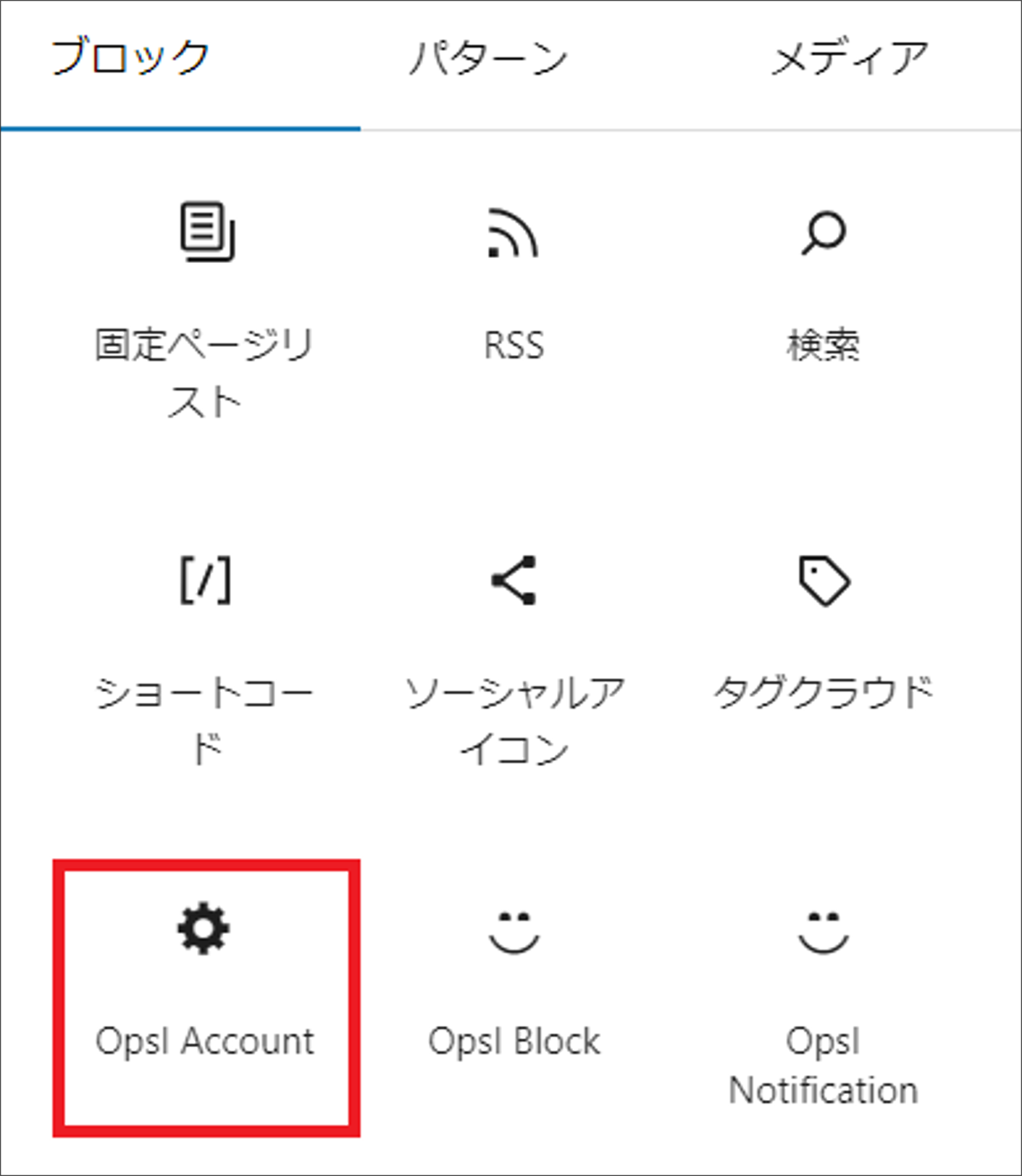
For [Lightning] themed sites, you can change the password from [Account Management] in [Ops I Menu]. For sites not in the [Lightning] theme, the [OpsI Account] widget can be used to display the window to change the password.
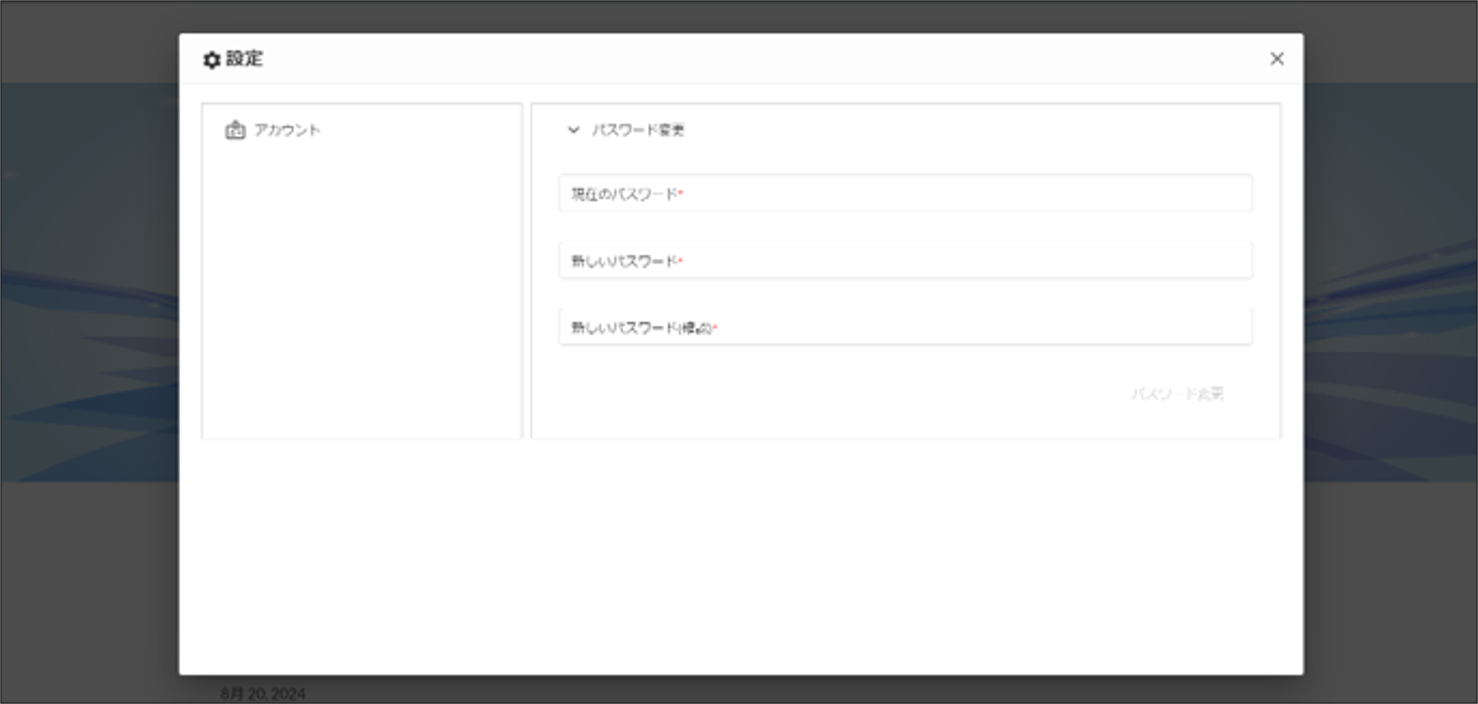
Click [Account Management] under [Ops I Menu] to the account management settings window.
Change your password from [Account] - [Change Password] in the account management settings window. For details on the account management settings window, see “Account management”.
 Notes
Notes
The [Manage Account] menu does not appear when a user who is configured for single sign-on through linking external IdP is logging in with an external IdP. For details on linking external IdP, see "Setting up external IdP linkage".
[For sites not themed Lightning]
Since [Ops I Menu] is not available except for [Lightning], use the [OpsI Account] widget and add a button to the widget that displays the account management settings window.
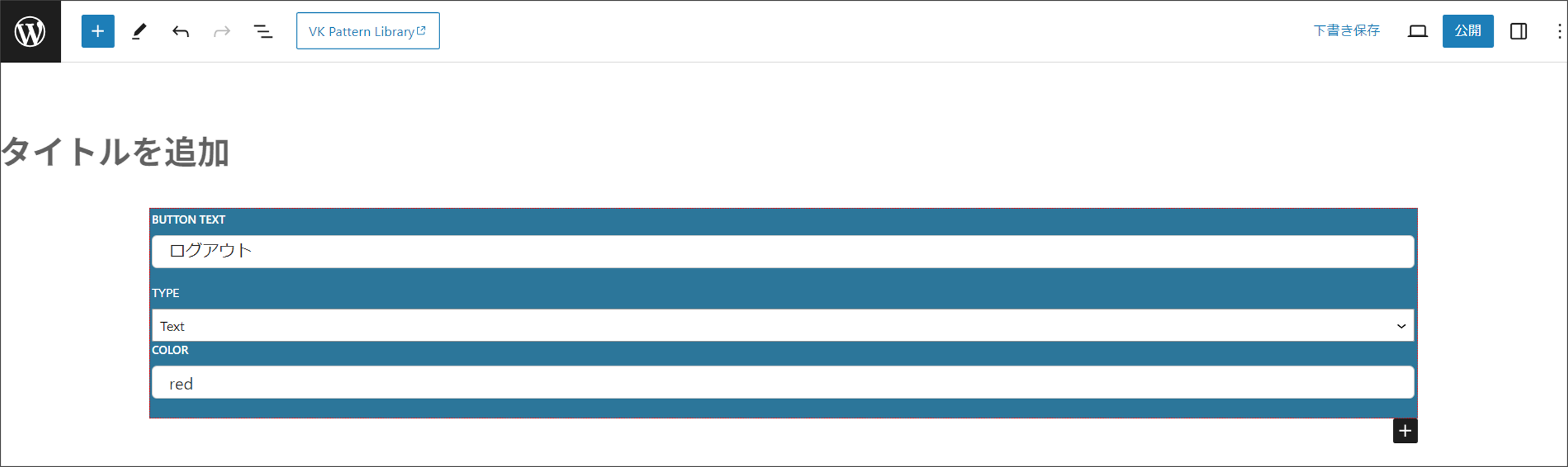
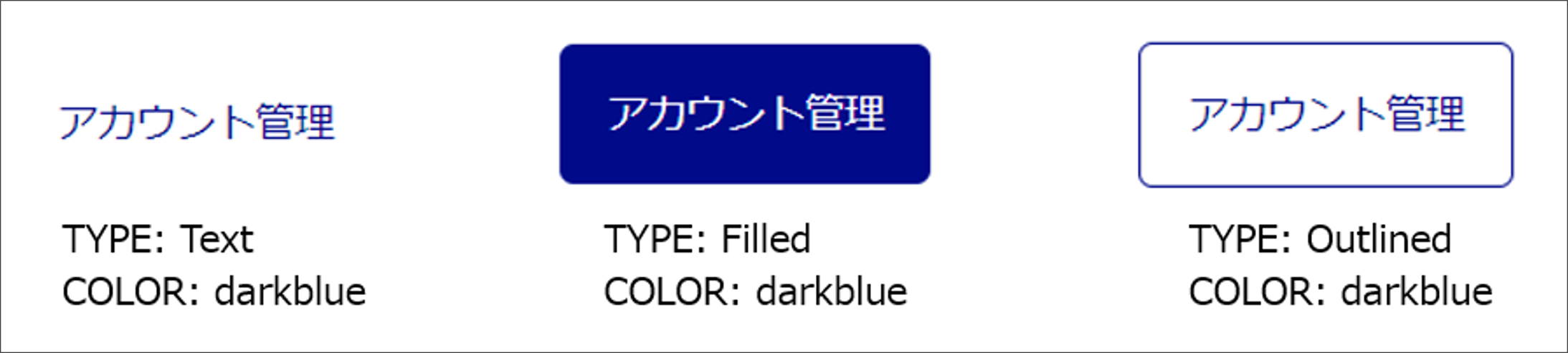
Set the following items for the button.
- BUTTON TEXT: Text to be displayed on the button (max. 30 characters)
- TYPE: Text, Filled, Outlined
- COLOR: Value or color code defined as CSS color name
Notes
If a user for whom single sign-on through linking external IdP has been configured is logging in with an external IdP, the button to display the Account Management settings window will appear, but the password cannot be changed on the transition window. For details on linking external IdP, see "Setting up external IdP linkage".