1.4.1 Use precautions
(1) Notes on logging in to and out of Ops I
- You cannot log out of Ops I using the Log Out button in the GUI of GitLab, Vault, OTOBO, and AWX included in Ops I. If you want to log out of Ops I, use the Ops I logout.
- Ops I logged-in sessions are retained for 25 hours after the last operation. Sessions are not terminated by closing the web browser. To terminate a session, log out of Ops I, and then close the web browser. If communication between the web browser and Ops I is interrupted while the session is still active, an error message may appear in the web browser. If this happens, launch your browser and log in again.
- If the OTOBO or AWX login window appears when you log in to Ops I and access OTOBO or AWX, refresh your browser.
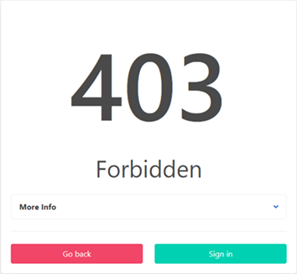
- Do not log in from multiple windows or tabs of the same web browser on the same machine. An error page as shown below may appear when you perform login operations from multiple tabs or windows. If such a message appears, click the Sign in button to move to the window after login.
- Do not log out while Ops I is open in multiple windows or tabs of the same web browser on the same machine. Close multiple windows or tabs until Ops I is open in only one window or tab before logging out.
- If login fails, wait at least one second and re-enter your credentials. If two or more password mistakes are made within one second, the user account will be locked. In that case, the account will be automatically unlocked after one minute.
- If ten or more password mistakes are made consecutively, the account will be deactivated. In that case, re-activate the account using the User Management function. For details on the user management functions, see “Users”.
(2) Notes on language settings
- The language displayed on the AWX window will be displayed according to the language settings of the browser.
(3) Notes on user management
- Even if a user is deleted while logged in, the user can continue to use Ops I until logout. However, errors may occur during the user’s operations. So, delete a user account while the user is logged out, or ensure that the user logs out immediately after the account is deleted.
- If a logged-in user’s role, group, or customers are changed, permissions associated with the role, group, or customers are not granted until the user logs in again. In addition, it may take several minutes to up to 30 minutes for changes to take effect. If permissions are not granted, wait several tens of minutes, and then log in again.
(4) Notes on secret management
- Ops I users’ credential information registered for secret management should be updated manually when Ops I users’ credentials are changed. For example, when an Ops I user’s password is changed, the corresponding credential information must also be updated accordingly. For information on managing Ops I users, see “Users”. For information on credential information, see “Register user credential information”.
(5) Notes on document management
- If you add an Ops I group, the group will not appear in the document application container until your next login. However, a group is immediately reflected in GitLab when it is added. For information on adding Ops I groups, see “Adding groups”. For information on displaying document application containers, see “Container”.
- The name “template” cannot be used for directories included in the path to which documents are saved.
- Ops I checks for security risks in uploaded or downloaded documents and may block operations on documents that are at risk.
If a document operation is blocked, it will result in an error in operations of the container or the execution of a workflow with attachments.
For this reason, before using any files or file formats as documents for actual tasks, check if they can be uploaded or downloaded in advance, for example, when designing tasks in Ops I. - If there are a large number of subfolders and documents in containers, it may take some time to display the document tree in the Containers tab window.
If you want to download workflow attachments in such a case, do the following as a workaround.
In the workflow list on the Workflow tab window, click the context ID of the appropriate workflow, and then click the appropriate attachment in the attachment column to download it. For information on workflow context IDs, see “(Table) Workflow list items” in “Workflow”.
(6) Notes on characters that can be entered
The characters that can be used in each input field are as follows.
[System window]
For details on input windows, see “System”.
(Table) Characters that can be used in input fields (system window)
| # | Input field | Usable characters | Memo | |
|---|---|---|---|---|
| 1 | Add User/ Detail windows |
Username |
|
|
| 2 | E-mail address | The left part of the at sign (@):
The right part of the at sign (@):
|
E-mail addresses that meet the following conditions cannot be used.
|
|
| 3 | First name Last name |
Any characters |
|
|
| 4 | Phone number |
|
|
|
| 5 | Company Department Address Memo |
Any characters |
|
|
| 6 | Add Group/ Detail windows |
Name |
|
|
| 7 | E-mail address | The left part of the at sign (@):
The right part of the at sign (@):
|
E-mail addresses that meet the following conditions cannot be used.
|
|
| 8 | Description | Any characters |
|
|
| 9 | Add Role/ Detail windows |
Name |
|
|
| 10 | Description | Any characters |
|
|
| 11 | Connection Setting window | - | - |
|
| 12 | Add Organization/ Detail windows |
Name | Any characters |
|
| 13 | Description | - | ||
| 14 | Node Group window | Name (node group name) | Other than Tab* |
*Characters other than the tab character entered by pressing the Tab key. |
| 15 | Description (free space) | |||
| 16 | IP Block window | Name (IP block name) | Other than Tab* |
*Characters other than the tab character entered by pressing the Tab key. |
| 17 | CIDR (IP address range) | Characters that can be used in CIDR (IPv4) notation | - | |
| 18 | Exception (exceptional IP addresses) | |||
| 19 | Description (free space) | Other than Tab* |
*Characters other than the tab character entered by pressing the Tab key. |
|
| 20 | Repository Information window | Repository name |
|
|
[Non-system windows]
For details on input windows, see “Basic window structure”, “Workflow”, “Tickets”, “Schedule”, and “Container”.
(Table) Characters that can be used in input fields (on non-system windows)
| # | Input field | Usable characters | Memo | |
|---|---|---|---|---|
| 1 | Change Password window (Manage Account) | New password |
|
The number of characters allowed is 12 or more. Must contain at least one single-byte alphanumeric (a-z, A-Z, 0-9) and special character, respectively. |
| 2 | Workflow List window | Title (edit icon) | Any characters | The number of characters allowed is from 1 to 256. |
| 3 | Stepper window | Title | Any characters | The number of characters allowed is from 1 to 256. |
| 4 | Description | Any characters | - | |
| 5 | Schedule start/end date/time |
|
Use the yyyymmdd format when directly entering a date/time. | |
| 6 | Operation time |
|
- | |
| 7 | Ticket Detail window | Title | Any characters | The number of characters allowed is from 1 to 191. |
| 8 | Description | Any characters | The number of characters allowed is up to 3,800.* | |
| 9 | Close Notes | Any characters | The number of characters allowed is up to 3,800.* | |
| 10 | Work Notes | Any characters | - | |
| 11 | Implementation Plan | Any characters | You can use a maximum of 3,800 characters.* | |
| 12 | Root Cause | Any characters | You can use a maximum of 3,800 characters.* | |
| 13 | Workaround | Any characters | You can use a maximum of 3,800 characters.* | |
| 14 | Backout Plan | Any characters | You can use a maximum of 3,800 characters.* | |
| 15 | Add Ticket window | Title | Any characters | The number of characters allowed is from 1 to 191. |
| 16 | Description | Any characters | The number of characters allowed is up to 3,800. | |
| 17 | Schedule tab window | Search window | Any characters | - |
| 18 | Calendar Management Functions window | - | - | See "Calendar management functions". |
| 19 | Work Item Management Functions window | - | - | See "Work item management functions". |
| 20 | Resource-specific Scheduling Functions window | - | - | See "Resource-specific scheduling functions". |
| 21 | Container File Display window | Rename (ellipses) | Any characters | - |
| 22 | Container Upload window | Commit message | Any characters | - |
| 23 | Distribution tab window | Priority (property) |
|
The number of characters allowed is from 1 to 2,147,483,647. It is recommended that the priority be set to a value smaller than "1,000" to increase the priority over the default setting System Default. |
*HTML tags such as <p> are added automatically when entering text. This means that even if the number of entered characters does not exceed the limit, a message similar to "The entered data exceeds the maximum number of characters that can be specified." may be received. If you see this message, please change the entered text accordingly.
- Do not use the following characters and strings for the name of attachments and documents to be stored in containers.
- Single-byte symbol:
¥ / : * ? " < > | # % - String that begins or ends with a space, period (.), or consecutive periods (..)
- String that differs only in case from the name of a document in the same hierarchy
- Windows reserved device names such as CON, AUX, NUL, and PRN. (CON.TXT, for example)
- Single-byte symbol:
(7) Notes on e-mail notifications from Ops I
- In the following cases, noreply.opsi@itg.hitachi.co.jp is used as the sender’s e-mail address in e-mails sent from Ops I. Ensure in advance that e-mails from noreply.opsi@itg.hitachi.co.jp can be received.
- The user was created via the user management function.
- The user password was initialized via the user management function.
- E-mail is specified as the notification method using the notification function
- An action that sends an e-mail is used in the workflow
- If you cannot receive e-mails even after setting the settings, it may be filtered by your mail server, etc. Check your email filtering settings. If it is difficult to change the settings, contact our support service.
(8) Notes on operations using Git
- When adding/deleting repositories or deleting groups in GitLab, use the Ops I user management window, repository management window, or API, instead of directly in GitLab.
- Do not overwrite the history of document repositories in GitLab on Ops I. Specifically, do not undo, modify, or overwrite a commit pushed to the main branch of a remote repository. Such operations occur, for example, when reverting a repository to a previous state with the “git rebase”, “git reset --hard”, or “git commit --amend” command. If you want to revert a file to a previous state, do not revert the repository to a previous state, but use a command such as “git restore --staged --worktree”.
- Do not specify yourself as the transition destination in the YAML definition of the workflow.
- The main branch is the only branch for registering the YAML file (manifest.yaml).
- The name “template” cannot be used for directories included in the path to which the YAML file (manifest.yaml) is registered.
- If the YAML definition of a workflow is updated in the Pending status (before the execution of the workflow is started), the workflow may fail to execute. If a workflow fails to execute, re-create it.
- To delete a YAML file specified as an Include target in other YAML files, use the following procedure.
- Remove the YAML file that you want to delete from Include targets in other YAML file(s).
- Then, delete the YAML file.
If the above procedure is not followed, even though the YAML file is deleted in Git, it is not reflected in Ops I. As a result, a failure log of the file deletion may be output to the API "gitops-logs". In that case, re-register the deleted YAML file and then delete it again following the above procedure.
- When you need to modify a YAML file for a workflow with sub-flows while the workflow is in operation, save the file with another name in advance.
(9) Notes on task management
- In the Service Catalog window, when you select a catalog item with the Workflow definition that has a path that never displays the UI from start to end, an error message “Failed to load activity information” will appear. Therefore, do not create the Workflow definition that has a path that never displays the UI from start to end.
- When creating workflows with sub-flows, be careful to avoid circular references. Workflows with circular references may result in an infinite loop and the process may never end.
- In the ticket detail window, the [Type] field appears uneditable, but the value becomes editable when you click in the field. Do not click the section in the red rectangle in the following figure when changing the value.
![(Figure) [Type] field in ticket detail window](../../../images/outline/image006_1.png)
(10) Names of download files
- When downloading a file from the container window of the document application or from the GitLab window, the file may be saved with a different name from the original due to web browser specifications. Rename downloaded files as necessary.
(11) Notes on distribution rules
- When applying a distribution rule to a document that is not associated with a service, specify [All] for the target service of that distribution rule. Check [All] for the target service in the properties of the appropriate distribution rule, save it, and make sure that
 is displayed as the service for the distribution rule.
 - When applying a distribution rule to a document that is not associated with a customer, specify [All] for the target customer of that distribution rule. Check [All] for the target customer in the properties of the appropriate distribution rule, save it, and make sure that
 is displayed as the customer for the distribution rule.
(12) Notes on backup
- Do not change system settings during backup windows.
Refer to the backup windows in the interview sheet filled before starting using this service. Changing system settings refers to the following.- Update operations performed from the system management windows (update operations such as additions, editions, and deletions performed from the user, organization, outpost, and repository management windows)
- Registration of YAML files to Gitlab (including additions, editions, and deletions)
If it becomes difficult to continue providing the Ops I service, restore the environment from backup data. If the above operations were performed when the backup data to use for restoration was taken, it may take longer to restore the Ops I environment.
- When the Ops I environment is restored from backup data for failure recovery, data created, updated, or deleted after the backup data was taken will not be restored. Also, when restoring from backup data, note the following.
- Data entered into workflow forms and attachments will revert to the data at the time of backup. So, cancel and re-execute any workflows in an incomplete status (status other than Succeeded, Failed, Abandoned, or Canceled).
- If subsequent steps in a workflow with an incomplete status include steps that involve automation (executing a Playbook or executing an API against another system), the actions to other systems that work with Ops I may have been completed. Check the status of the linked systems to determine whether or not the workflow needs to be re-executed.
- Check if files registered or updated with the Library function are displayed on the Container window. If files in the state before the update are retrieved or if the files are not displayed, register them again. If the issues are not resolved, contact our support service.
- If any node in the Outpost Management window is not in the Ready status, Rekey operations or creation/modification of access users may have been performed after the backup was taken. If there is a node that is not Ready, re-configure the relay server settings.
- If the node group list on the Outpost Management window does not display registered node groups, contact our support service.
- If information configured in YAML files, such as workflows, service catalogs, and skills, does not appear on the Ops I windows, it is possible that information configured during backup has reverted to data before backup. In that case, re-register the YAML files. If the issues are not resolved, contact our support service.
(13) Precautions regarding linkage with external systems
- If you use HTTPS with an external system, use a certificate signed by a Certificate Authority (CA) for the HTTPS certificate. In the case of self-certification, communication may fail.