3.8.3 Registering inventory
Inventory manages the hosts where jobs can be executed.
Only users belonging to the organization set here can execute jobs using this inventory or an inventory.
[Registering inventory]
1. Select the Automation application, then select "Inventories" in the "Resources" category on the AWX window displayed in the contents area.
2. When the Inventories window appears, click the "Add" button and then select "Add inventory". The Create new inventory window will be displayed. Enter the required information.
(Figure) Create new inventory window
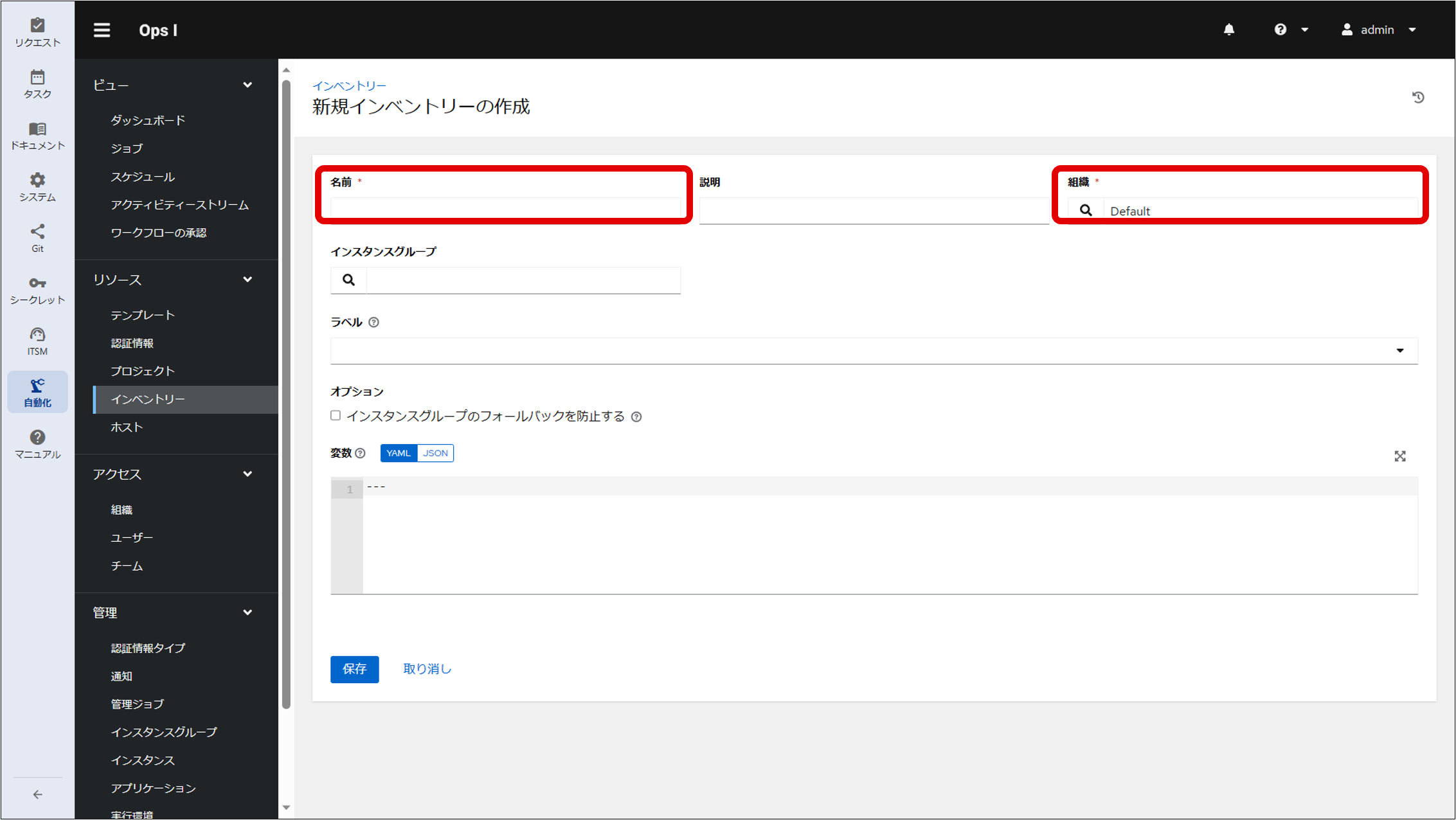
(Table) List of information to be entered in the Create new inventory window
| Item | Description |
|---|---|
| Name | Inventory name |
| Organization | Click the  icon to display a list of registered organizations. Select the organization you want by putting a check in the radio button and clicking the "Select" button. Users who belong to the selected organization can view, edit, and execute this inventory. icon to display a list of registered organizations. Select the organization you want by putting a check in the radio button and clicking the "Select" button. Users who belong to the selected organization can view, edit, and execute this inventory. |
3. Click the "Save" button after entering the required information.
4. When the Details window appears, select "Hosts" from the tabs on the detail window and then click the "Add" button to display the window for creating a new host. Enter any information and register the host that will execute the job.
(Figure) Create new host window
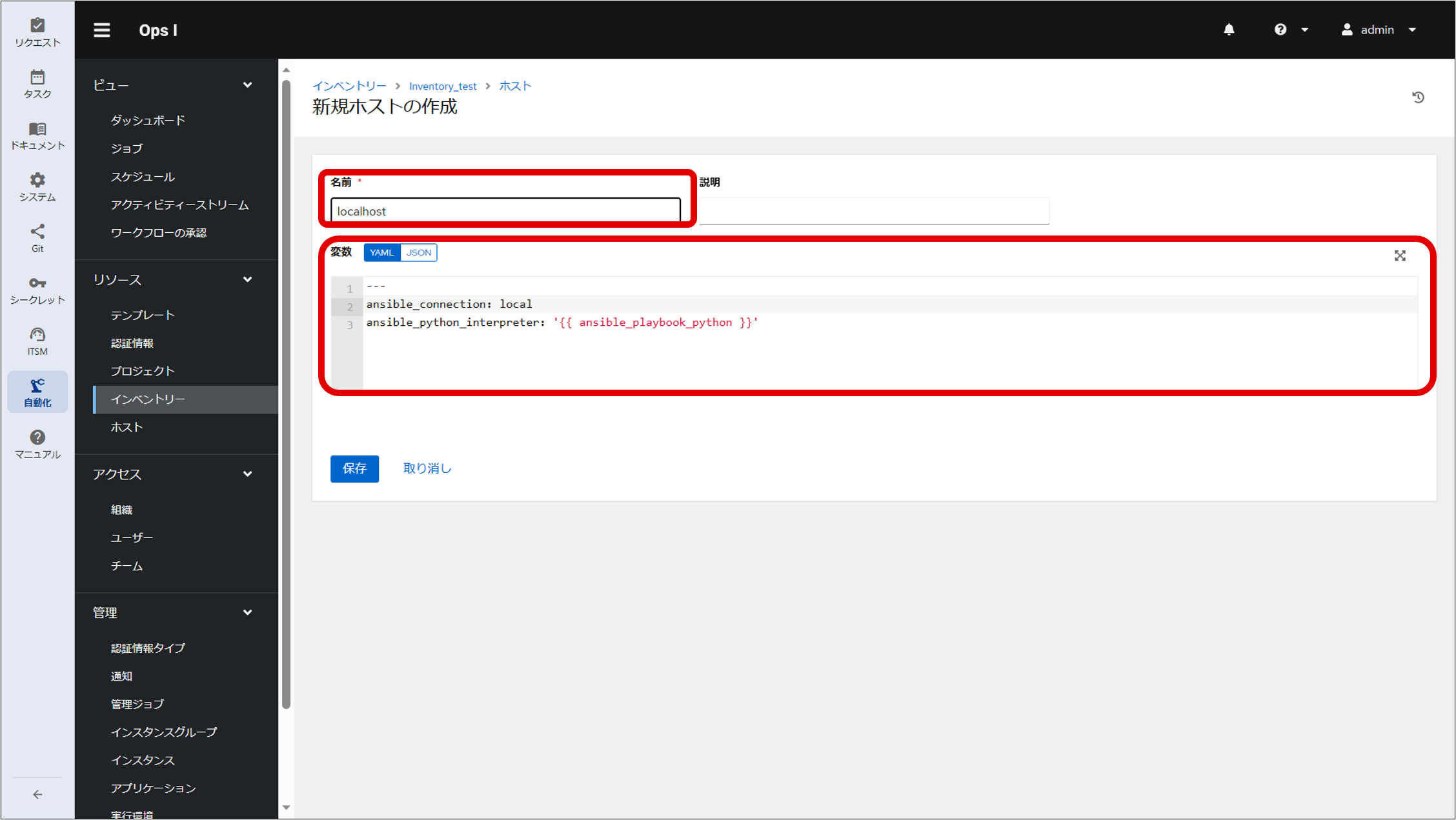
(Table) List of information to be entered in the Create new host window
| Item | Description |
|---|---|
| Name | Specify the host name or IP address. |
| Variables | Specify the variable and value to be passed to AWX when executing the job. |
An example of registering localhost as the host* is as follows.
(Table) Example of registering localhost as the host
| Item | Description |
|---|---|
| Name | localhost |
| Variables | ansible_connection: local ansible_python_interpreter: '{{ ansible_playbook_python }}' |
*The job will be executed on the relay server if executed on the relay server, otherwise, it will be executed on the Ops I server.
5. Click the "Save" button after entering the required information.