4.9.2.1 Monitoring deterrence
The linkage templates allow Ops I to be linked with the JP1/IM system management functions, and to obtain and update the JP1/IM setting file called “common exclusion conditions extension definition file (common_exclude_filter.conf)”. This allows JP1/IM jobs to be executed from Ops I workflows for control over the start and cancellation of monitoring deterrence according to specific conditions. For example, this can be used to prevent alerts from being generated when stopping the server for maintenance.
For linkage with JP1/IM, Ops I provides the following. (These are hereinafter collectively referred to as “linkage templates”.)
- YAML files for the Workflow etc. that define what to execute for JP1/IM event monitoring deterrence etc.
- Provided Ops I components used for defining the Workflow
- Playbooks that implement linkage with JP1/IM
For information on the provided YAML files, see “Obtaining and registering linkage templates”. For information on playbooks, see Step 5 in “Registering authentication information and job templates with AWX”. The following is a list of the provided Ops I components.
(Table) Provided Ops I components (for JP1/IM linkage)
| Provided Ops I component | Description |
|---|---|
| im.apply_common_exclusion_conditions_file | Update the common exclusion conditions extension definition file* |
| im.get_common_exclusion_conditions_file | Obtain the common exclusion conditions extension definition file* |
| im.set_common_exclusion_conditions_valid | Enable/disable the common exclusion conditions definition |
There are two types of parameters of the provided Ops I components: one that is defined in the workflow YAML file and one that is entered via the GUI when the workflow is executed. Follow the following instructions.
The flow of JP1/IM linkage template execution is as follows.
(Figure) Flow of JP1/IM linkage template execution
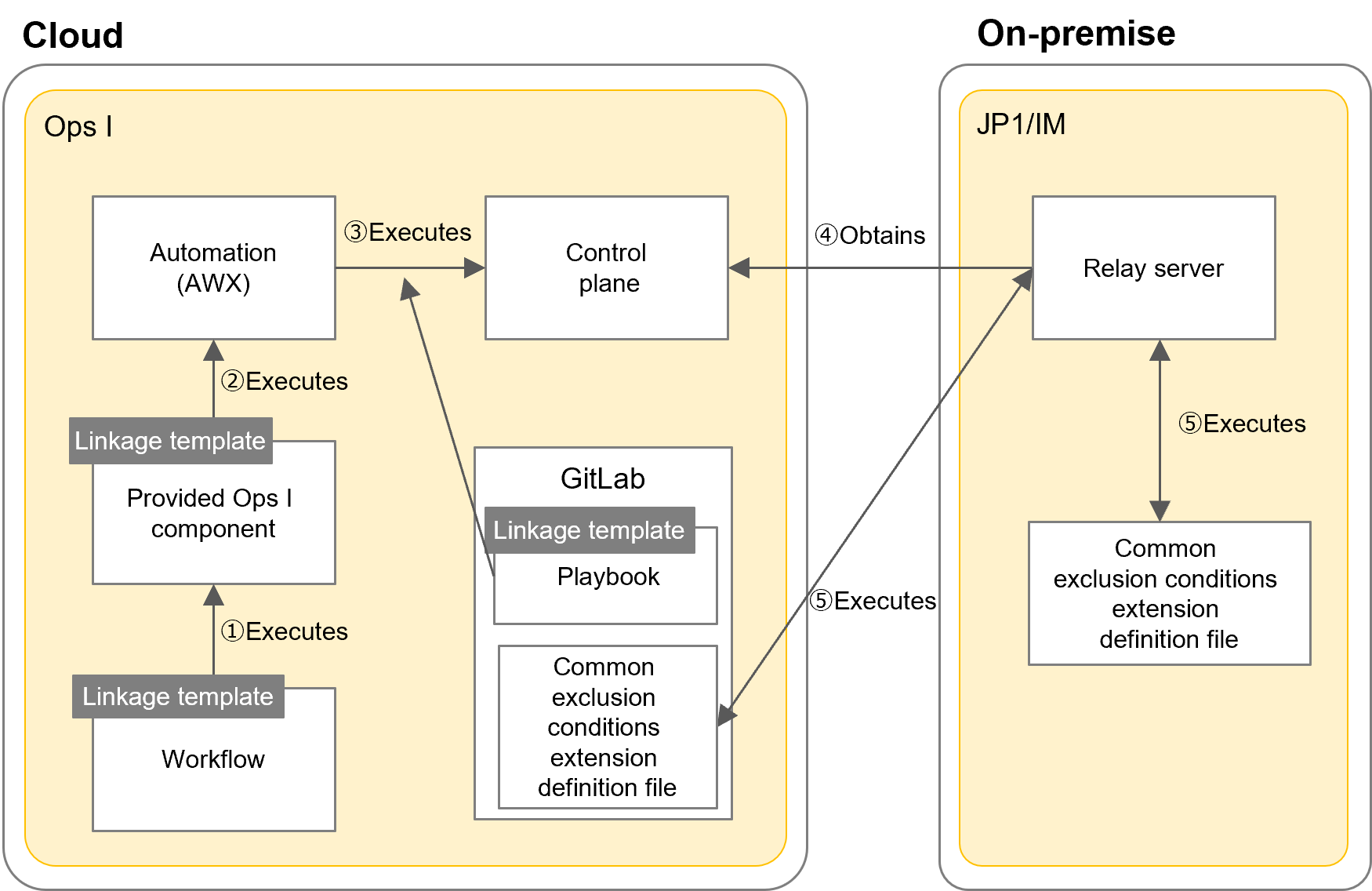
The flow of JP1/IM linkage template execution is as follows.
For Steps ①, ②, and ③, the JP1/IM linkage templates are used. The playbook for Steps ① and ③ can be customized according to what to execute.
The playbook is registered in the control plane.
Acquisition and update of the JP1/IM common exclusion conditions extension definition file occur between GitLab and the relay server.
(1) Prerequisites
Users who execute the linkage templates must be granted necessary roles. For details on the Ops I roles, see “OPS I Roles”.
JP1/IM must meet the following prerequisites. These prerequisites are the same as the linkage with “JP1/AJS3” job management function.
(Table) Prerequisites for JP1/IM (on-premise)
| Supported OS | Prerequisites |
|---|---|
| Windows Server | ・Ops I relay servers can connect to JP1/IM servers using WinRM.
・PowerShell 5.1 or later is installed.・.NET 4.0 or later is installed. |
In addition, the following conditions must be met to use the jcochfilter command in the linkage templates.
- Set the operation mode of JP1/IM common exclusion conditions to the extended mode. When not set to the extended mode, the JP1/IM linkage templates cannot be used because the common exclusion conditions extension definition file (common_exclude_filter.conf) does not exist.
- Do not use additional common exclusion conditions for JP1/IM. When the common exclusion conditions are changed from Ops I, the JP1/IM common exclusion conditions extension definition file (common_exclude_filter.conf) is overwritten, resulting in the contents other than the settings added in JP1/IM being deleted.
- The JP1/IM common exclusion conditions should not be changed using JP1/IM - View or JP1/IM commands. Such changes must be made in operations using Ops I. When Ops I and JP1/IM operate the file at the same time, file accesses may conflict and the process may not work properly.
(2) Settings for executing JP1/IM linkage templates
The settings for JP1/IM linkage template execution are as follows.
The following settings need to be made.
Configure the connection settings between the AWX instance group and the relay server. (See “Setting a relay server”.)
After the connection settings are configured, confirm that the status of the node for the relay server shows “Ready” on the node list window.
[b. Creating AWX “organizations”]
Create AWX “organizations” necessary to use AWX. (See “Organization management”.)
[c. Saving JP1/IM connection/authentication information in Secret Management]
First, obtain authentication information for accessing the Secret from Automation (AWX). See “Obtaining authentication information for accessing the Secret from Automation” for how to create it.
Next, register secret information required to run the provided Ops I components for the organizations created at “Creating AWX “organizations””. The following shows the secret information settings required for each application.
For information on creating secrets engines and secrets, see the following.
- Secrets engine: “Creating a secrets engine”
- Secret: “Creating a secret”
Set the following keys.
- access_token (Access token to access the GitLab repository. For details on GitLab access tokens, see "Obtaining GitLab access tokens".)
Set the following keys.
- password (Ops I password to access AWX)
- user_name (Ops I user name to access AWX)
Set the following keys.
- logical_host_name (logical host name) *arbitrary
- manager (IP address where JP1/IM-Manager is running)
- password (OS password used to log in to the JP1/IM server)
- user_name (OS user name used to log in to the JP1/IM server)
Set the following keys.
- username (The user name for obtaining Ops I access tokens)
- password (The user password for obtaining Ops I access tokens)
- domain (Ops I FQDN (Example: "tenant name.ops-integration.com"))
Set the following keys.
- opsi_token (Ops I token for users who can execute the APIs "GET /documents", "GET /container-items", and "POST /container-items/{id}/files")
- opsi_domain (Ops I domain name)
[d. Registering authentication information and job templates with AWX]
Configure the following AWX settings required to execute the JP1/IM linkage templates. (See “Automation”.)
Authentication information type "HashiCorp Vault Secret Lookup"
Authentication information type "Source Control"
Authentication information type "IM Credential type"
For the name, use the path to the JP1/IM secret registered at Step 3 in "Saving JP1/IM connection/authentication information in Secret Management". (Example: secrets/im/host0001)
For the details of the type, specify the Vault authentication information registered at ①, similarly to ②. For other fields, see "(Table) List of external secret management system metadata to enter". The value of "logical_host_name" is arbitrary.
Authentication information type "OpsI Credential Type"
For the name, use the path to the credential secret registered at Step 5 in "Saving JP1/IM connection/authentication information in Secret Management". (Example: secrets/opsi/user/opsi_token)
For the details of the type, specify the Vault authentication information registered at ①, similarly to ②. For other fields, see "(Table) List of external secret management system metadata to enter". However, since "username" and "password" are not used here, there is no need to enter them.
See "Using a relay server".
When the optional checkbox "Revision update on startup" is selected and the playbook is updated, the updated playbook is automatically executed.
---
ansible_connection: winrm
ansible_ssh_port: 5986
ansible_winrm_transport: basic
ansible_winrm_server_cert_validation: ignore
ansible_user: "{{ lookup('env','im_user_name') }}"
ansible_password: "{{ lookup('env','im_password') }}"
The items to enter to register job templates are as follows.
(Table) Items to enter to register job templates
| Item | Description | ||||||||
|---|---|---|---|---|---|---|---|---|---|
| Name | Enter an arbitrary name. The default values defined for the provided Ops I components are as follows. When changing the job template name, ensure that it matches the job template name defined in the Workflow YAML file.
|
||||||||
| Job type | Select "execution". | ||||||||
| Inventory | Click the  icon and select the inventory registered at Step 3 above. icon and select the inventory registered at Step 3 above. |
||||||||
| Project | Click the icon and select the project registered at Step 2 above. |
||||||||
| Execution environment, instance group, and authentication information | Make settings referring to "Using a relay server". | ||||||||
| Playbook | Set the playbook for the JP1/IM job template for the provided components that you wish to execute, which is registered in the "system" repository for the "system" group. Make settings referring to the playbook name in "(Table) List of actions (provided Ops I components for JP1/IM coordination)". When customizing the playbook, download it from the "system" repository for the "system" group, customize it, push it to any repository in Ops I (for which YAML file management is enabled), and then set the customized playbook as the job template. |
||||||||
| Startup prompt | Select the [Authentication Information] and [Variables] checkboxes. |
(3) Obtaining and registering linkage templates
To execute the JP1/IM linkage templates, obtain the templates and register them in the repository. For the JP1/IM linkage templates, a zip file containing the YAML files for the Workflow, Catalog, UI, and Datamodel are stored in GitLab. Each of the YAML files defines what to execute for JP1/IM jobs. Users can customize jobs to execute, secret information, etc. as needed.
[Obtaining the JP1/IM linkage templates]
Obtain the JP1/IM linkage templates from the following location in GitLab. The “system” repository appears in the [Explore] tab of the Git application.
(Table) Location and file name of the JP1/IM linkage templates
| Group | Repository | Directory | File name |
|---|---|---|---|
| system | system | integration templates/JP1 | JP1_integration_templates.zip |
[Definitions in the Workflow YAML file]
To execute the provided Ops I components from the workflow, define the provided Ops I components for “action” and parameters for “input” in the Workflow YAML file as follows. For each parameter, define the secret information created in “Creating a secret”. Always use the latest version of the secret.
For details on the provided Ops I components and parameters, see “(Table) List of actions (provided Ops I components for JP1/IM coordination)”.
(Table) Definitions of “action” and “input” for the Workflow
| Label | Description | |
|---|---|---|
| action: | Provided Ops I components for JP1/IM to be executed | |
| input: | For each parameter, enter the following values set in "Saving JP1/IM connection/authentication information in Secret Management". | |
| awx_vault_... | For the parameters starting with "awx_vault_...", define the secrets engine name and path to the secret to access AWX. | |
| im_vault_... | For the parameters starting with "im_vault_...", define the secrets engine name and path to the secret to access the JP1/IM server. | |
| job_template_... | For the parameters starting with "job_template...", define the AWX job template information. | |
[Registering the YAML files in the repository]
Register the Workflow YAML file that defines the provided Ops I components to execute and the obtained Catalog, UI, and Datamodel YAML files in any repository. YAML file management must be enabled for the repository. For information on YAML file management in repositories, see “Repository management”. The directories in the destination repository must be the same as the folder structure of the obtained JP1/IM linkage templates. The directory structure of the repository is as follows.
(Figure) Directory structure of the repository for linkage with JP1/IM
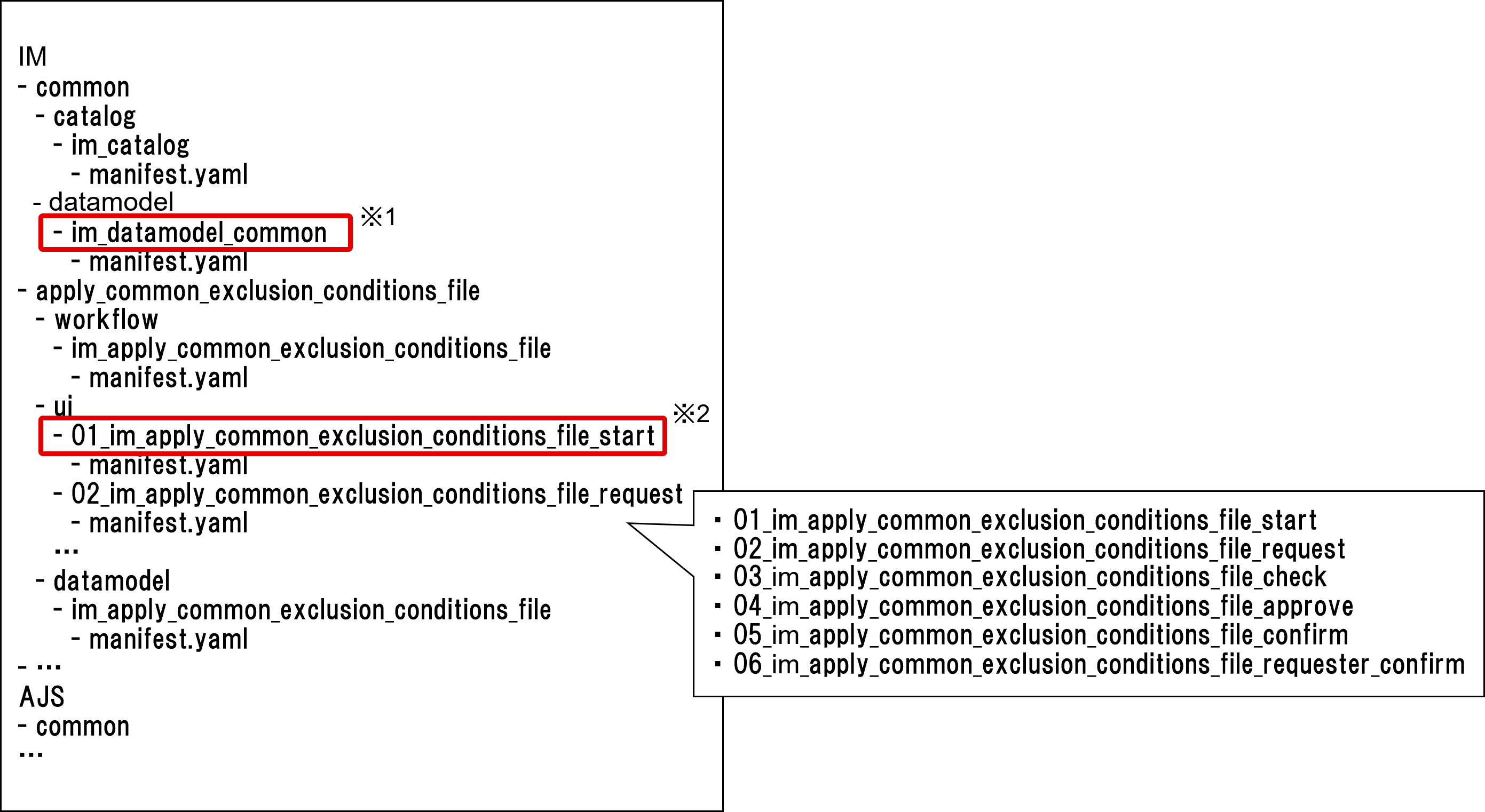
The YAML files to be registered have dependencies. When you register all the YAML files in GitLab at the same time, you do not have to be careful about the dependencies, but when you register the YAML files one at a time, register the Script, Datamodel, UI, Workflow, and Catalog YAML files in that order. The word "register" here refers to "commit" via GUI and "push" via CUI.
(4) Location of common exclusion conditions extension definition file
Prepare a storage location for files obtained when the JP1/IM linkage template “Obtain the common exclusion conditions extension definition file” is extended, as follows.
Recommendations on storing the definition file are as follows.
■ User group
- Specify a group to which users with the following Pre-Installed roles assigned for displaying and operating the repository management window belong so that the definition file can be edited.
・System Administrator
・Site Reliability Engineer - Specify a user group with the Git role “Maintainer” so that the repository list can be displayed in the repository management window.
- If multiple systems are managed with Ops I and there are multiple JP1/IM systems, store the file for each user group with necessary roles assigned and in each repository.
■ Container name, container item folder name, and directory path in container item folder
- Container name: JP1/IM
- Container item folder name: Common Exclusion Conditions File
- Directory paths in container item folder: Separate directories for each JP1/IM server
jp1im_B/common_exclude_filter.conf …
(5) Proxy settings for relay server
When using a proxy for the relay server, do the following.
[Modification of AWX host]
Modify the AWX host of the inventory set up for JP1/IM at Step 4 of “Registering authentication information and job templates with AWX”. Set variables referring to the following example.
---
ansible_connection: local
ansible_python_interpreter: '{{ ansible_playbook_python }}'
https_proxy: "{Proxy URL to Use}"
[Addition of IP block]
Follow the following steps to add an IP block and associate it with a node group.
(6) Executing linkage templates and checking results
Execute the JP1/IM linkage templates from the service catalog registered in “Obtaining and registering linkage templates”. Details on each execution step are as follows.
The following is a detailed description of each execution step, using the case of “Obtaining and applying common exclusion condition extension definition file” as an example. For details on the information to input and information displayed, see “Input fields on workflow details window”.
(Table) Details of each execution step
| Step | Worker | Description | |
|---|---|---|---|
| 1 | Start the service catalog | Requester | Click the catalog item in which the JP1/IM job is defined. |
| 2 | Start the workflow | Requester | The guidance window for the workflow is displayed. Confirm the displayed information and click the [Start Request] operation button. |
| 3 | Specify the location of the common exclusion conditions extension definition file | Requester | In the request window for the workflow, specify where to store the common exclusion conditions extension definition file and click the [Obtain Definition File] operation button. |
| 4 | Obtain the common exclusion conditions extension definition file | Autorun | Obtain the common exclusion conditions extension definition file from JP1/IM. The obtained definition file will be stored in the specified path in the container item folder. |
| 5 | Update the common exclusion conditions extension definition file | Requester | Update the obtained common exclusion conditions extension definition file. For details, see "Updating common exclusion conditions extension definition file". |
| 6 | Make a request | Requester | In the request window for the workflow, click the [Request] operation button. The [Request] button is activated when the status of the common exclusion conditions extension definition file acquisition is "successful". |
| 7 | Review request information | Operations agent | Review the request information and click [Confirmed] or [Rejected] operation button depending on the result of the review. |
| 8 | Approve request information | Operation manager | Review the request information and click [Approved] or [Rejected] operation button depending on the result of the review. When the [Approved] operation button is clicked, the JP1/IM job is automatically executed and the updated common exclusion conditions extension definition file is applied. |
| 9 | Review results after completion of workflow | Requester | Review the results of Steps 1 to 8 and click the [Confirmed] operation button. |
(7) Updating common exclusion conditions extension definition file
The common exclusion conditions extension definition file is used when starting or cancelling monitoring deterrence with the jcochfilter command. The following is an example of updating the common exclusion conditions extension definition file obtained through a workflow execution.
(Figure) Example of updating common exclusion conditions extension definition file
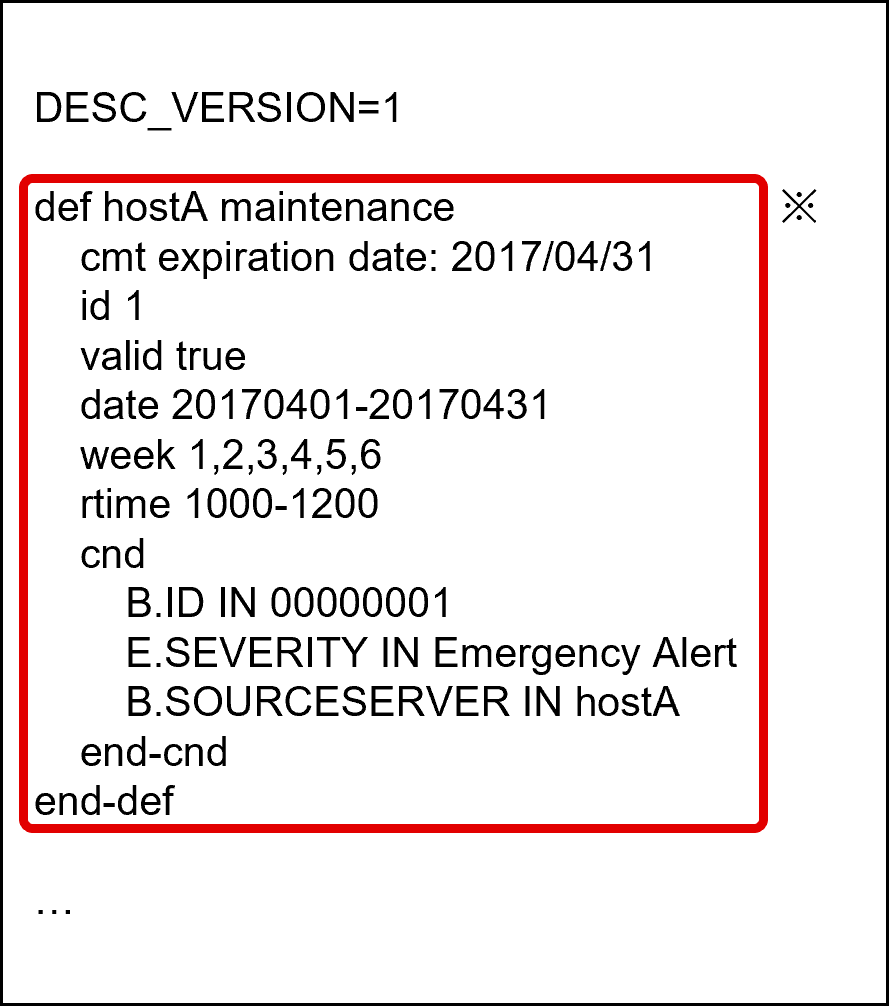
To suppress monitoring of the server (server events) before starting server maintenance, add the block from “def” to “end-def” in “*” in the above figure and specify conditions that match the server in “cnd” (event conditions).
(8) Input fields on workflow details window
The input items on the workflow details window are as follows. In these input fields, the parameters for the provided Ops I components are displayed. Depending on the step, the displayed items vary and the fields become editable or uneditable.
Details of the items that the requester enters are as follows.
(Table) Input fields for requester
| Item | Required | Description | |
|---|---|---|---|
| JP1/IM connection information | Yes | Specify the path to the secret to access the JP1/IM server registered at Step 3-② in "Saving JP1/IM connection/authentication information in Secret Management". | |
| Location of the common exclusion conditions extension definition file | - | Specify where to store the obtained common exclusion conditions extension definition file. For details on what to specify, see "Location of common exclusion conditions extension definition file". | |
| Group path | Yes | Specify the group path of the destination. | |
| Repository | Yes | Specify the repository name of the destination. | |
| Container name | Yes | Specify the container name of the destination. | |
| Container item name | Yes | Specify the container item folder name of the destination. | |
| Directory path | Yes | Specify the directory path in the container item folder of the destination. | |
| File URL | No | Automatically populated when the requester clicks the [Obtain Definition File] button and the status of the acquisition operation becomes "successful". This is for reference only. | |
| Comments to operations agent and manager | No | Enter comments to operations agent and manager. | |
Details of other items are as follows.
| Item | Required | Description | |
|---|---|---|---|
| Obtain the common exclusion conditions extension definition file | - | The result of obtaining the common exclusion conditions extension definition file is displayed. This is for reference only. | |
| Status | No | Displays the status. | |
| Execution result | No | Displays the execution result. | |
| Job URL | No | Displays the job URL. | |
| Reason for rejection | - | Field for the operation agent or manager to enter the reason for rejection. | |
| Reason for rejection (for operation agent) | No | Field for the operation agent to enter the reason for rejection. | |
| Reason for rejection (for operation manager) | No | Field for the operation manager to enter the reason for rejection. | |
| Apply the common exclusion conditions extension definition file | - | The result of applying the common exclusion conditions extension definition file is displayed. This is for reference only. | |
| Status | No | Displays the status. | |
| Execution result | No | Displays the execution result. | |
| Job URL | No | Displays the job URL. | |