3.6.2 Change a secret
The secret can be changed in the following ways.
(1) Changing a secret by incrementing the version
(2) Deleting and recreating a secret
If the secret is changed by incrementing the version, the secret version will be changed. If the secret version is specified in the Workflow YAML file, it must always match the specified secret version. For an example of the Workflow YAML file when specifying the secret version, see “Register user credential information”.
(1) Changing a secret by incrementing the version
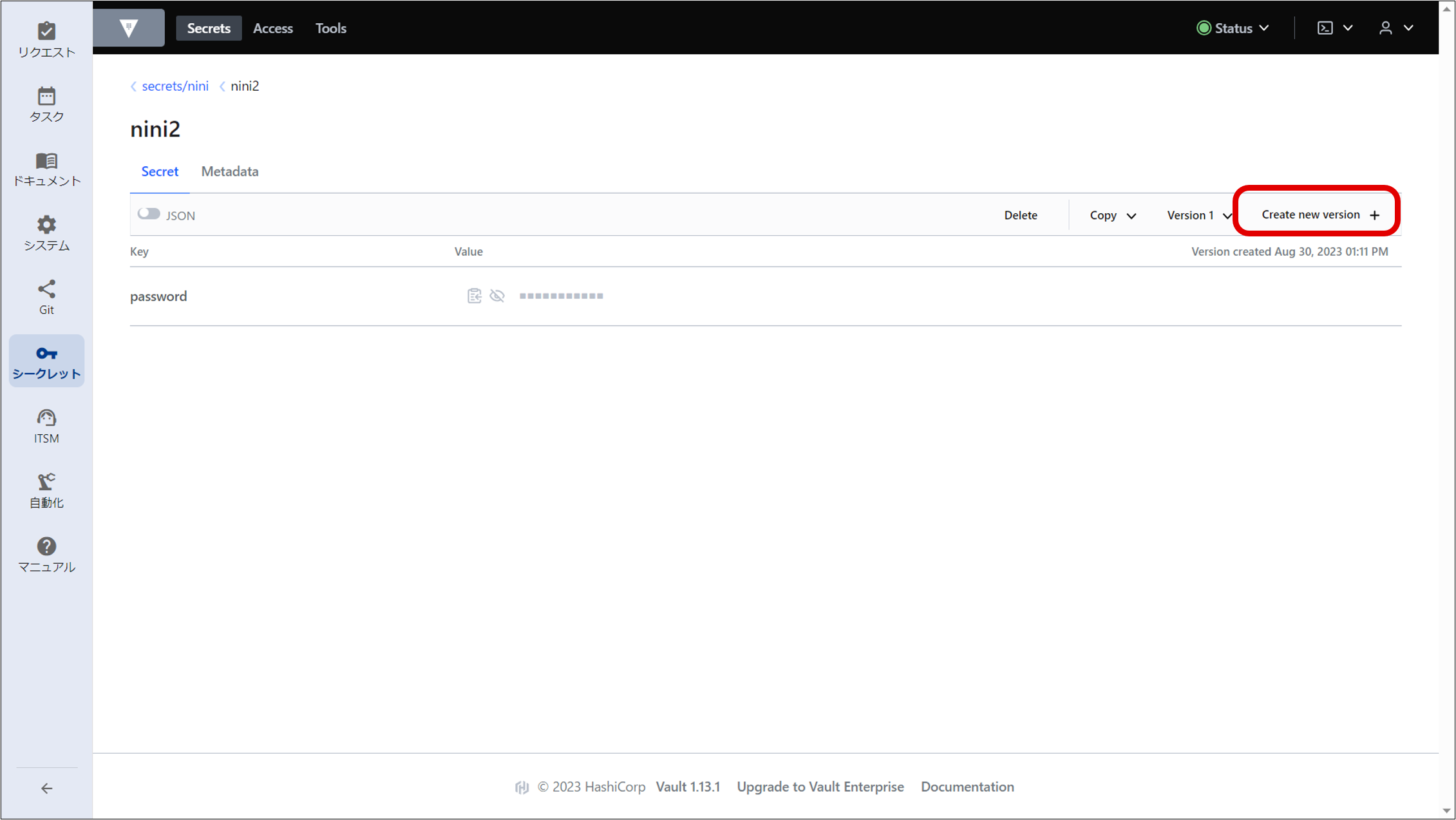
Display the registered secret information registration window and click “Create new version”.
(Figure) Secret information registration window (for new version creation)
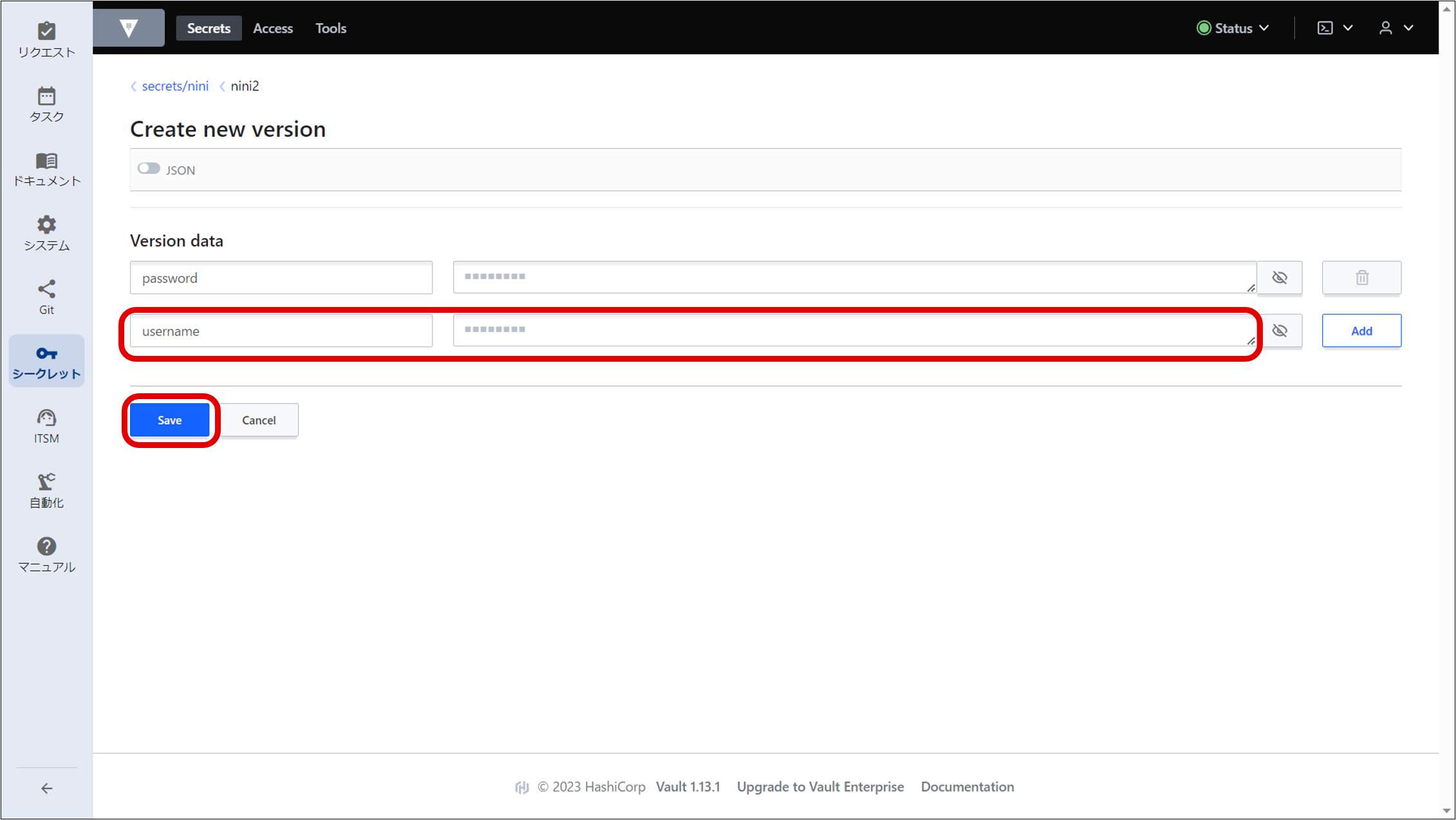
Enter the “Version data” then click “Save”. To add more, click “Add” to enter multiple entries.
(Figure) Secret new version details entry window
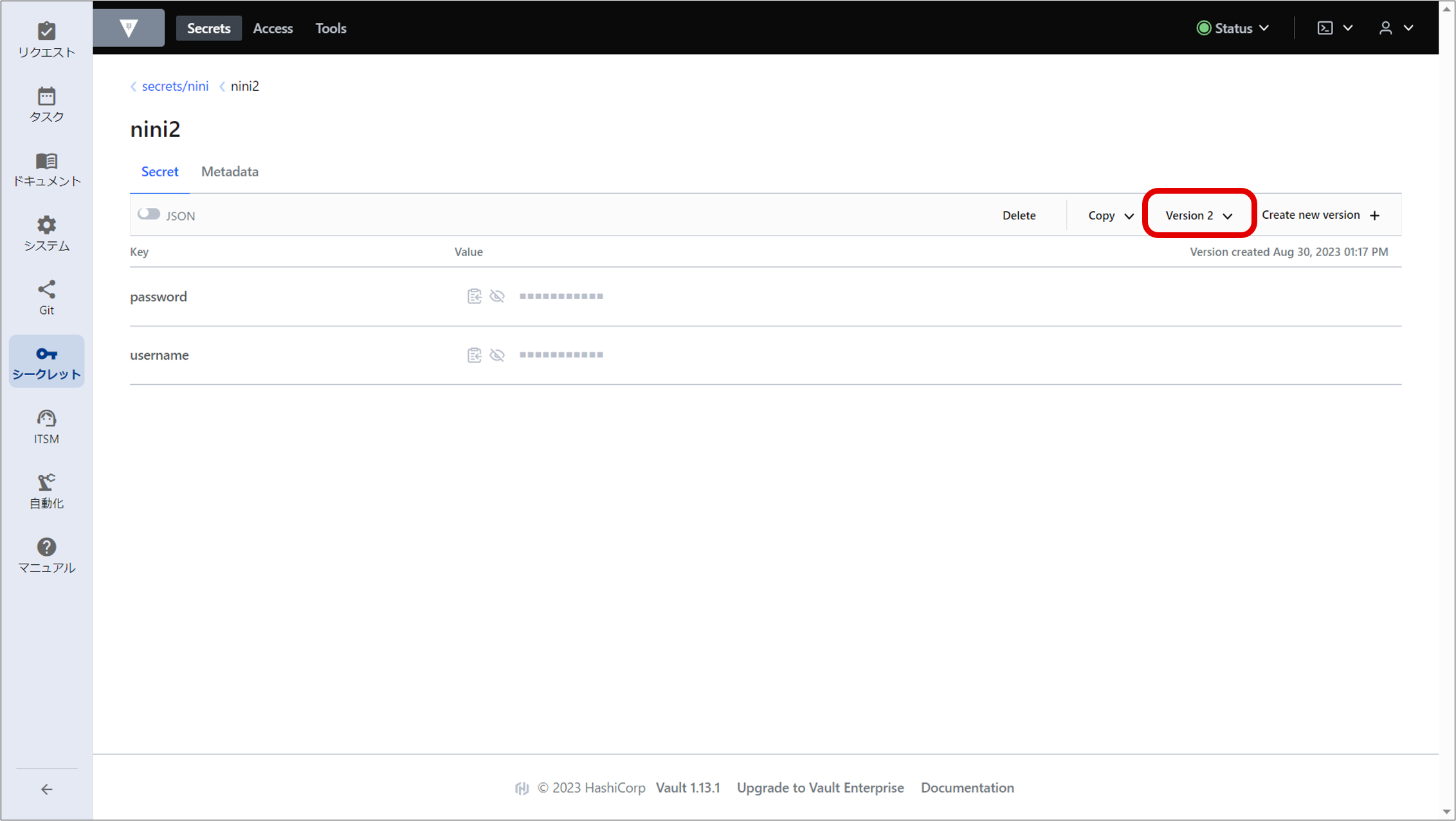
Version 2 was created.
(Figure) Secret information registration window (for completion of new version creation)
(2) Deleting and recreating a secret
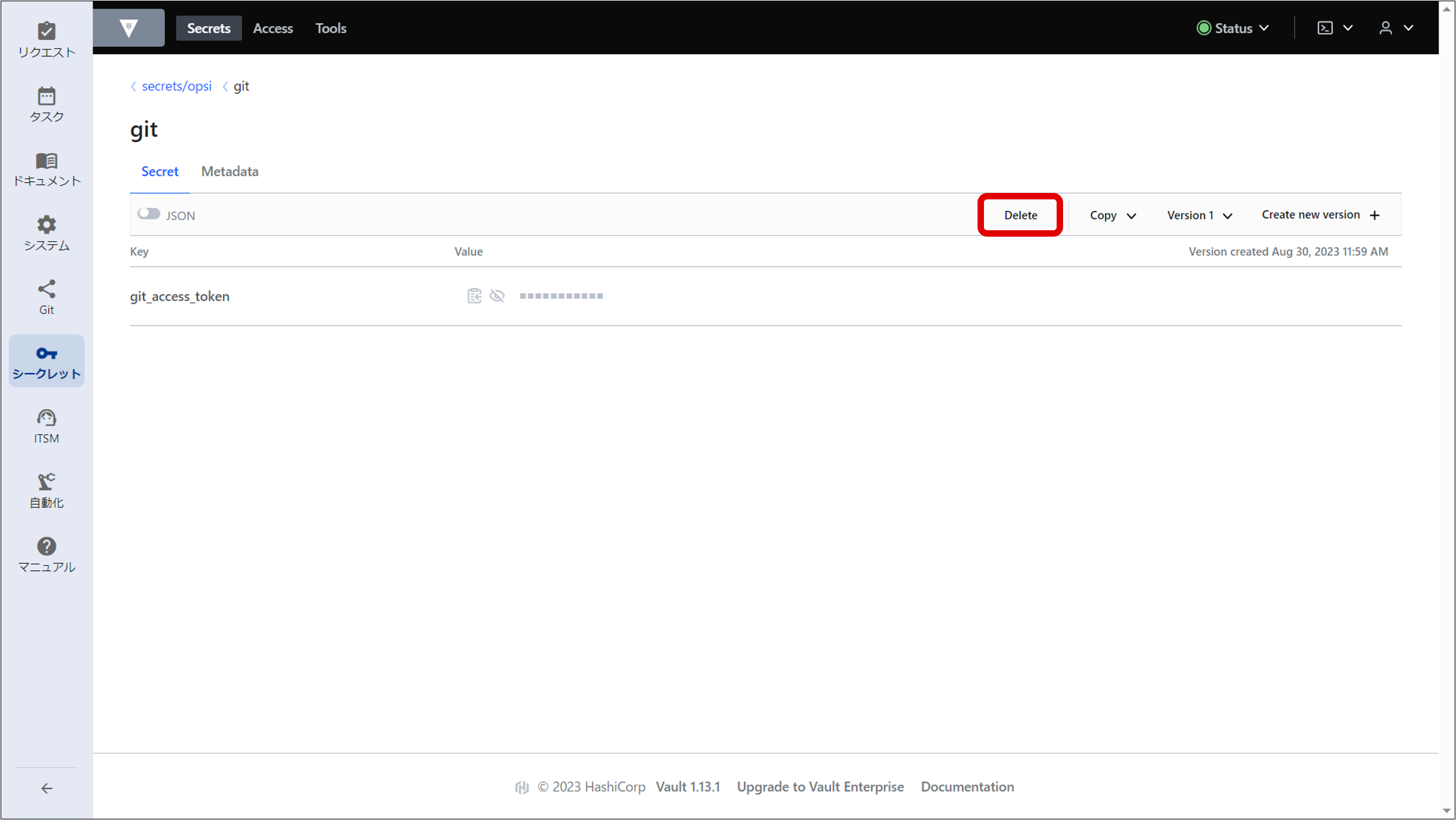
Display the registered secret information registration window and click “Delete”.
(Figure) Secret information registration window (deletion window)
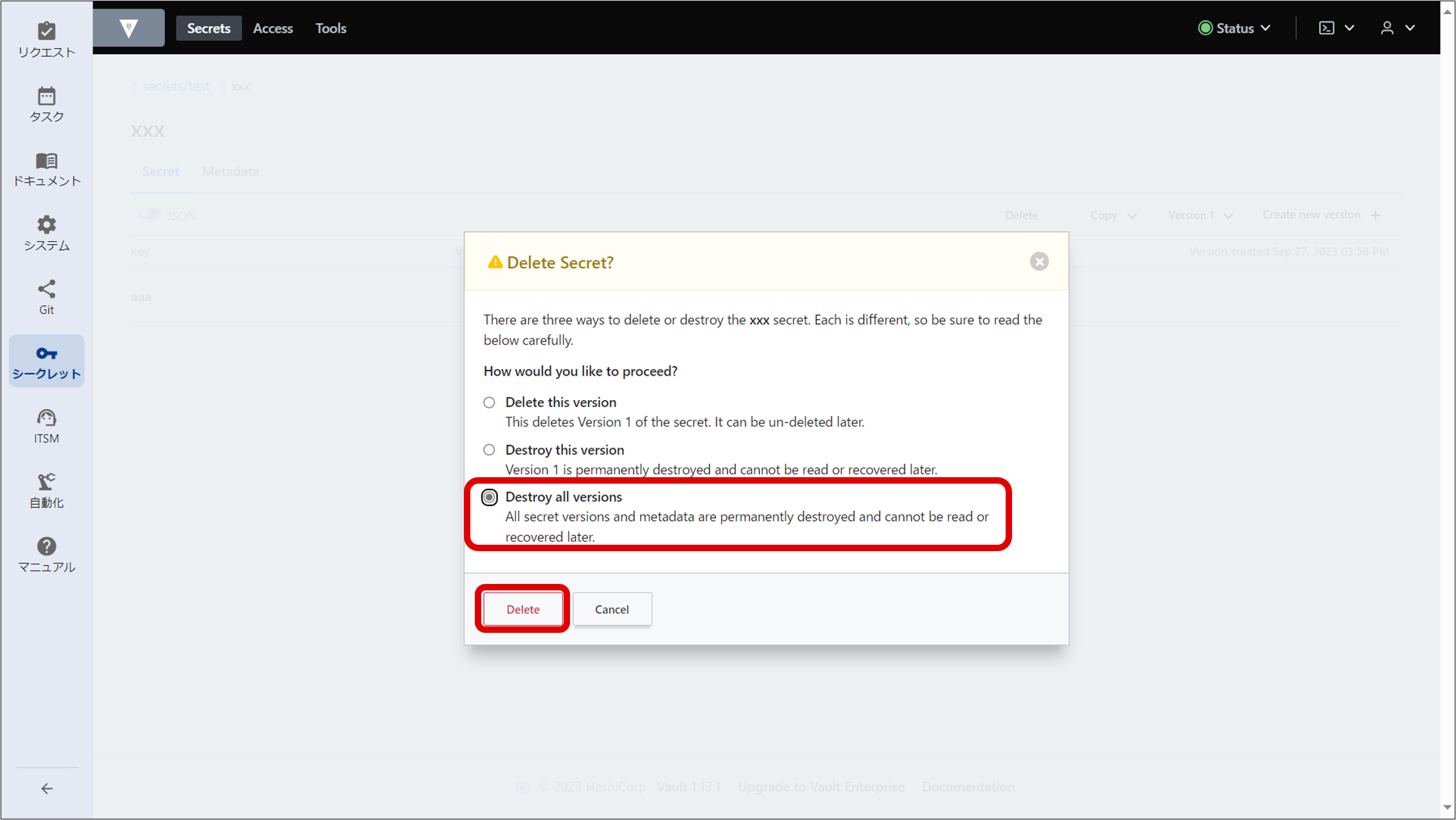
Select “Destroy all versions” for the deletion method and then execute.
(Figure) Secret deletion method selection window
Recreate the secret. For the secret creation method, see “Creating a secret” and “Obtaining authentication information for accessing the Secret from Automation”.