4.3.10.5 Installing themes
This section describes how to install and modify themes other than [Lightning].
[How to install and change the theme]
The following is a step-by-step guide on how to install and modify the theme.
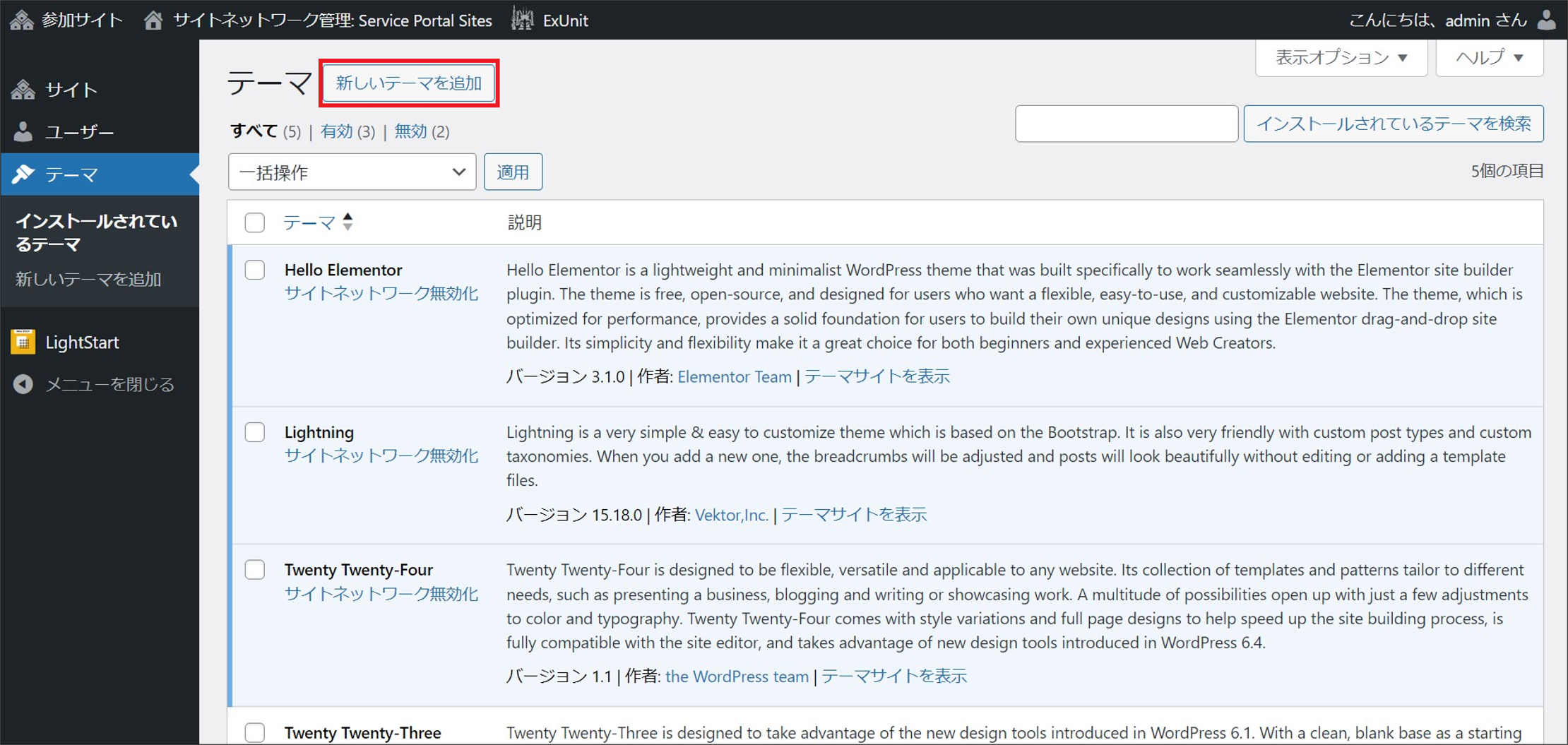
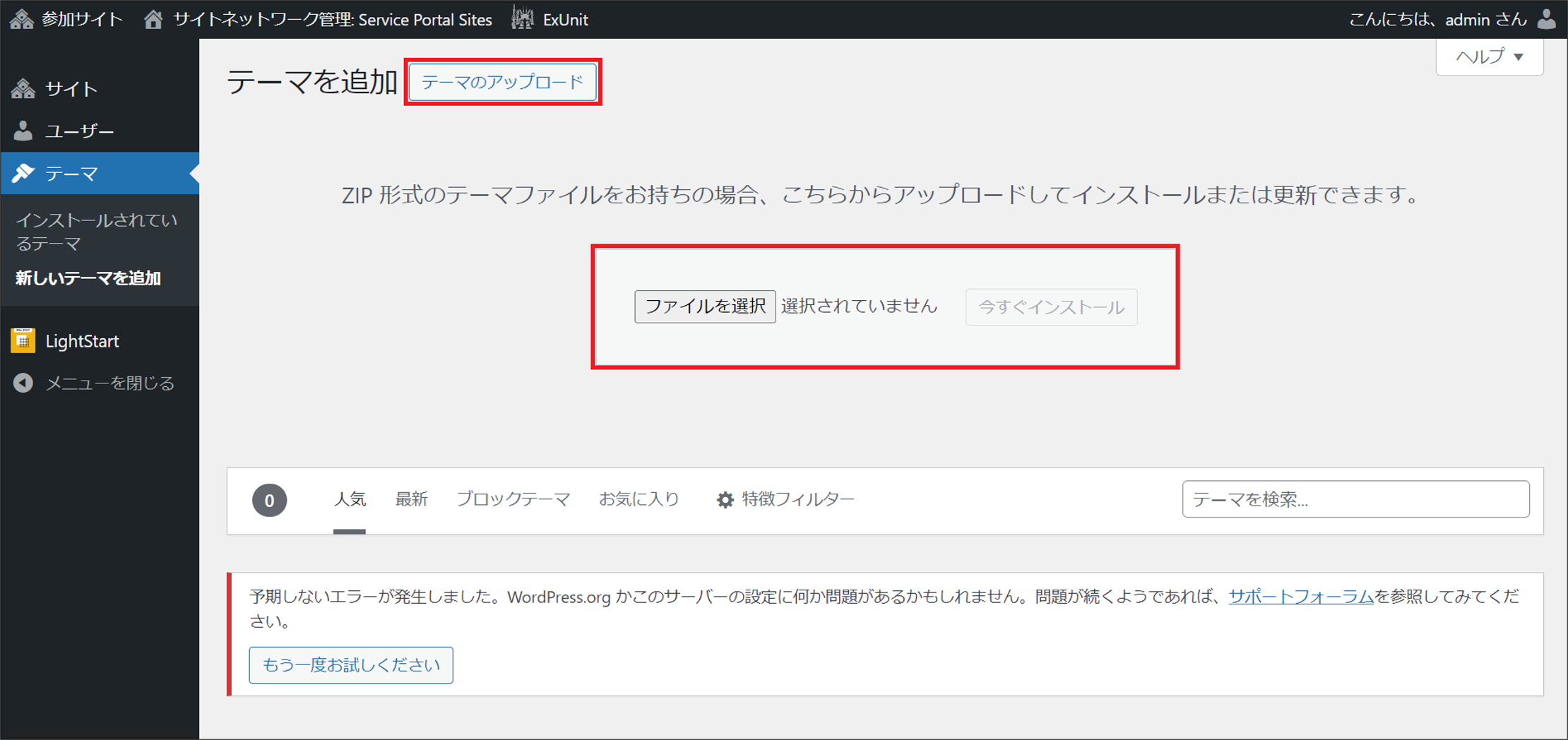
① Download the zip file of the theme from WordPress (wordpress.org) in advance. The site network administrator uploads the downloaded theme file from [Themes] on the [Network Admin] window.
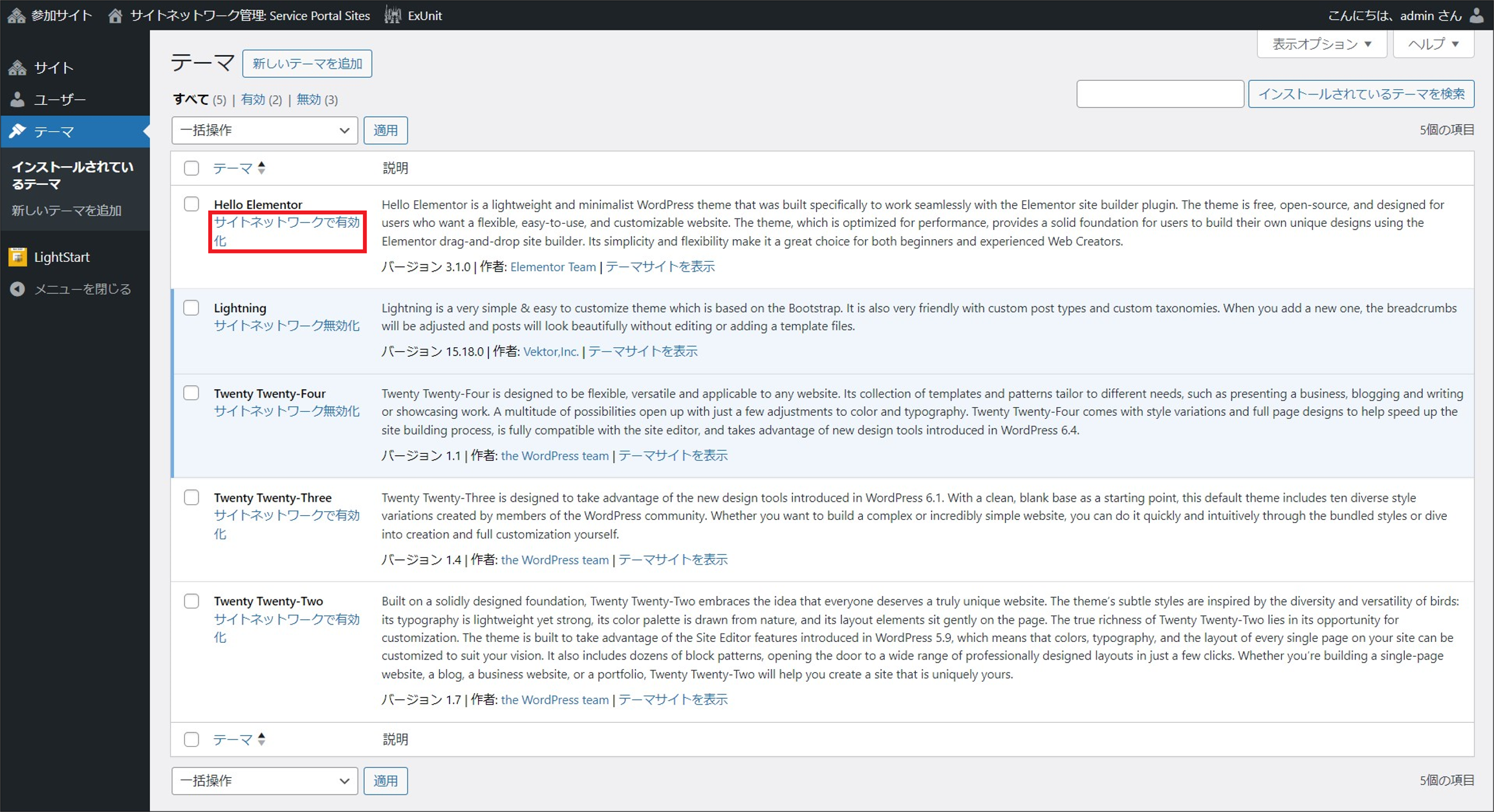
② The site network administrator can enable a theme by clicking [Network Enable] for the installed theme from [Themes] on the [Network Admin] window.
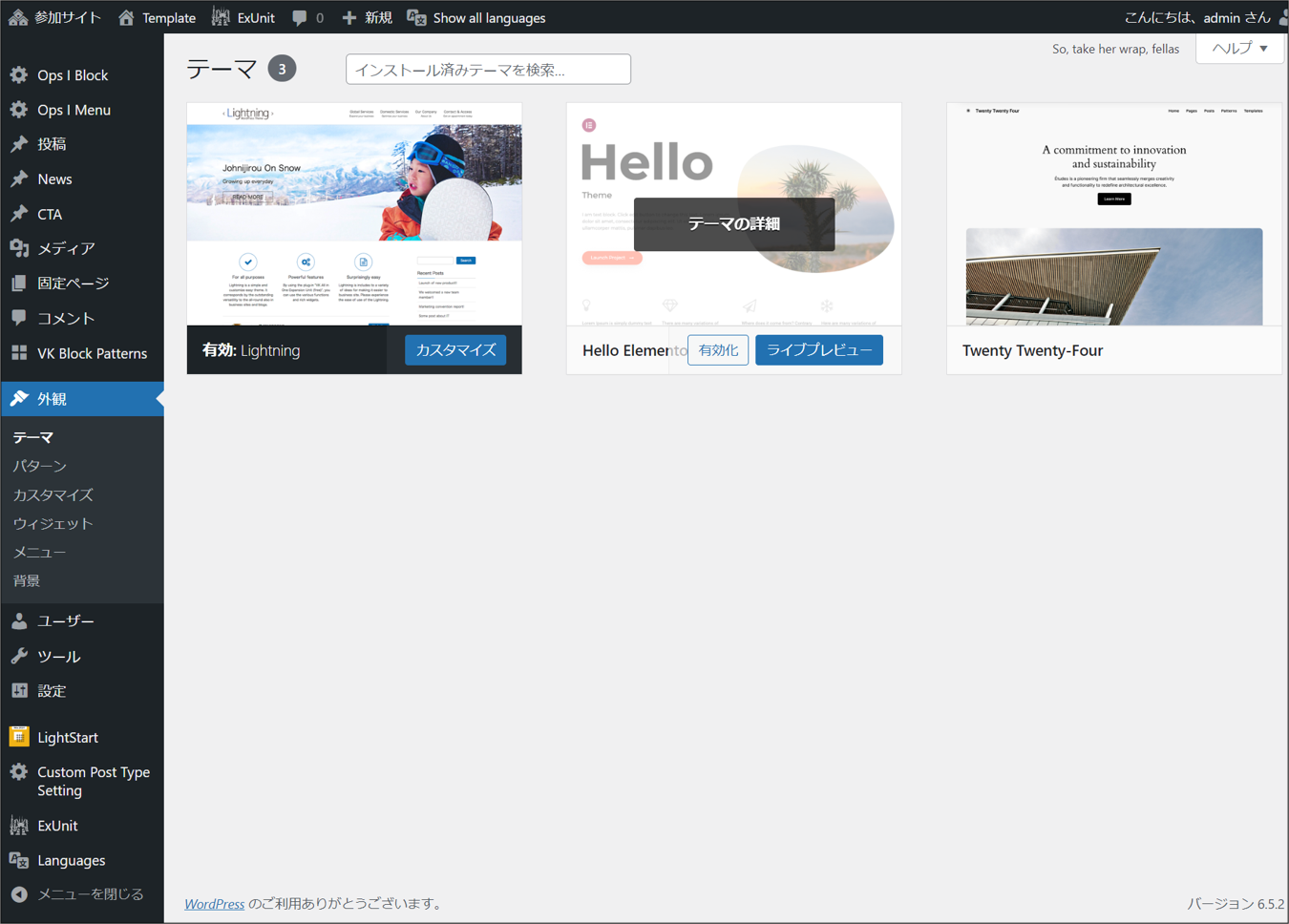
③ Site network administrators and site administrators can change the theme of the site from [Appearance] - [Themes] on the site.
 Notes
Notes
- Themes cannot be installed directly from the [Network Admin] window. Download the zip file from WordPress (wordpress.org) and then upload it.
- It is not possible to transfer to the paid version of the [Lightning] theme.
- [Lightning] Generation 3 is provided. Do not switch generations in [Lightning Function Settings]-[Generation Setting] under [Appearance]-[Customize].
- On the [Themes]-[Add New Theme] window on the [Network Admin] window the message "An unexpected error has occurred" is displayed, but this does not affect theme installation.