4.3.10.8 Log out from Ops I
There are two ways for customer and requester users to log out of Ops I on the site window, depending on whether the site theme is [Lightning] or not.
If the site theme is [Lightning], “Ops I Menu” is available, so you can log out from [Ops I Menu]-[Log Out].
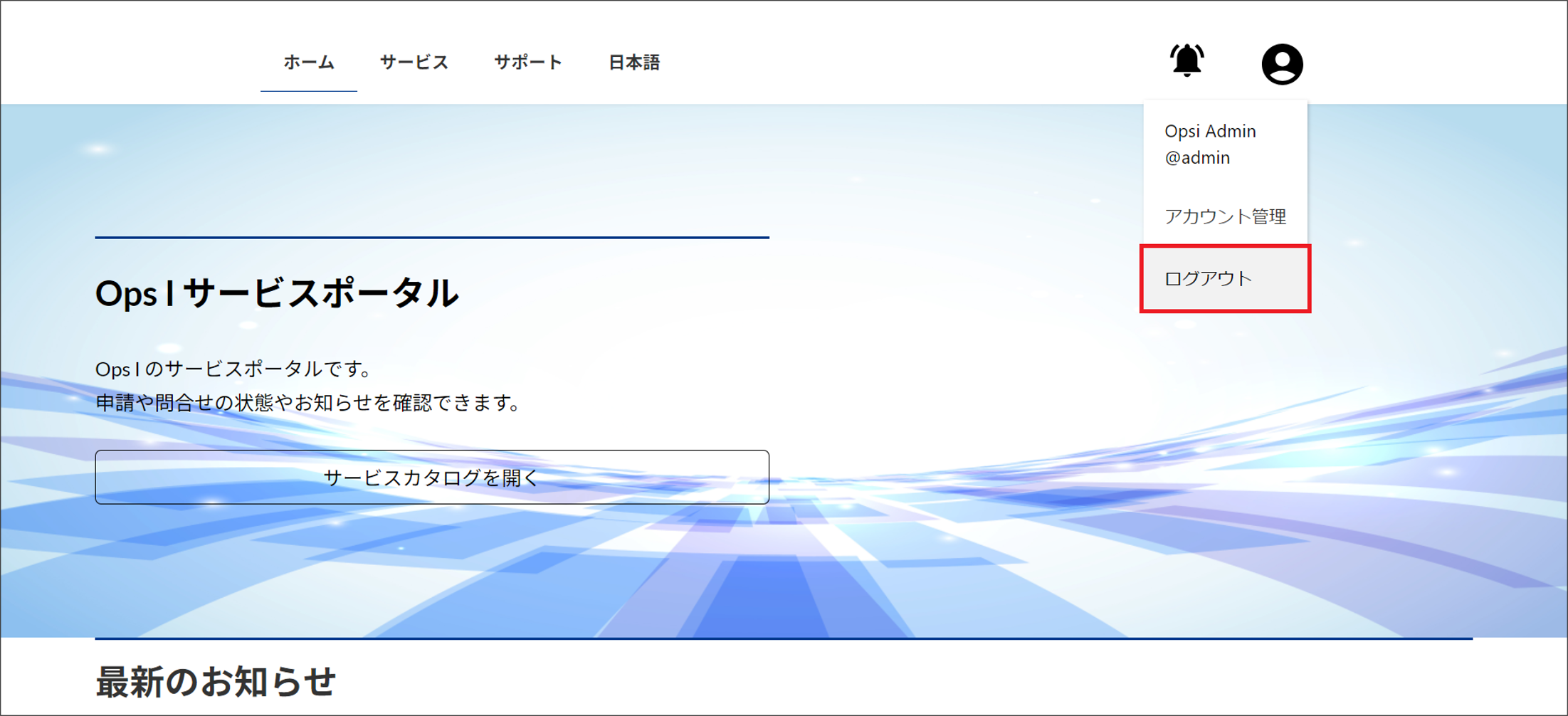
If the site theme is not [Lightning], [Ops I Menu] is not available, so create and implement a component for logout. Below are the details of the procedure for creating a logout component.
[Example of procedure for creating a logout component]
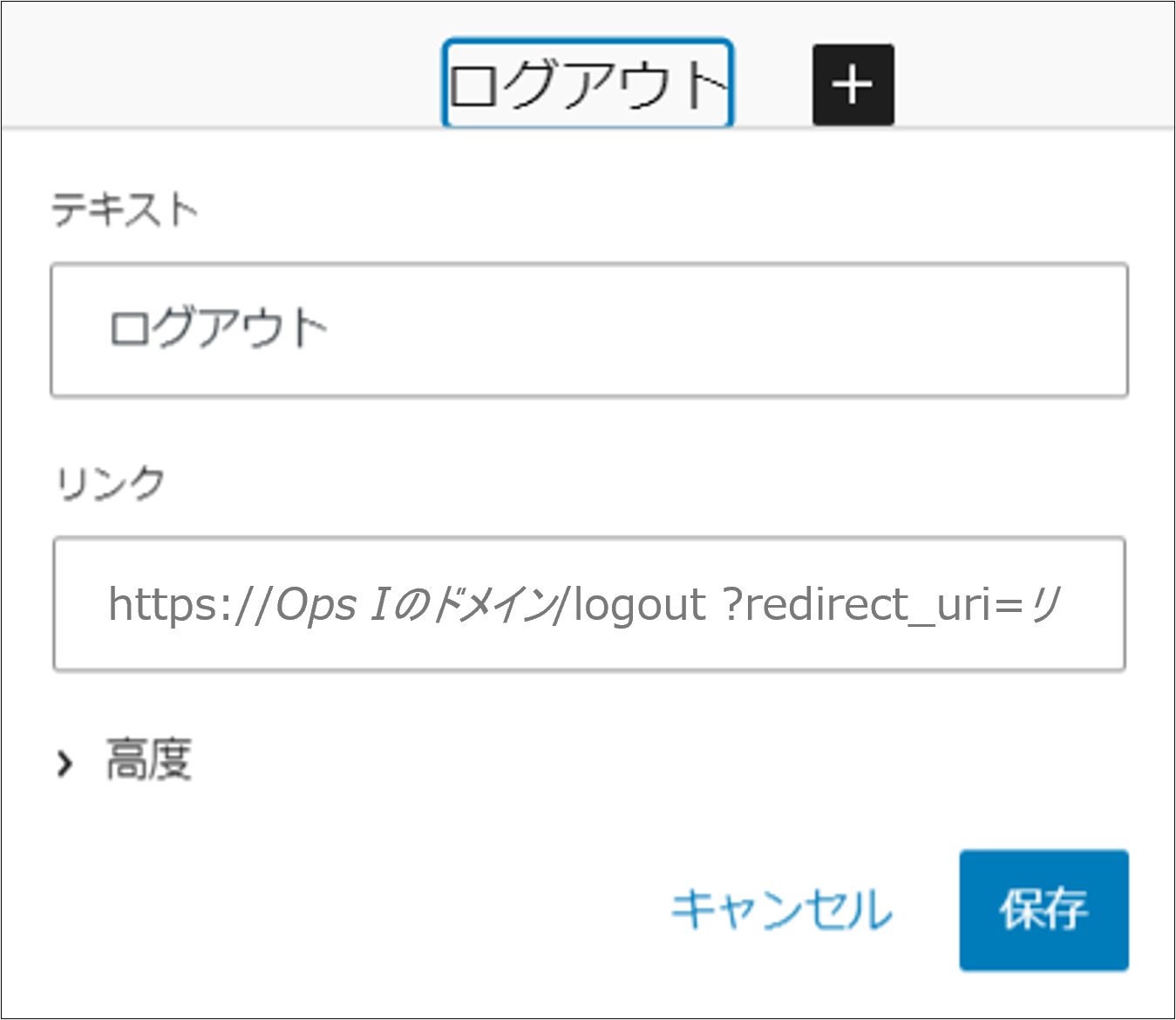
Put a link to “https://Ops I Domain/logout?redirect_uri=URI of Redirection Destination” in the page to implement the component. Customer and requester users can log out by clicking this link.
The details of the URI of the redirect destination are shown below.
- Specify the URL you want to display when you log in again after logging out
- Specify any URL within the service portal
- Specify the URL-encoded value
Example: https://tenant.ops-integration.com/logout?redirect_uri=https%3A%2F%2Fportal.tenant.ops-integration.com%2Fsite-customer1
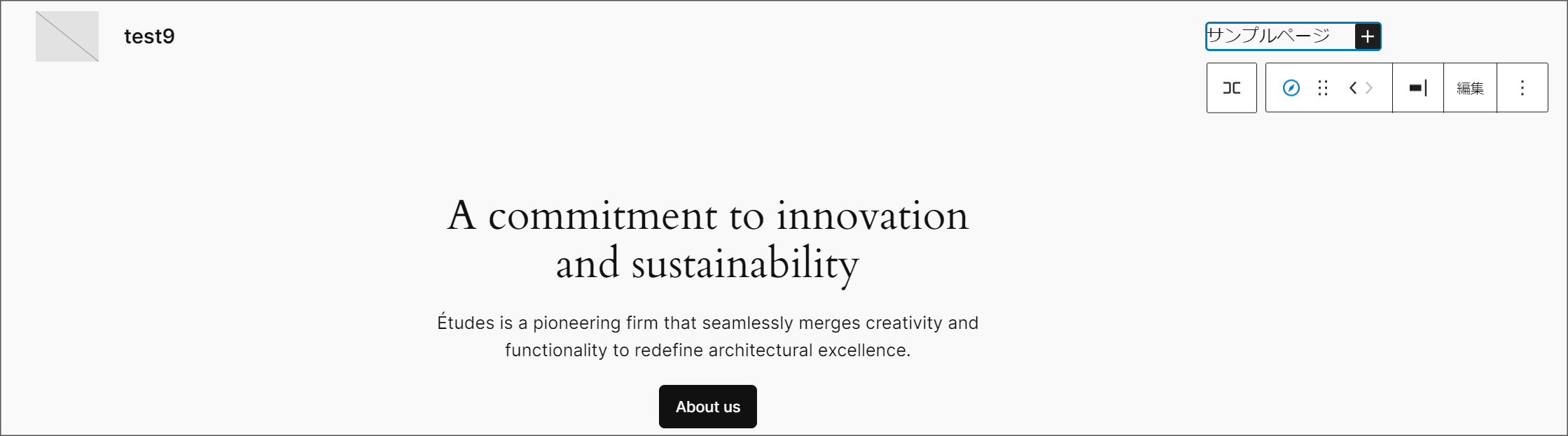
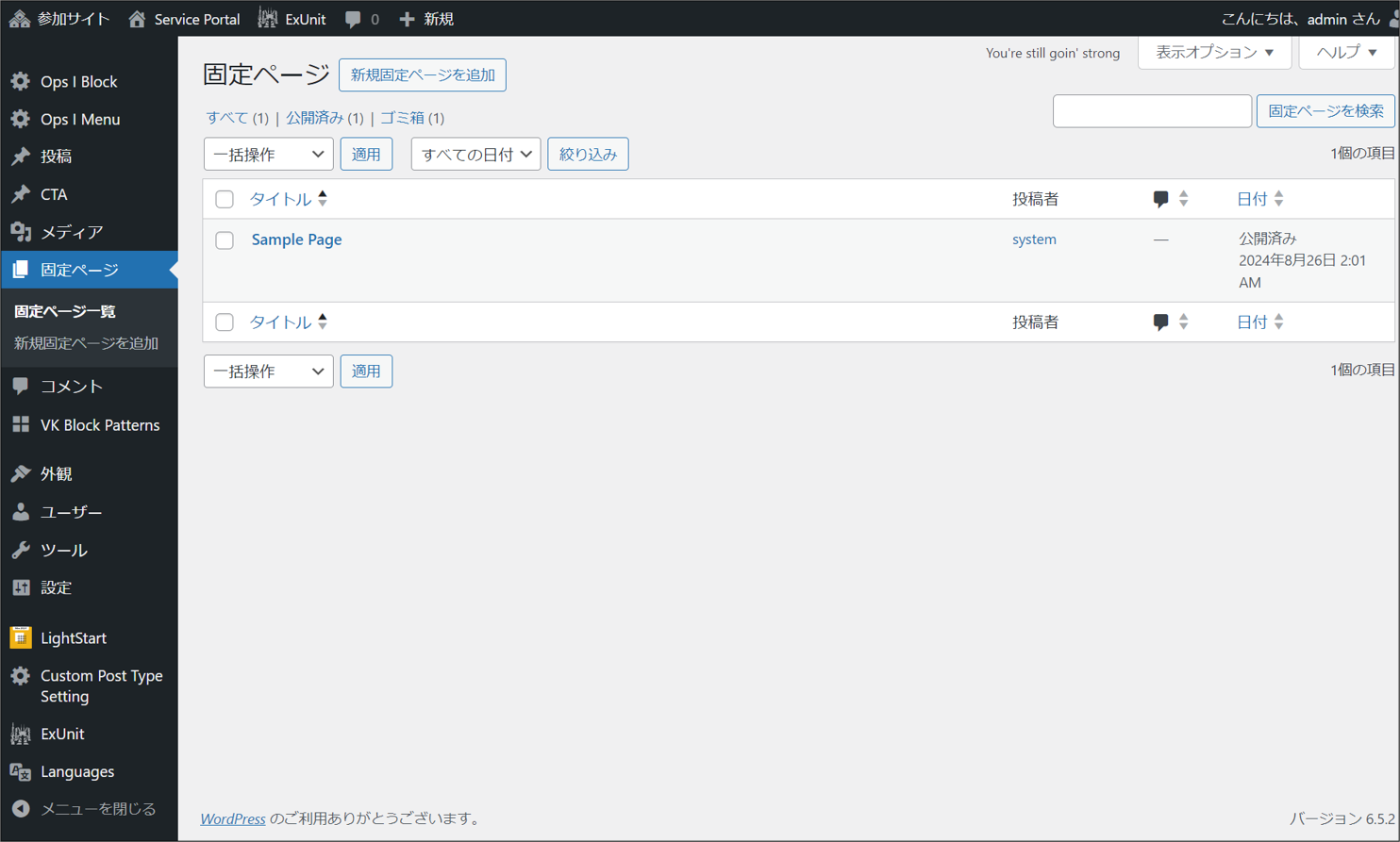
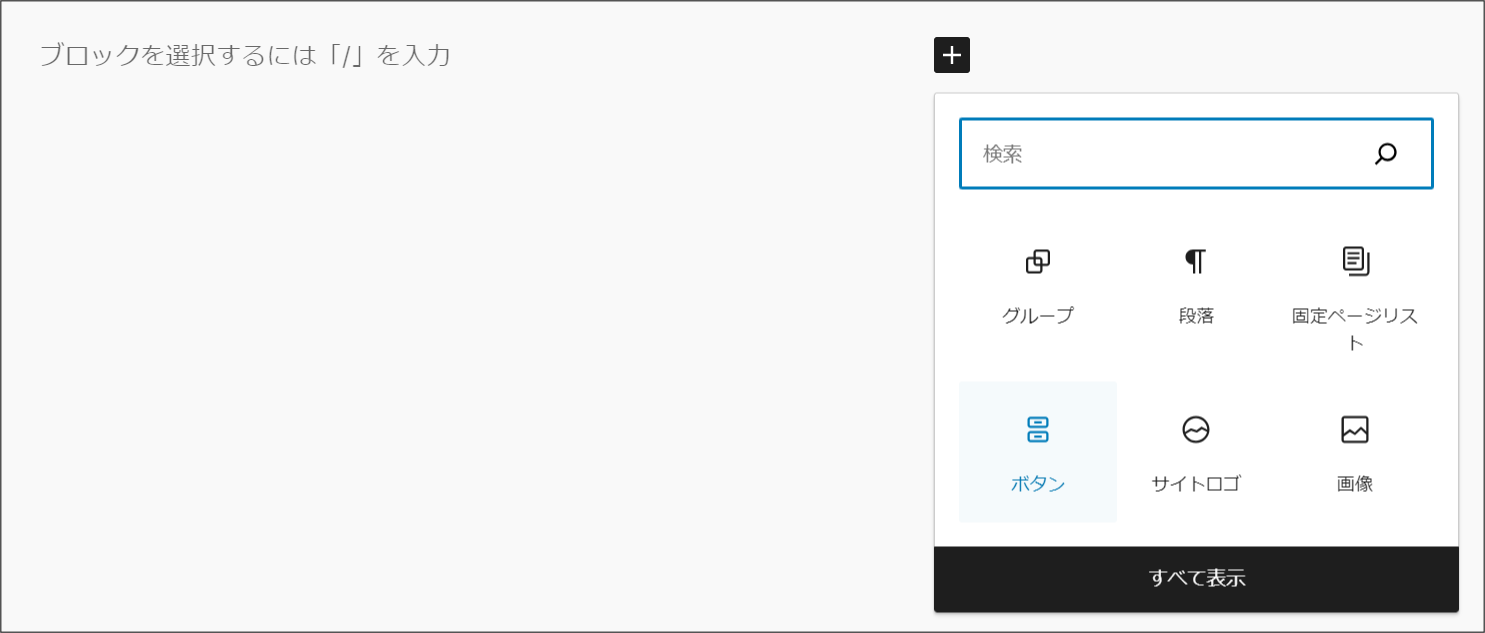
The procedure differs for each theme. The following is an example in the case of [Twenty Twenty-Four], the default theme for WordPress 6.1.