3.8.4 Registering templates
A job template is a set of definitions combining authentication information, projects, inventories, etc., for executing a job.
Through a project, you can link to a Playbook by specifying “Playbookβ.yaml” from the repository set for the project. In addition, by defining the provided Ops I component “awx.run_job_template” in the action of the Task model in the workflow YAML file, a job template can be automatically executed from the workflow. For details on the provided Ops I component “awx.run_job_template”, see “awx.run_job_template”.
[Procedure for registering templates]
1. Select the Automation application, then select "Templates" in the "Resources" category on the AWX window displayed in the contents area.
2. When the template window appears, click the "Add" button and then click "Add job template". The Create New Job Template window will appear. Enter the required information.
(Figure) Create New Job Template window
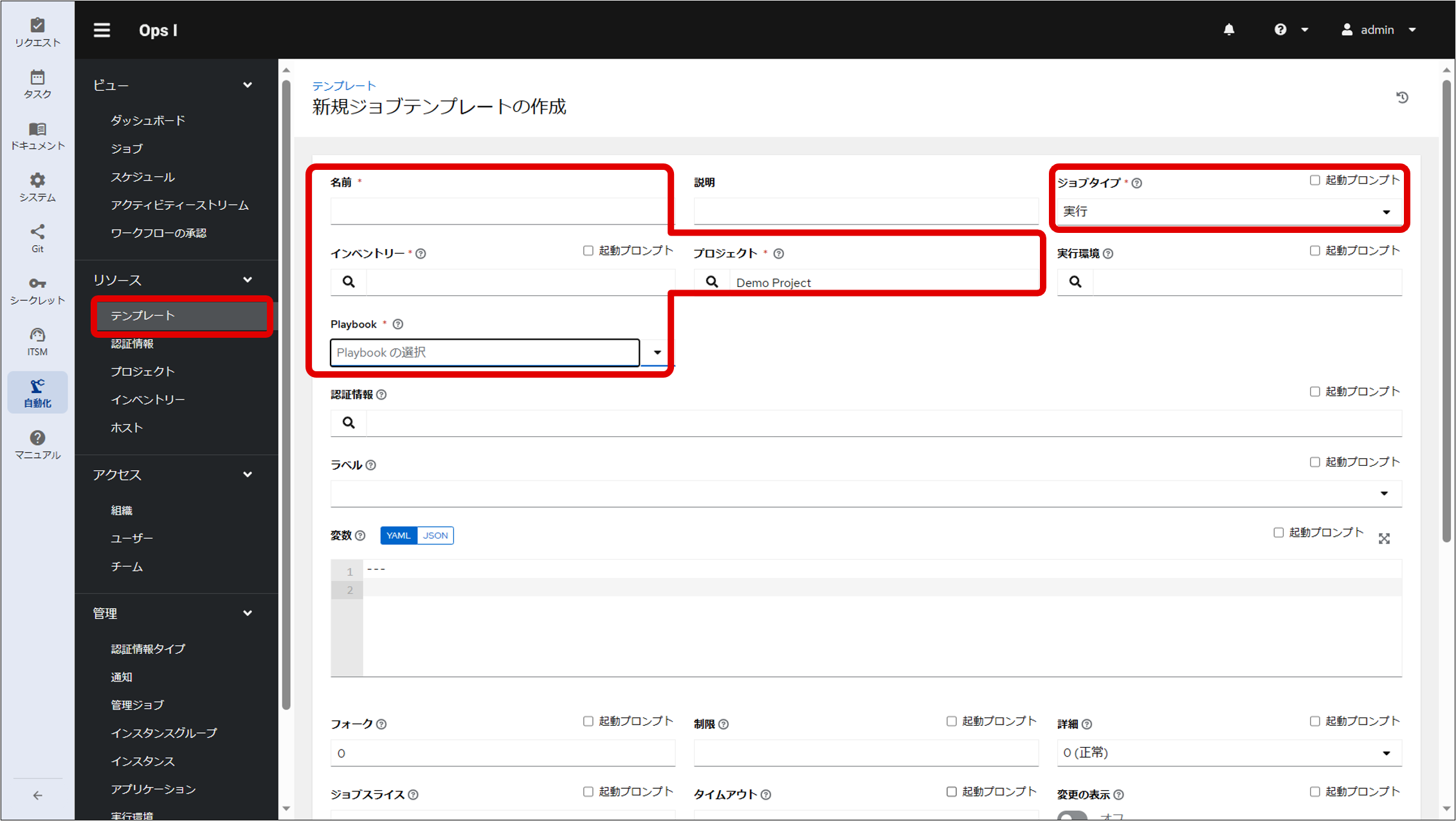
(Table) List of information to be entered in the project creation window to automatically execute “Playbookβ.yaml”
| Item | Description |
|---|---|
| Name | Job template name |
| Job Type | Select execution |
| Inventory | Click the  icon to display a list of inventories. Specify the inventory that is the execution target. icon to display a list of inventories. Specify the inventory that is the execution target. |
| Project | Click the icon to display a list of projects and then select the project created in "Setting projects". |
| Playbook | A list of YAML files registered in the repository linked to the project selected in the "Project" item above will be displayed. Select "Playbookβ.yaml". |
If the job is to be executed on the execution target server via a relay server, see "Using a relay server".
If using a custom execution environment, the execution environment must be specified. For details, see "Extending the environment for automatic execution".
3. Click the "Save" button after entering the required information.
When the Details window appears, click the "Launch" button. The contents defined in "Playbookβ.yaml" will then be executed. The list of job templates created is displayed in the template window, so a job can also be executed by clicking the rocket icon of an executed job template.
For execution results of executed job templates, see "Checking job execution results".
When the Details window appears, click the "Launch" button. The contents defined in "Playbookβ.yaml" will then be executed. The list of job templates created is displayed in the template window, so a job can also be executed by clicking the rocket icon of an executed job template.
For execution results of executed job templates, see "Checking job execution results".