4.4.2 Defining window URL (Uipath)
(1) Function overview
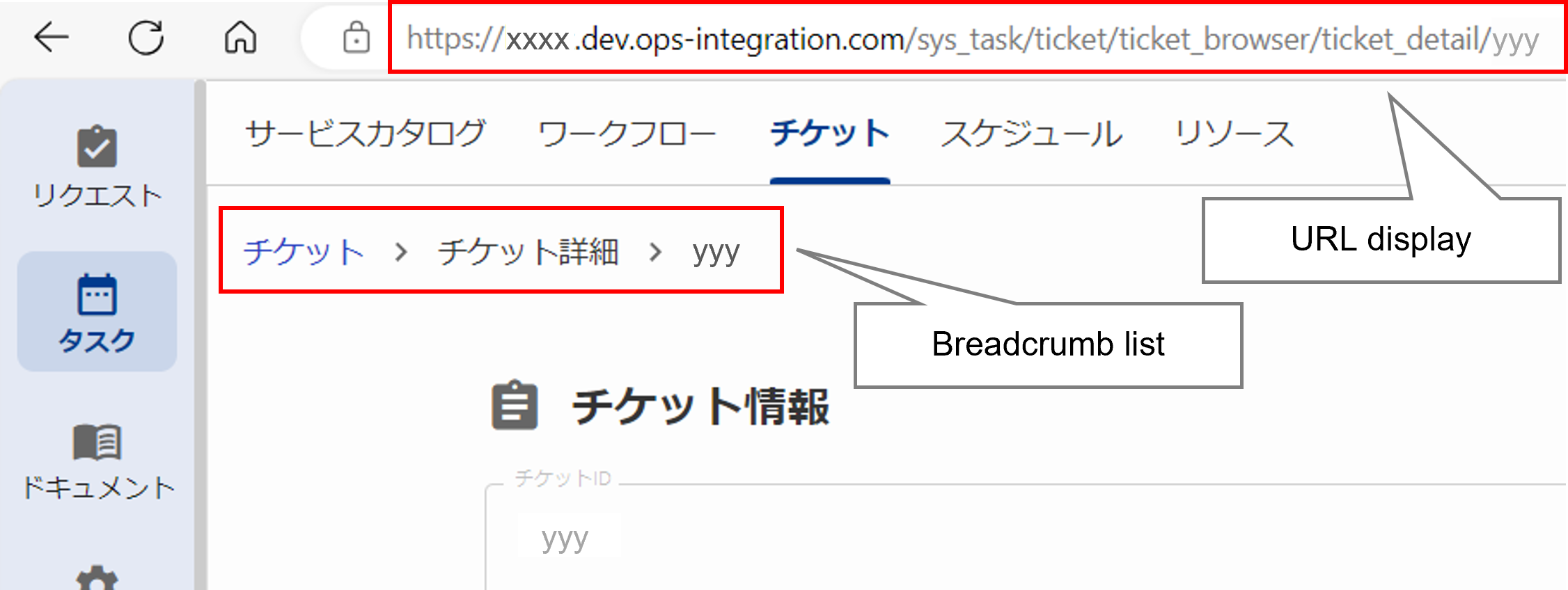
This function displays URLs for the following windows in accordance with window transitions.
- Workflow tab (of the task and request applications)
- Ticket tab (of the task and request applications)
- Schedule tab (of the task application)
Entering the defined URL directly into the address bar will take you to the corresponding window. If a URL that is not defined is entered into the address bar, “NotFound” will be displayed.
You can also define what to display in the breadcrumb list and set links to each level of the breadcrumb list.
(Figure) URL display and breadcrumb list in ticket window
(2) Defining URLs
When creating user-specific applications, URLs and breadcrumb lists to display can be defined for the UI associated with the application. For details on the application functions, see “Application”.
URLs to display are defined in the Uipath and Application YAML files, and consist of [Level 1]/[Level 2]/[Level 3]/[Level 4 and beyond].
Breadcrumb lists to display are defined in the Uipath YAML file and consist of [Level 1]>[Level 2 and beyond].
(Figure) Configuration of URL display and breadcrumb list in ticket window
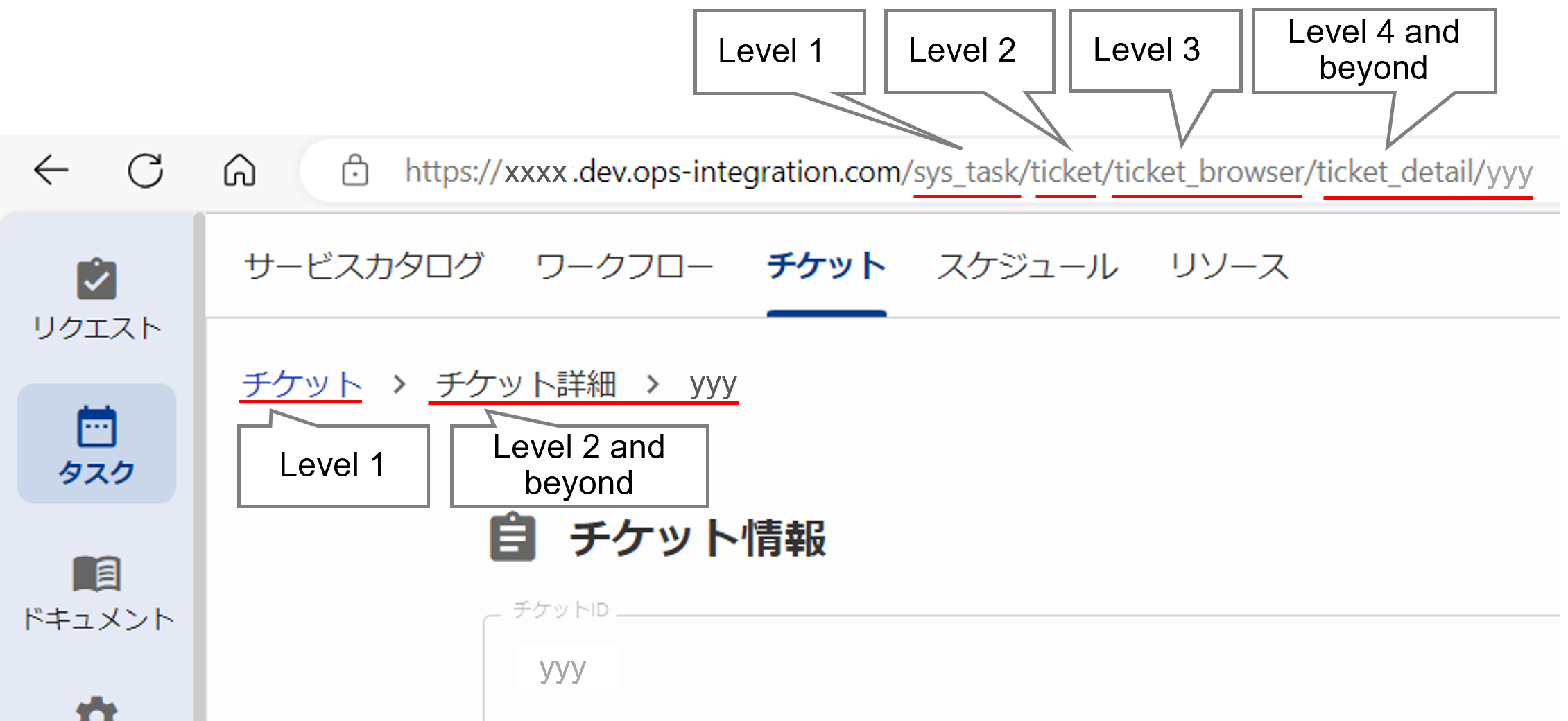
The following values are displayed at each level of the URL display and breadcrumb list display. Store the configured YAML files in any repository for document management.
(Table) Values displayed at each level
| Display position | YAML file | Displayed value |
|---|---|---|
| First level of URL | Application | Value of "name" |
| Second level of URL | Value of "tabs.name" | |
| Third level of URL | Uipath | Value of "label" (when pathType is static) Arbitrary value* (when pathType is dynamic) |
| Fourth level of URL and beyond | Uipath of children components | |
| First level of breadcrumb list |
Uipath | Value of "label" (when pathType is static) Arbitrary value* (when pathType is dynamic) |
| Second level of breadcrumb list and beyond |
Uipath of children components |
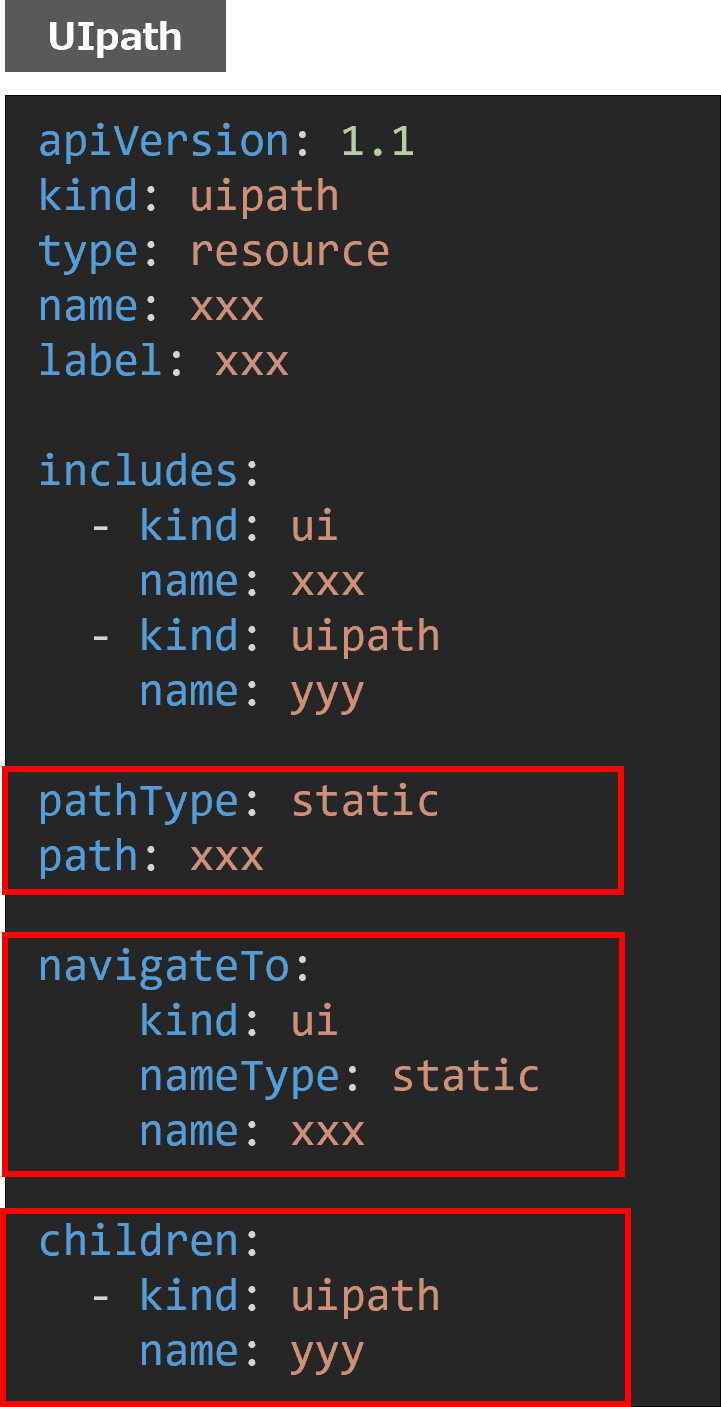
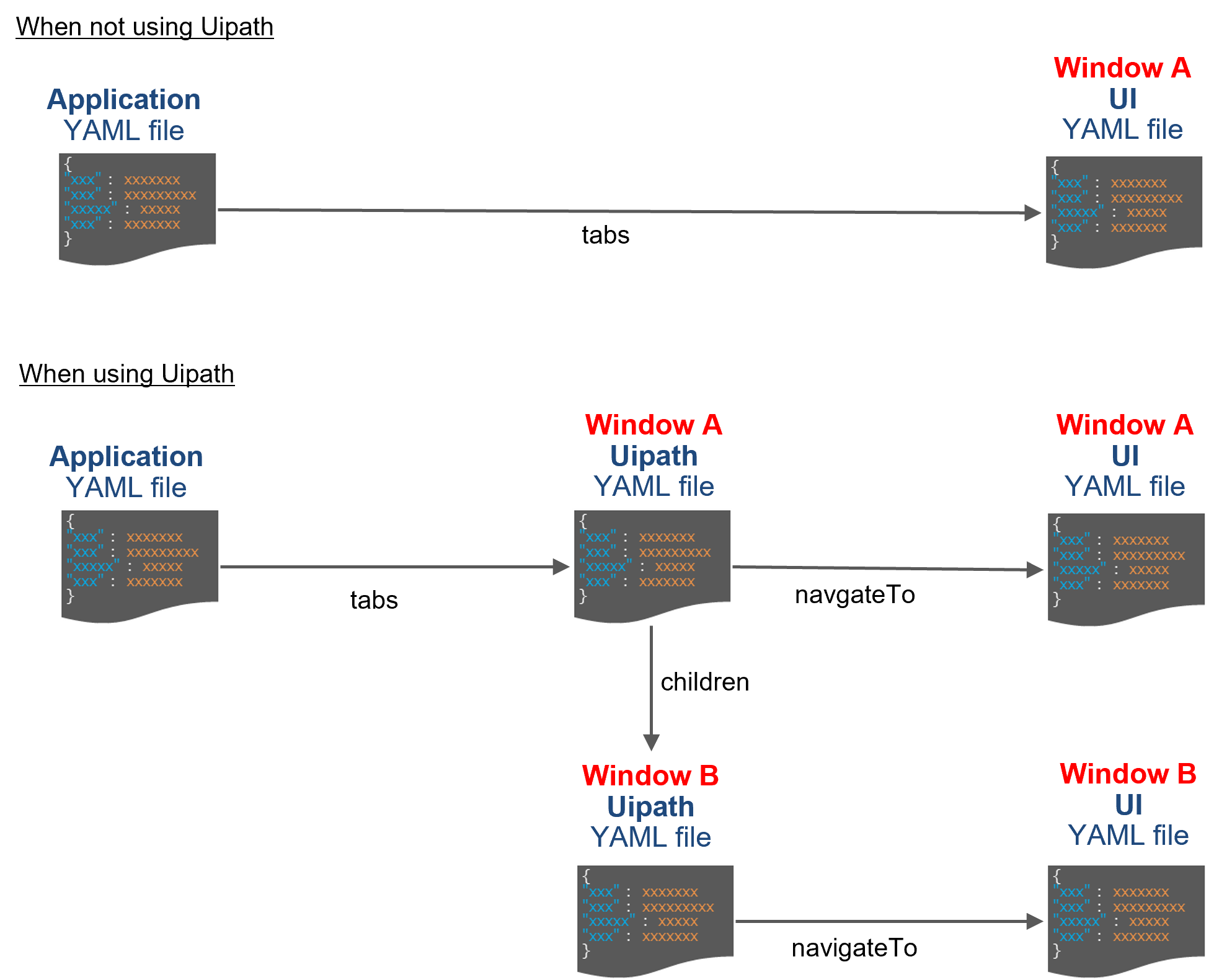
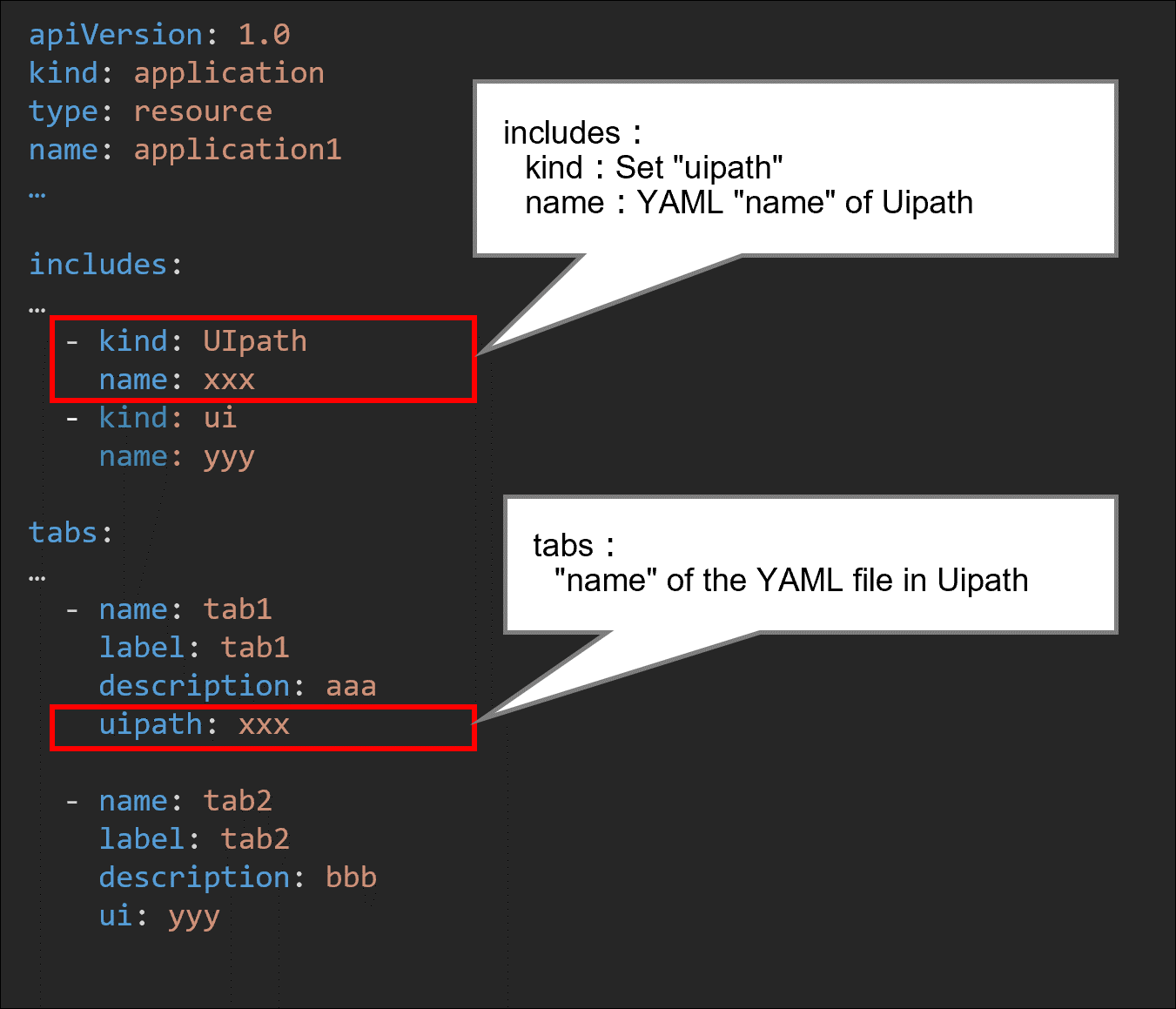
When setting Uipath, set “uipath” instead of “ui” in “tabs” in the Application YAML file. Also set information of the navigation destination from Uipath in “navigateTo” and information of the children components in “children”.
(Figure) Relationship between YAML files
[Application YAML file]
In the Application YAML file, set “uipath” in “tabs” and specify the “name” of the Uipath YAML file that you created. For details on the Uipath YAML files, see “Application”.
(Figure) Editing the Application YAML file
[Uipath YAML files]
A Uipath YAML file is required for each window that uses this function.
In the Uipath YAML files, you need to specify information of the path segment of the displayed component (pathType), navigation destination of the displayed component (navigateTo), and children components (children).
For details on the Uipath YAML files, see “Uipath”.