4.3.3 Designing notifications
The design of notifications involves two types of YAML definitions: Notification and Notifier.
(Table) Notification design items and outline
| Item | Definition method | Key design points |
|---|---|---|
| ・Notification ・Notifier |
YAML file | Assign an agent to be notified for each workflow step and configure notifications to be sent to the requester upon completion of the request. In addition, assign or configure agents to be notified for each schedule. Notification is made via the GUI or e-mail. |
(Figure) Notification and Notifier conceptual diagram
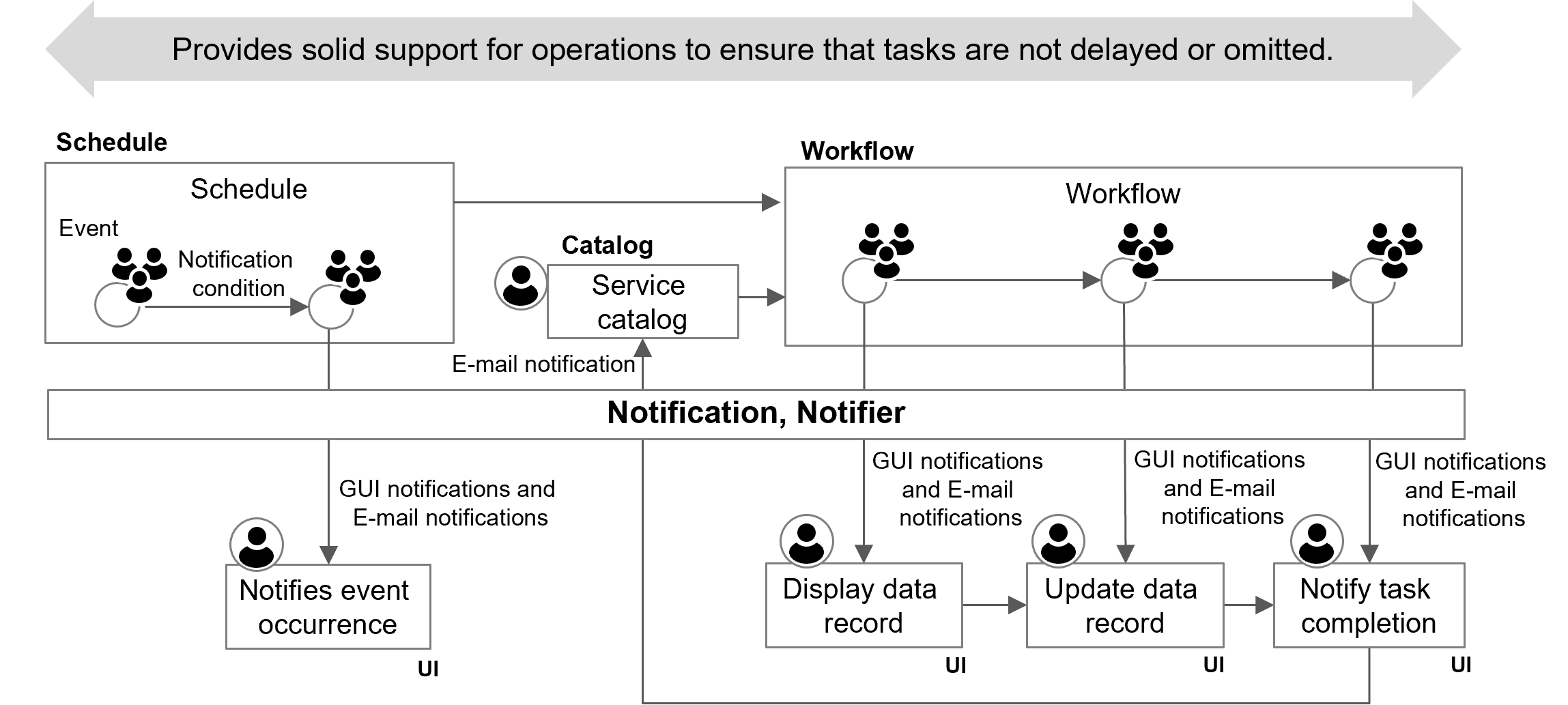
Ops I allows you to define notifications triggered based on workflows, schedules, and work items. By defining in a YAML file the event conditions based on which notifications will be sent, the message, destinations, and sending methods, the agent assigned to the activity the user wants to be performed can receive a notification, and the requester can receive a report of the acceptance/completion of the request.
Furthermore, an automatic follow-up notification can be sent if a request is not responded to within a certain time.
For information on notifications triggered based on workflows, see “Notification with workflow set as starting point”.
It is also possible to make notifications of start and completion of schedules and updates of work items.
If the schedule belongs to a calendar, you can limit notifications to users who belong to the group assigned to the calendar or to schedules associated with the calendar. In this case, the body, title, and link of the notification can be defined in the calendar information.
For information on notifications triggered based on schedules and work items, see “Notification with schedule/work item set as starting point”.
(1) Flow of notification
When a notification event occurs, the sender creates a notification object, which is sent to the destination by the Notifier.
Notification objects, which represent the content of the notifications, are managed with YAML files of Notification type. A notification object contains information about the recipient of the notification, the means of sending the notification, and the notification message. For the recipients of notifications, you can choose Ops I users or groups.
The means of sending notifications is managed by YAML files of Notifier type.
The recipient of the notification can be specified by setting the requester, etc. in “assignedTo” of the schedule object. For information on schedule objects, see “(Table) Object fields that can be used in Notification”.
Since it is not clear on the GUI of the workflow or schedule which events have notification settings configured, the user who defined the notifications may need to inform the relevant persons.
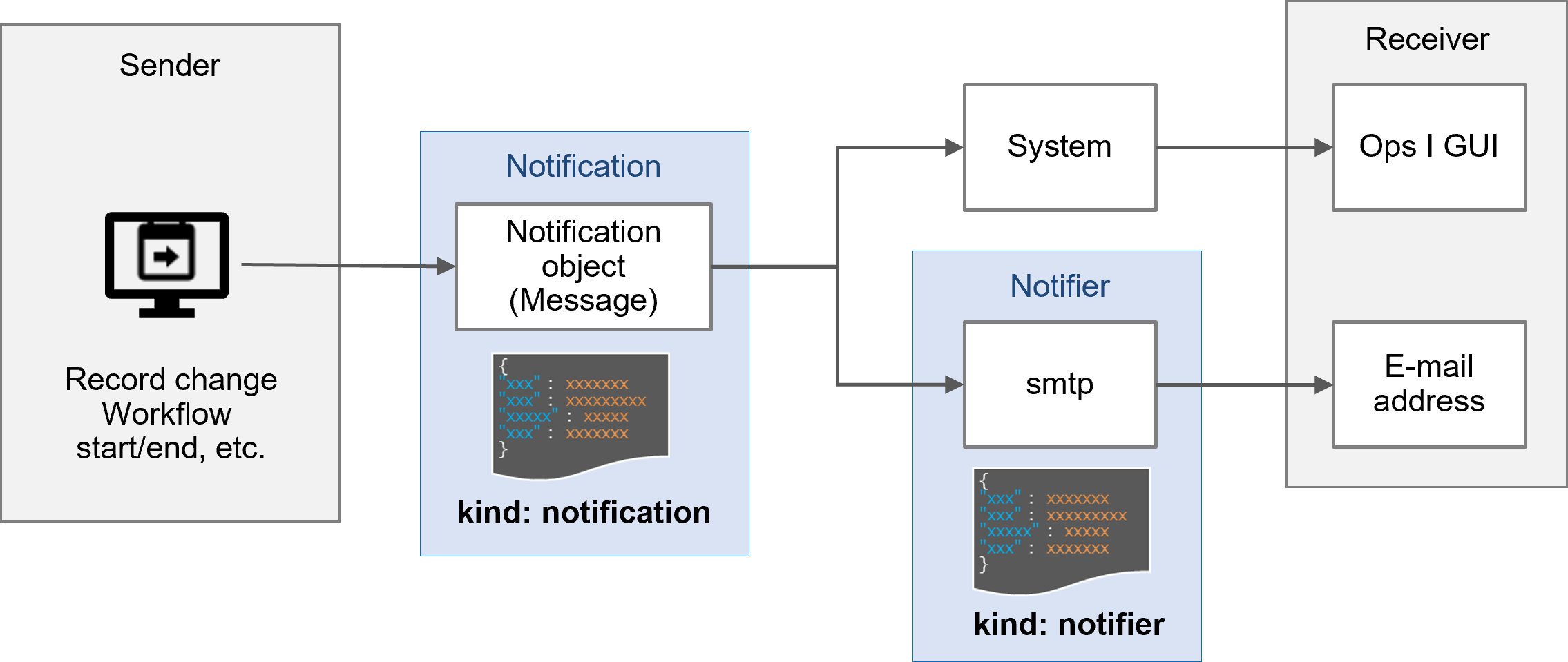
For details on the Notification and Notifier YAML definitions, see “Notification, Notifier”.
(2) Notification with schedule/work item set as starting point
The schedule function provides calendars, work items associated with calendars, and individual schedules associated with work items (referred to here as “schedules”). This function allows you to set up notifications triggered based on work items and schedules. The following is an example of a notification triggered based on a schedule, as well as the notification conditions and flow of notification.
(Figure) Schedule-originated notification flow
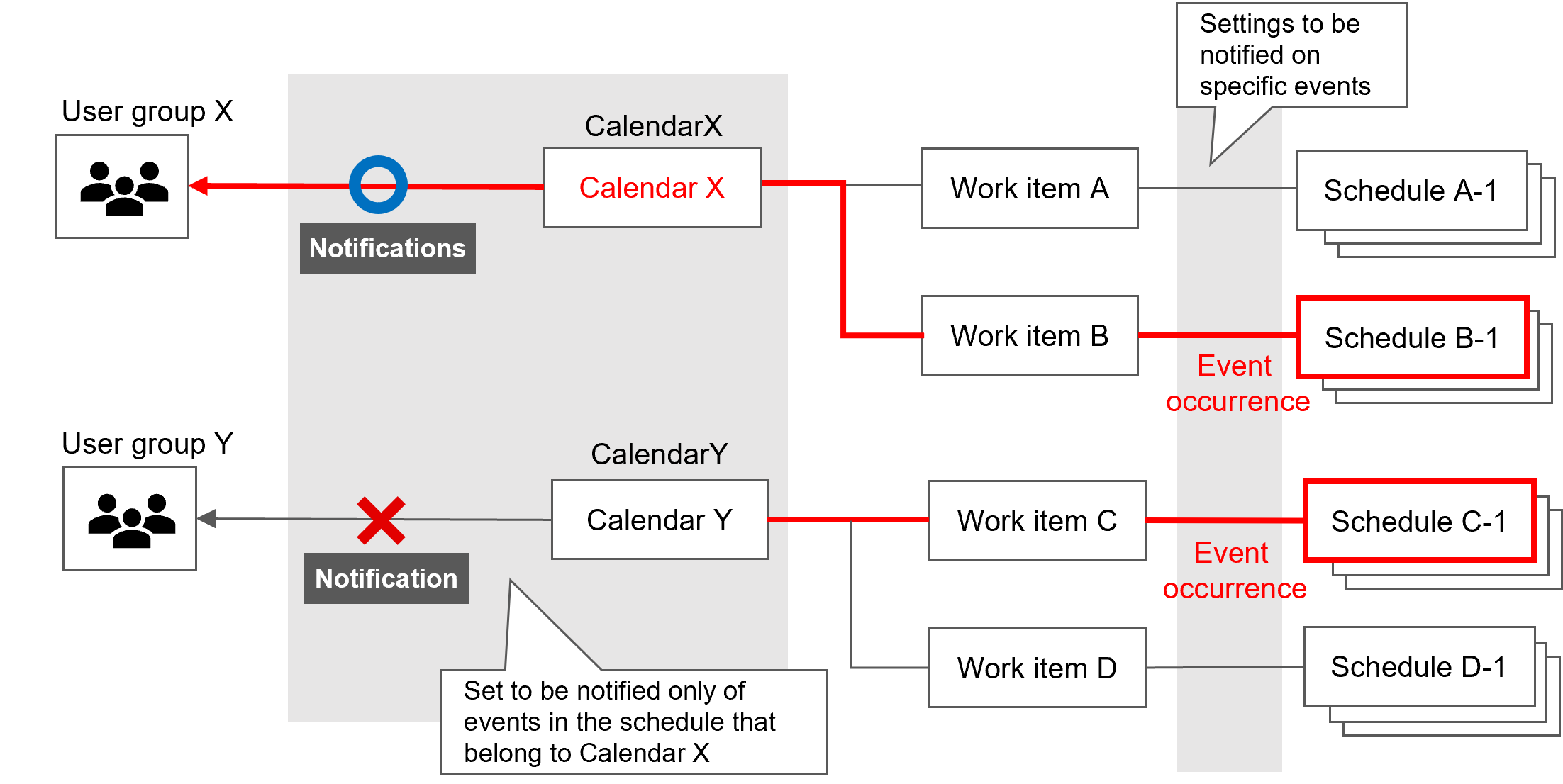
Notification conditions can be specified in the Notification YAML definitions. For example, you can set schedule events (such as change of assignee, periodic monitoring, etc.) as notification conditions, or limit notifications to schedules belonging to a specific calendar. Multiple conditions can be made hierarchical and conditions can be ANDed or ORed based on the hierarchy level. Conditions at the first level are ORed and those at the second level are ANDed. For details, see “Notification, Notifier”.
 Notes
Notes
Since only one object can be specified in a single YAML file, settings for multiple objects must be described in separate YAML files.
For examples of notification conditions and YAML definitions, see “Example of notification of schedule and work item origin”.
(3) Notification with workflow set as starting point
The following is an example of notification for each activity, triggered based on a workflow, when the VM lending operation is performed.
(Figure) Example of notification in case of VM lending tasks
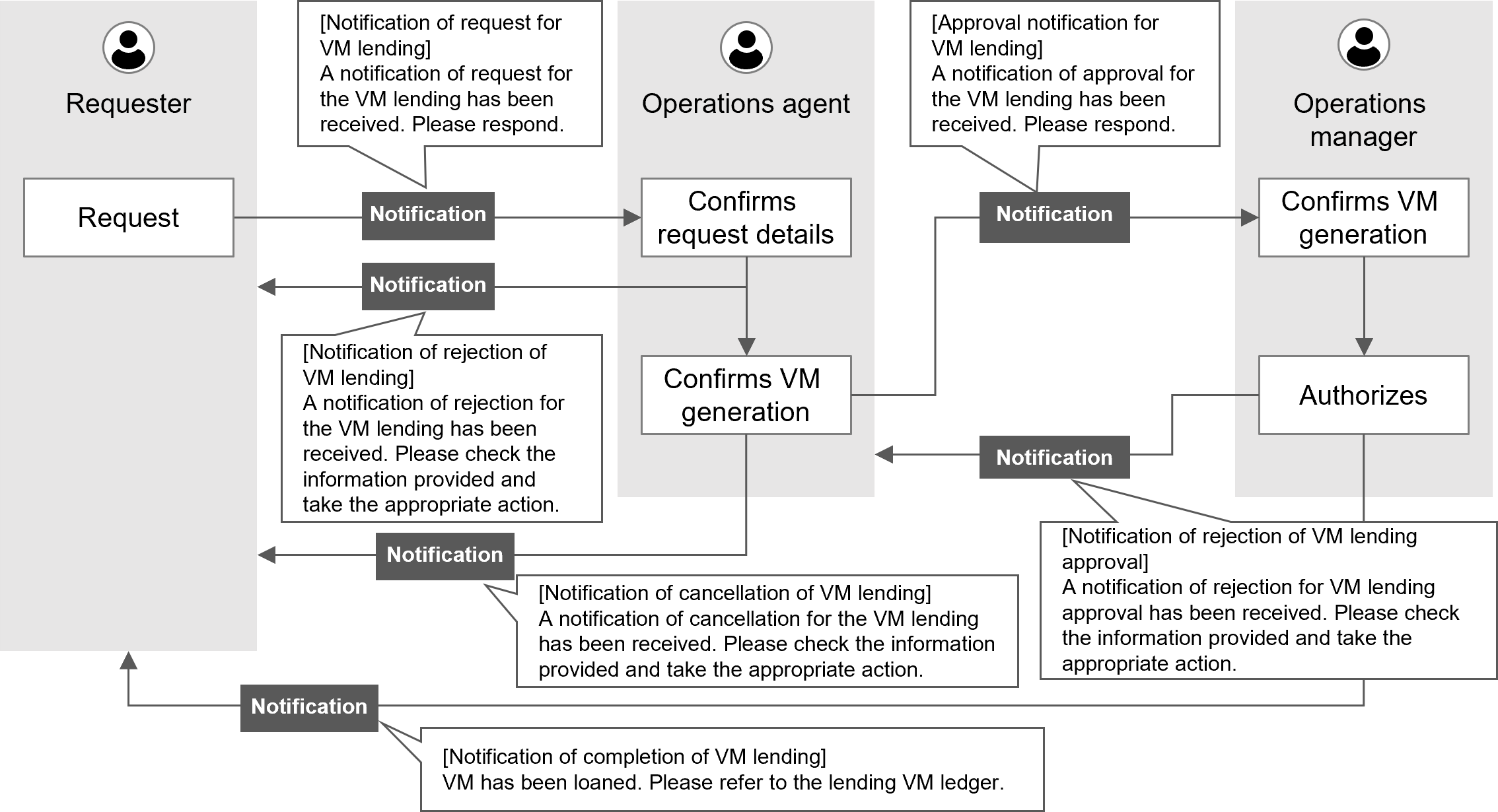
(Table) List of contents of notifications in case of VM lending tasks
| Task name | Workflow Step |
Recipient of notification | Title | Body |
|---|---|---|---|---|
| VM lending | Make a request | Operations agent | [Workflow number (direct link)] VM lending request notification | A notification of request for the VM lending has been received. Please respond. Request date/time: Request date/time Requester: Requester |
| Review the request | Requester | [Workflow number (direct link)] VM lending rejection notification | A notification of rejection for the VM lending has been received. Please check the information provided and take the appropriate action. Request date/time: Request date/time Requester: Requester |
|
| Confirm creation of VM | Requester | [Workflow number (direct link)] VM lending cancellation notification | A notification of cancellation for the VM lending has been received. Please check the information provided and take the appropriate action. Request date/time: Request date/time Requester: Requester |
|
| Confirm creation of VM | Operation manager | [Workflow number (direct link)] VM lending approval notification | A notification of approval for the VM lending has been received. Please respond. Request date/time: Request date/time Requester: Requester |
|
| Approve | Operations agent | [Workflow number (direct link)] VM lending approval rejection notification | A notification of rejection for VM lending approval has been received. Please check the information provided and take the appropriate action. Request date/time: Request date/time Requester: Requester |
|
| Approve | Requester | [Workflow number (direct link)] VM lending completion notification | VM has been loaned. Please refer to the lending VM ledger. Request date/time: Request date/time Requester: Requester |
[Notification recipient settings]
When setting the agent assigned to the workflow step as the notification recipient in “assignedTo”, there are several steps that you need to take.
For the procedure for setting the recipients of notifications, see “API reference overview” > “Use cases and workflow for using API functions” > “(Table) Workflow for “Changing the agent of an activity corresponding to a specific step in My Workflow”” in “JP1 Cloud Service/Operations Integration API Reference”.
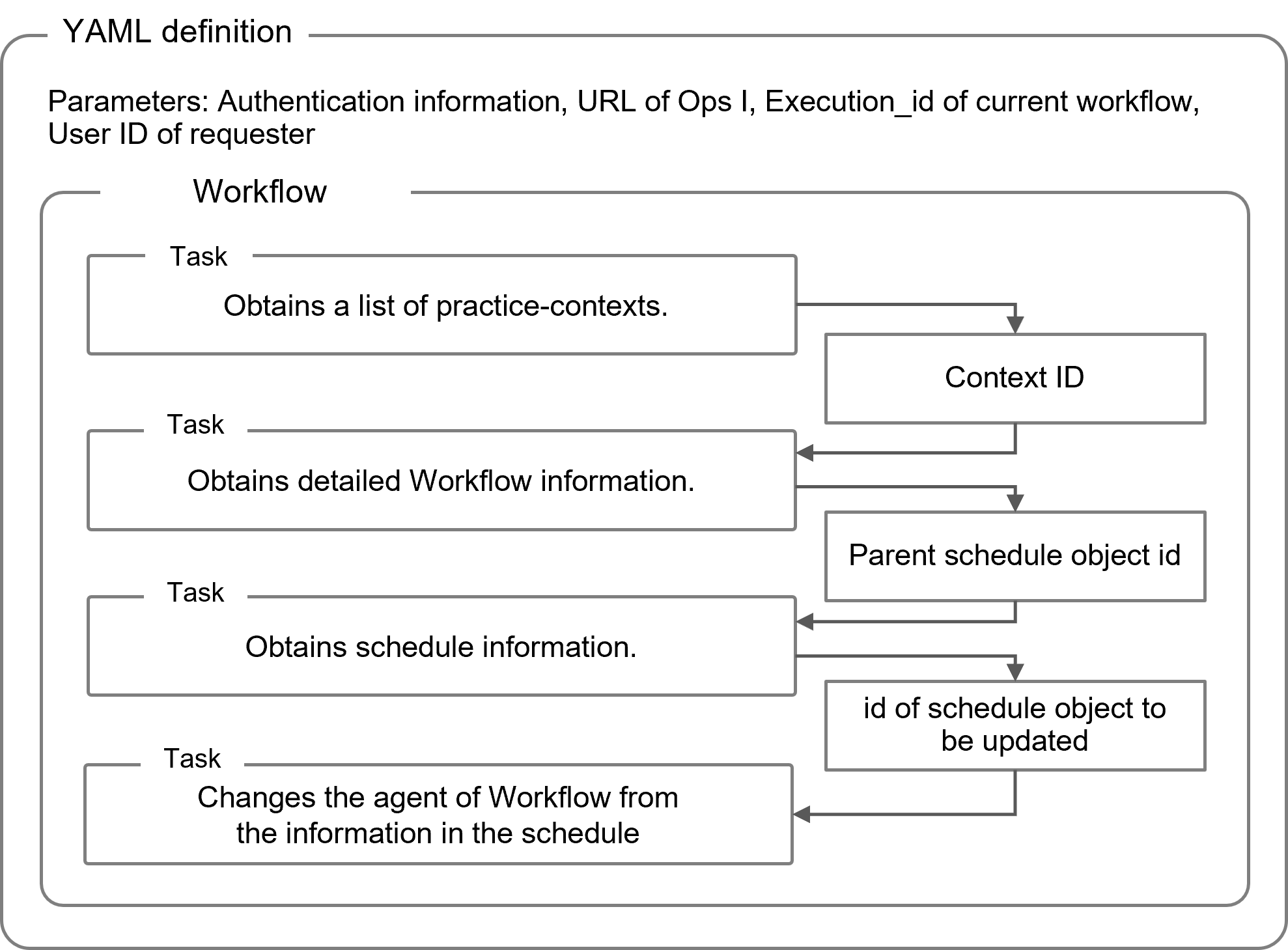
Below are a conceptual diagram of a YAML definition that sets the requester as the recipient of the notification and a definition example.
(Figure) Conceptual diagram of a YAML definition that sets the requester as the destination for notifications
<Definition example>
(omitted)
tasks:
# Obtain the Context ID from the Practice-context list using the Execution ID of the current workflow
fetch_context_id:
action: core.http
input:
url: <% ctx().oiapi_location %>/practice-contexts?filterBy=executionId%3Aeq%3A<% ctx().parent_execution_id %>
method: GET
headers:
Content-Type: application/json
Authorization: Bearer <% ctx().oi_access_token %>
next:
- when: <% succeeded() %>
publish:
# Obtain practice-context
- context: <% result().body.data.content.first(null) %>
- context_id: <% ctx().context.id %>
do: fetch_context
- when: <% failed() %>
do: fail
# Obtain workflow details
fetch_context:
action: core.http
input:
url: <% ctx().oiapi_location %>/practice-contexts/<% ctx().context_id %>
method: GET
headers:
Content-Type: application/json
Authorization: Bearer <% ctx().oi_access_token %>
next:
- when: <% succeeded() %>
publish:
- parent_schedule_id: <% result().body.data.schedule %>
do: fetch_schedule
- when: <% failed() %>
do: fail
# Obtain schedule information
fetch_schedule:
action: core.http
input:
url: <% ctx().oiapi_location %>/schedules/<% ctx().parent_schedule_id %>
method: GET
headers:
Content-Type: application/json
Authorization: Bearer <% ctx().oi_access_token %>
next:
- when: <% succeeded() %>
publish:
- target_schedule: <% result().body.data.children.where($.activity = "create_vm_wf_01").first(null) %>
- target_schedule_id: <% ctx().target_schedule.id %>
- update_schedule_body: <% ctx().target_schedule.set("assignedTo", ctx().user_id) %>
do: update_schedule
- when: <% failed() %>
do: fail
# Change the assignee of the schedule from the schedule information
update_schedule:
action: core.http
input:
url: <% ctx().oiapi_location %>/schedules/<% ctx().target_schedule_id %>
method: PUT
headers:
Content-Type: application/json
Authorization: Bearer <% ctx().oi_access_token %>
body:
<% str(ctx().update_schedule_body) %>
next:
# Initialize variables and transition to create_vm_wf_01
- when: <% succeeded() %>
publish:
- target_schedule: null
- update_schedule_body: null
do: create_vm_wf_01
- when: <% failed() %>
do: fail
(omitted)
Other Workflow YAML definitions are shown as “omitted”. For information on the Workflow YAML definitions, see “Workflow”.
Subsection structure
4.3.3.1 Example of notification of schedule and work item origin