4.3.10.6 Multilingual support for sites
The template site initially supports display in English.
The plugin [Polylang] can also be used to make template sites and other sites multilingual. The English version of the template site will be provided with the language switch settings completed by [Polylang].
For more information on template sites, see “Main sites/template sites”.
[English version of template site]
The English version of the display is embedded by default in the template site. The display language can manually be switched from the language selection menu in the header of each page.
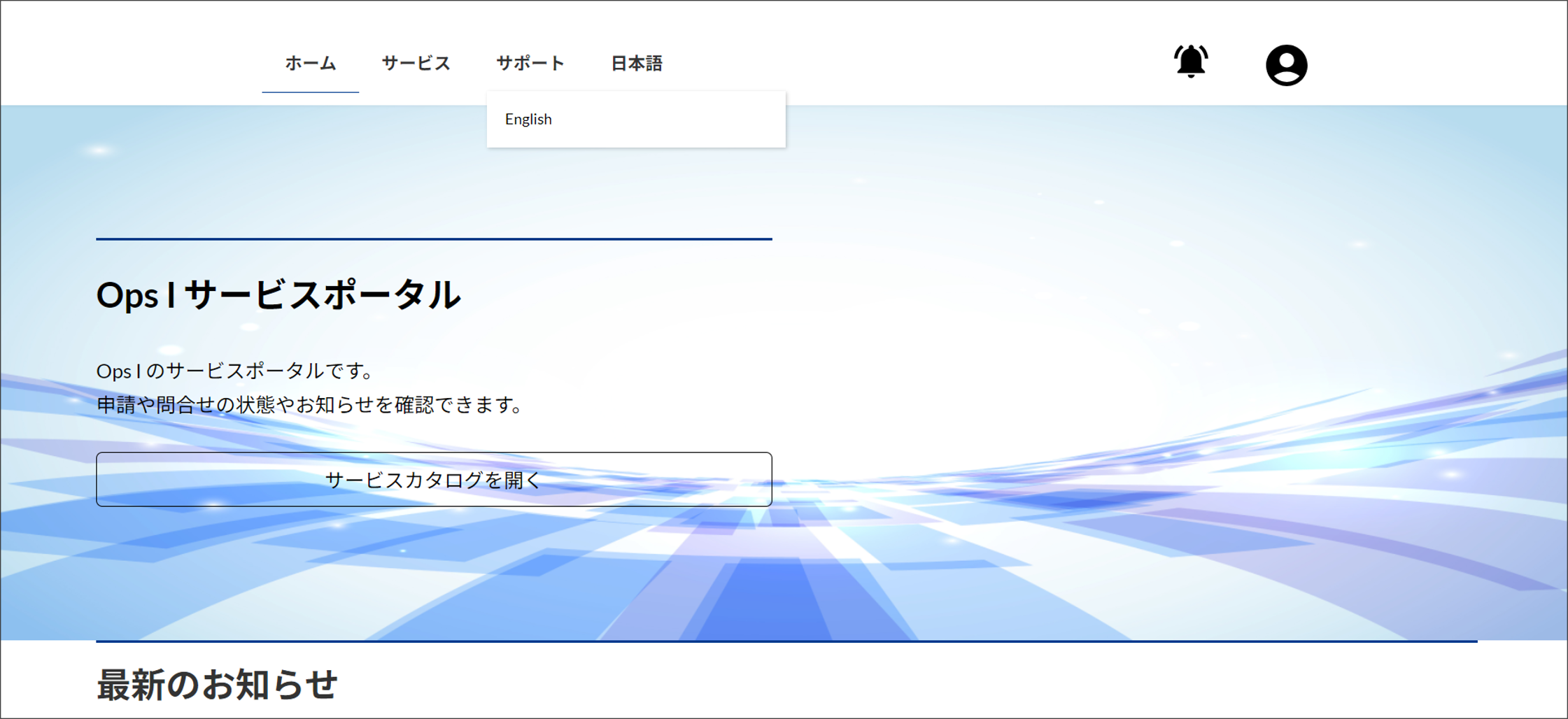
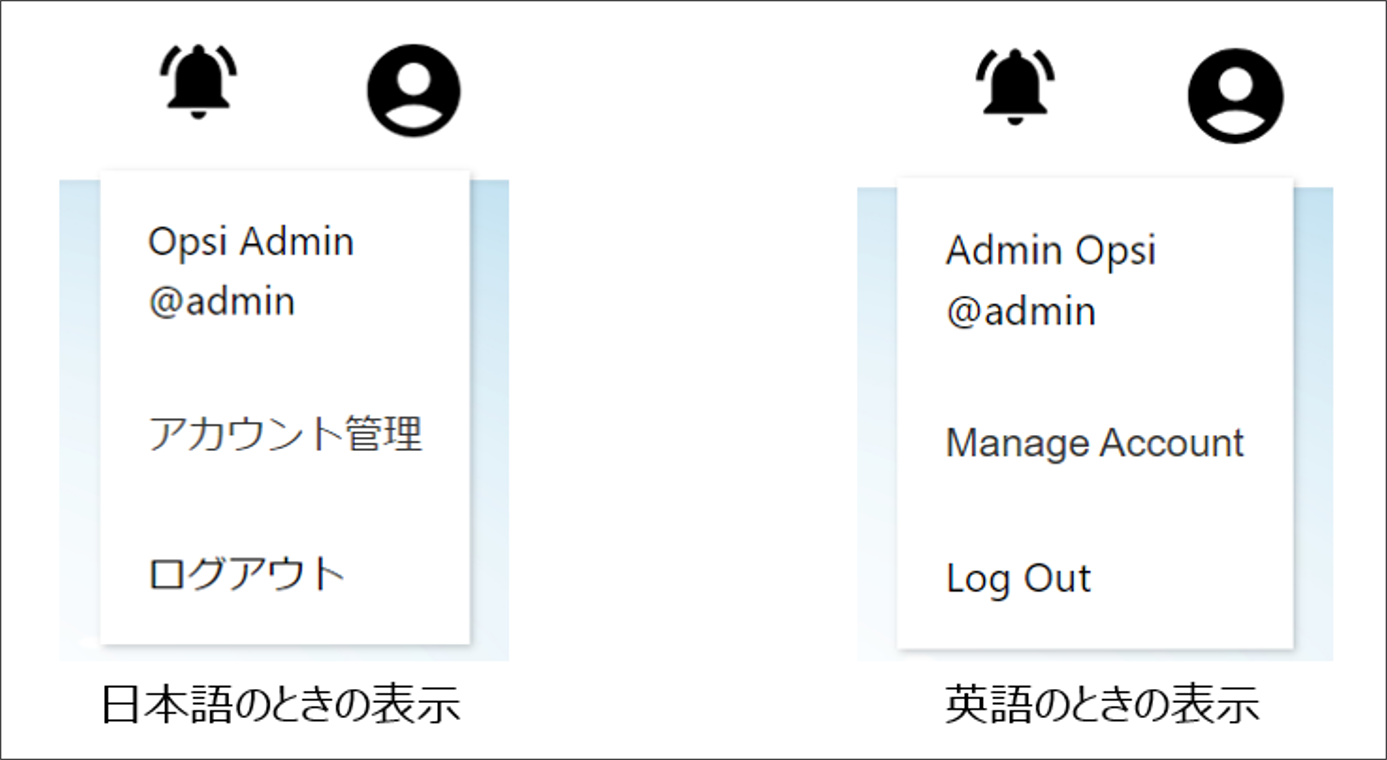
The [Ops I Menu] of pages and posts set to a language other than Japanese will be displayed in English. When you mouse over the [Ops I Menu] avatar in English, the [username], [Manage Account] and [Log Out] menus will be displayed. [username] is displayed in the format “first name (firstName) last name (lastName)@username”.
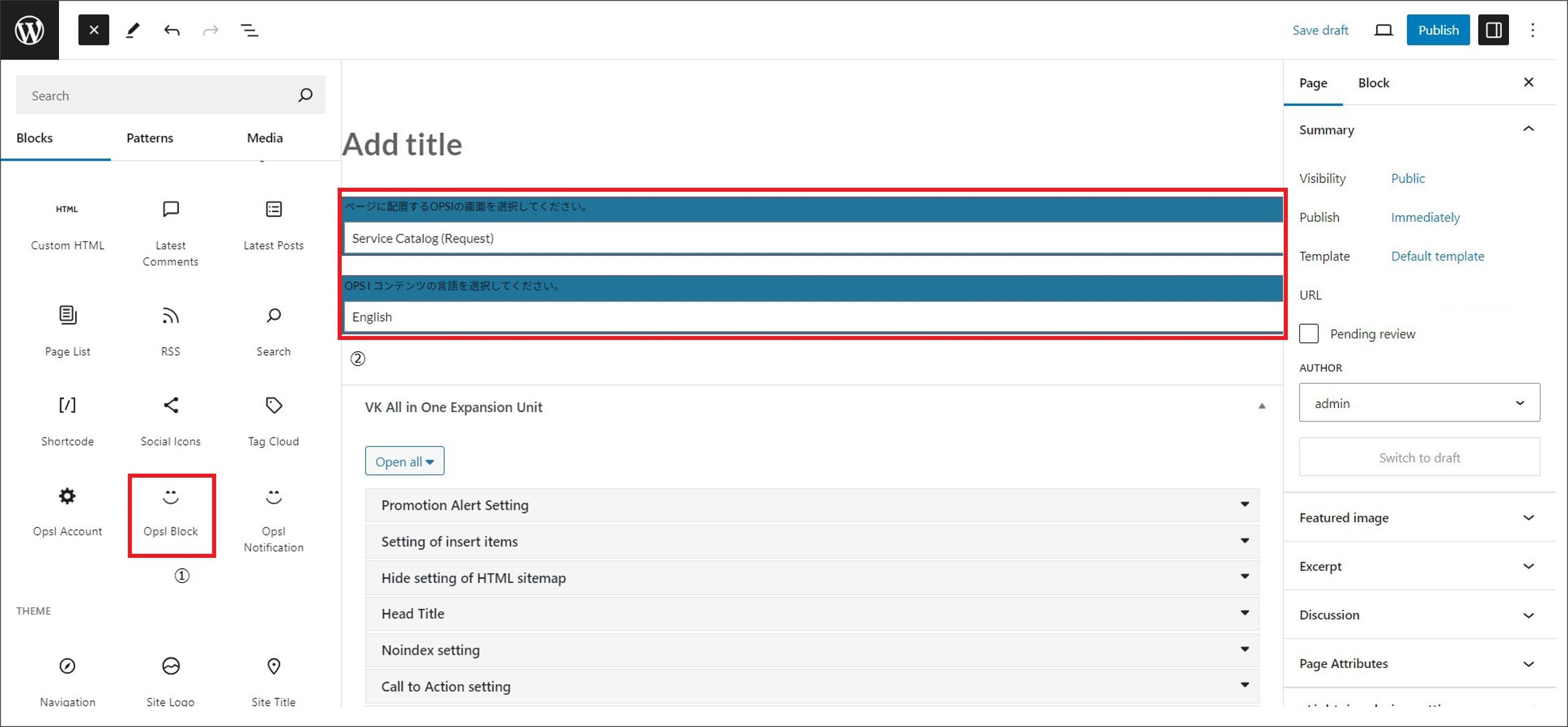
The content of [Ops I Block] will be displayed in the language set when the page was created.
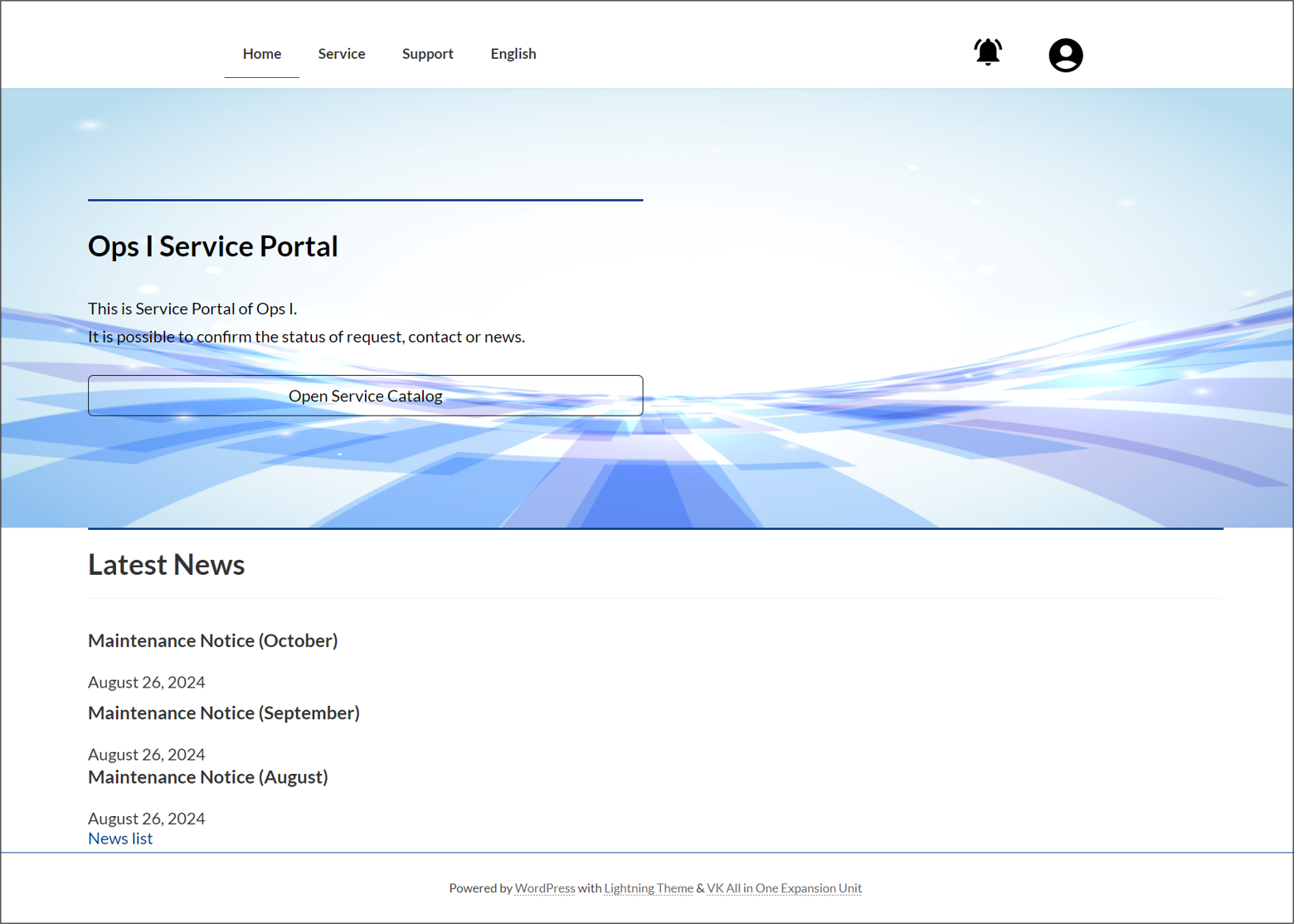
The contents of the English version of the pages are as follows.
- Home Page
URL: https://portal.Ops I Domain/template/en
Displays the home page of the template site in English.
- Service Catalog Page
URL: https://portal.Ops I Domain/template/en/service-catalog-en
Displays Ops I service catalogs in English. - Request List Page
URL: https://portal.Ops I Domain/template/en/request-list-en
Displays the Ops I workflow list window in English. - Service Desk - Contact List Page
URL: https://portal.Ops I Domain/template/en/contact-list-en
Displays the Ops I ticket list window (request application) in English. - Service Desk - Contact Page
URL: https://portal.Ops I Domain/template/en/contact-en
Displays the Ops I ticket creation window (request application) in English. - News Page
URL: https://portal.Ops I Domain/template/en/news-en
Displays the custom post type "News" on the English template site in English.
[Procedure for making sites multilingual: for newly created sites]
Follow the following procedure to create a multilingual site. Use the plugin [Polylang] to make a site multilingual.
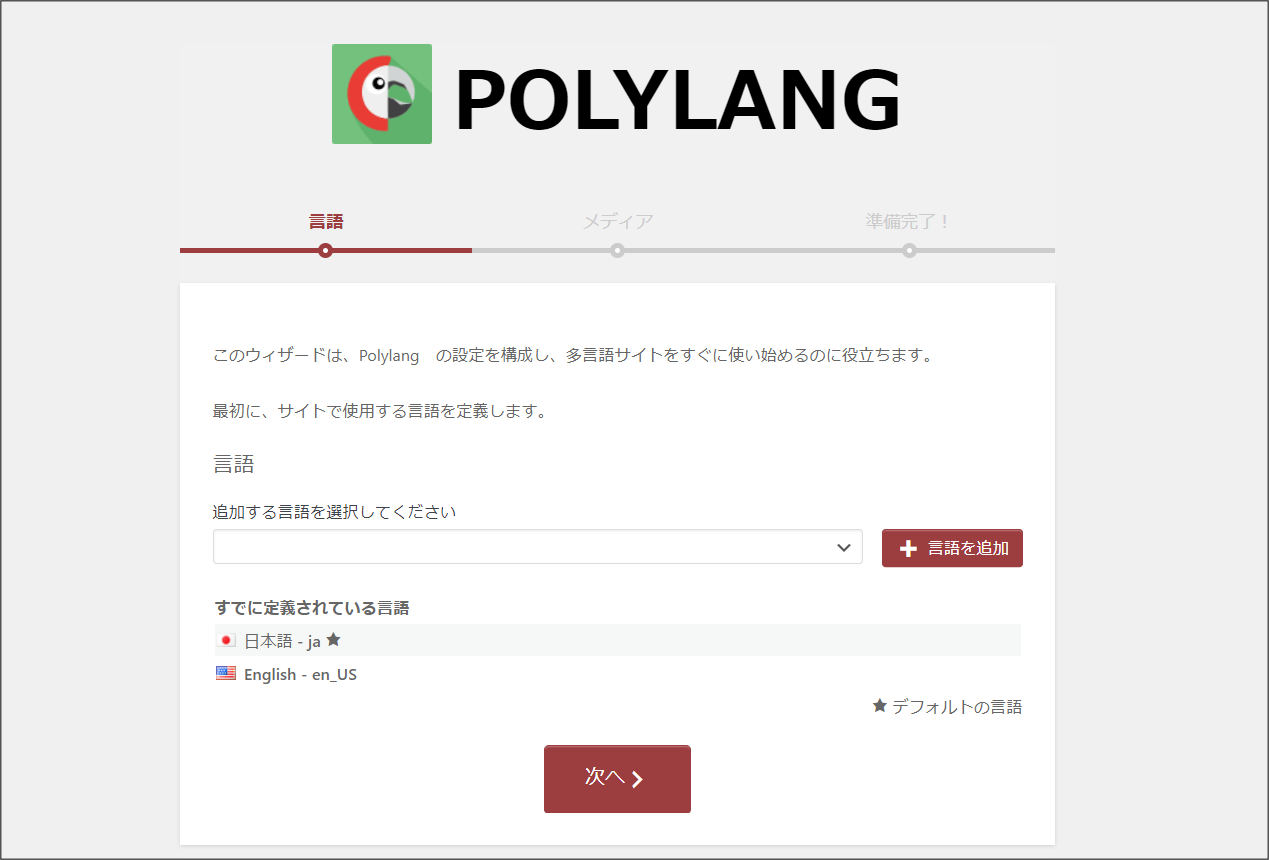
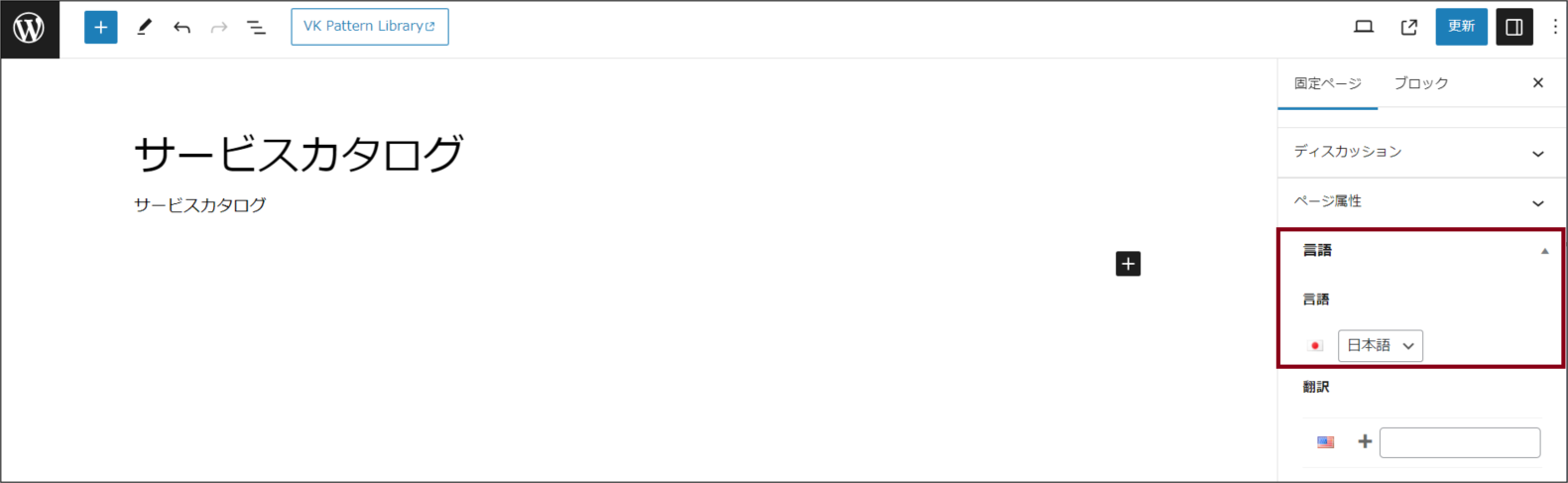
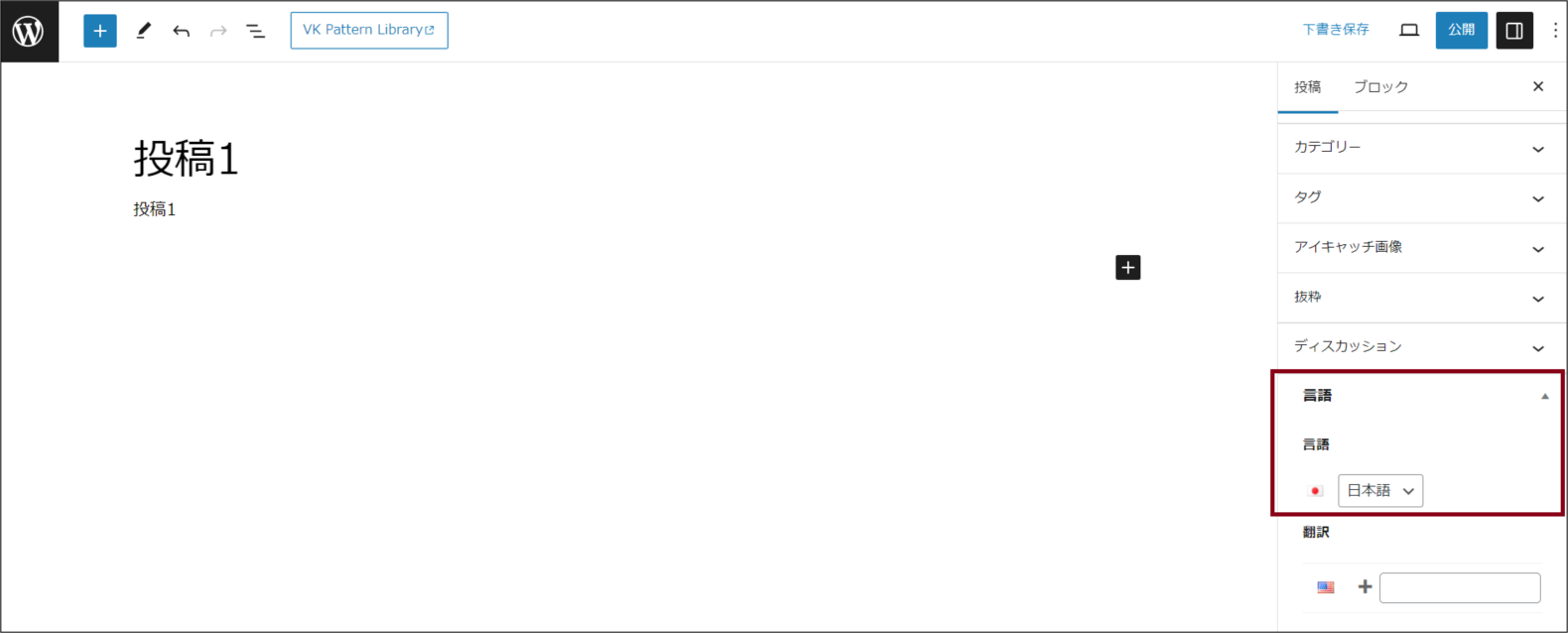
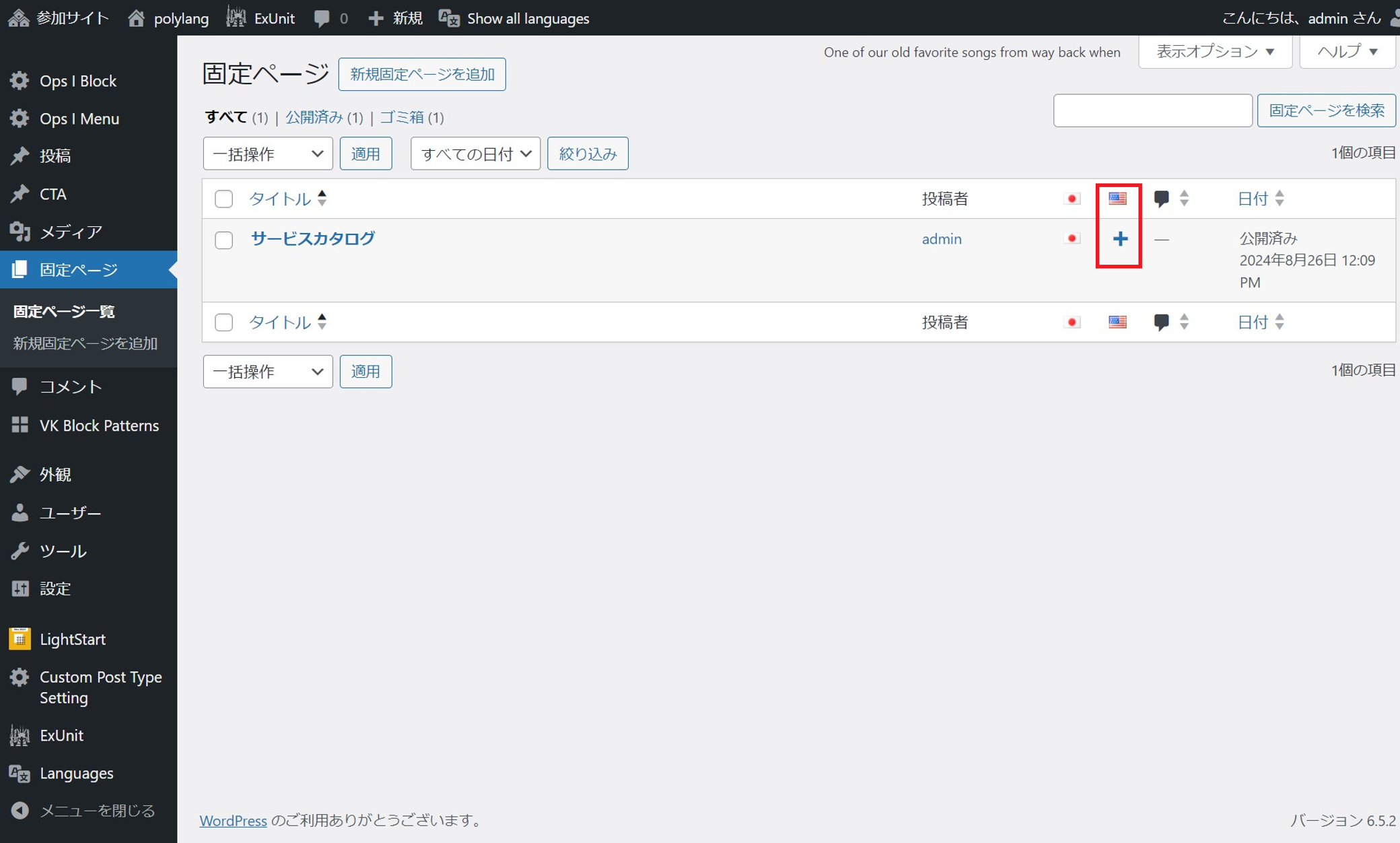
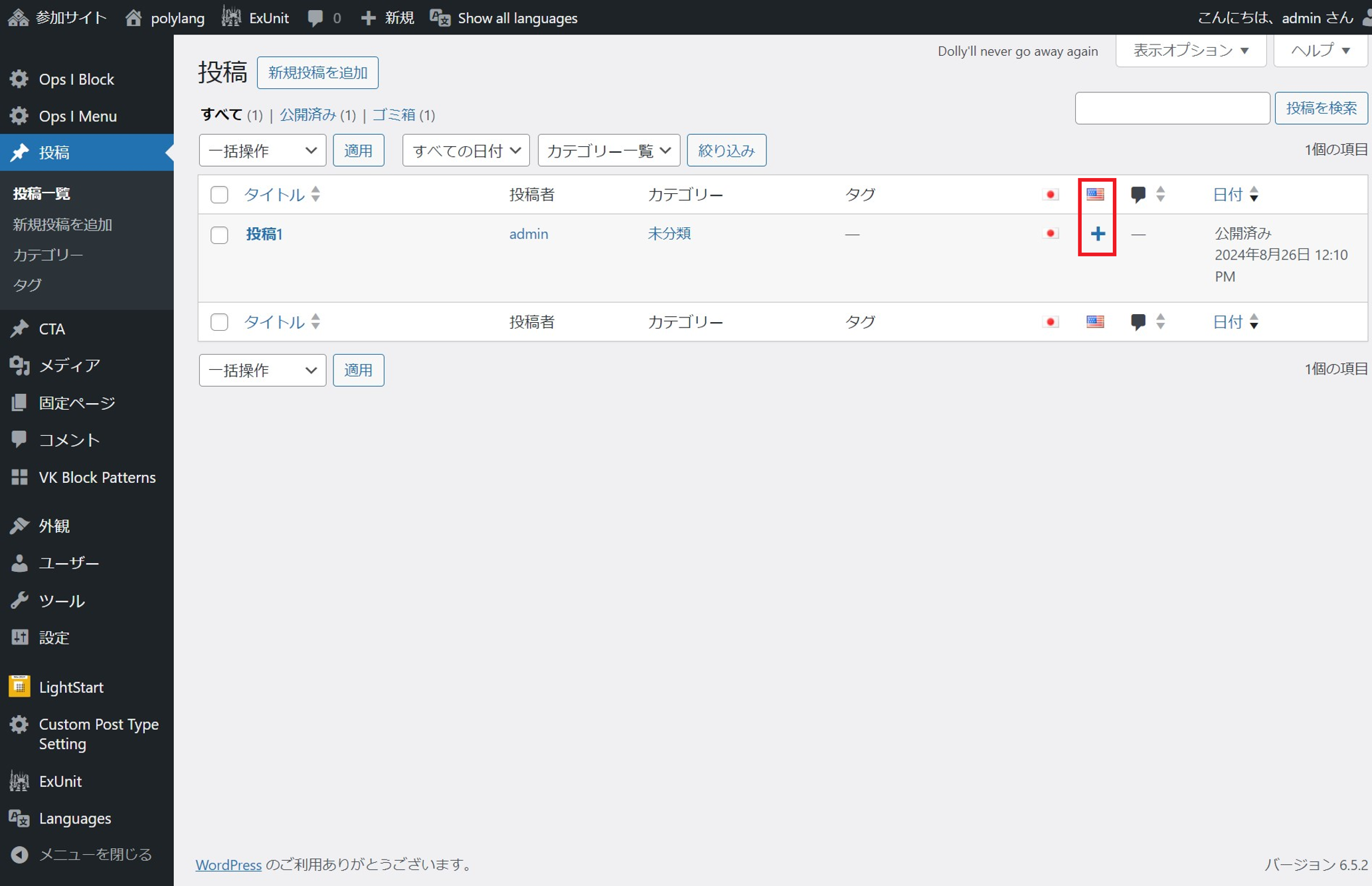
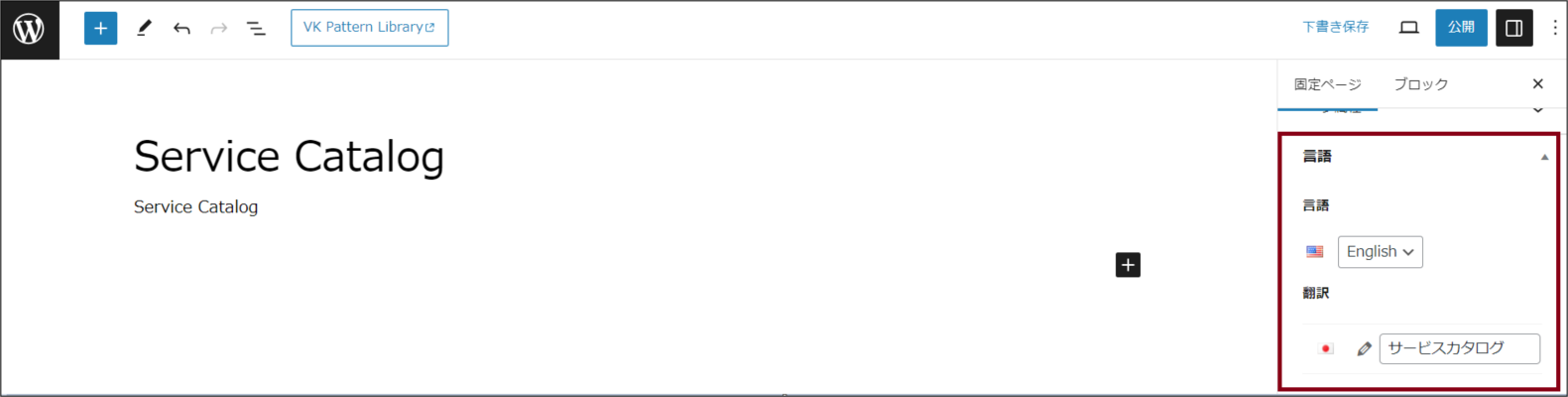
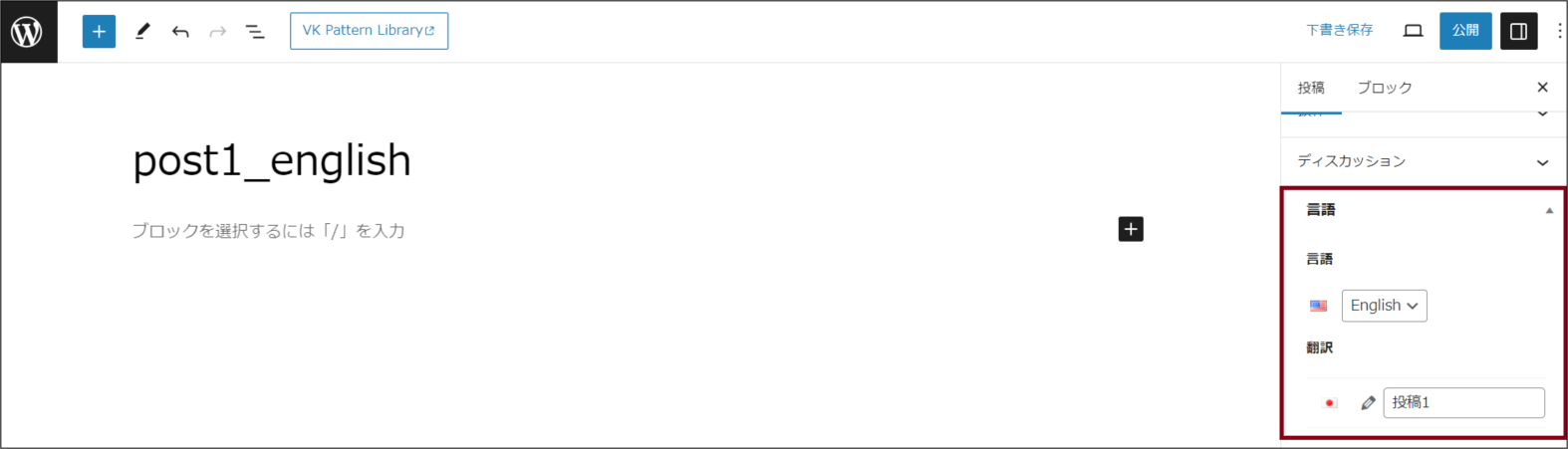
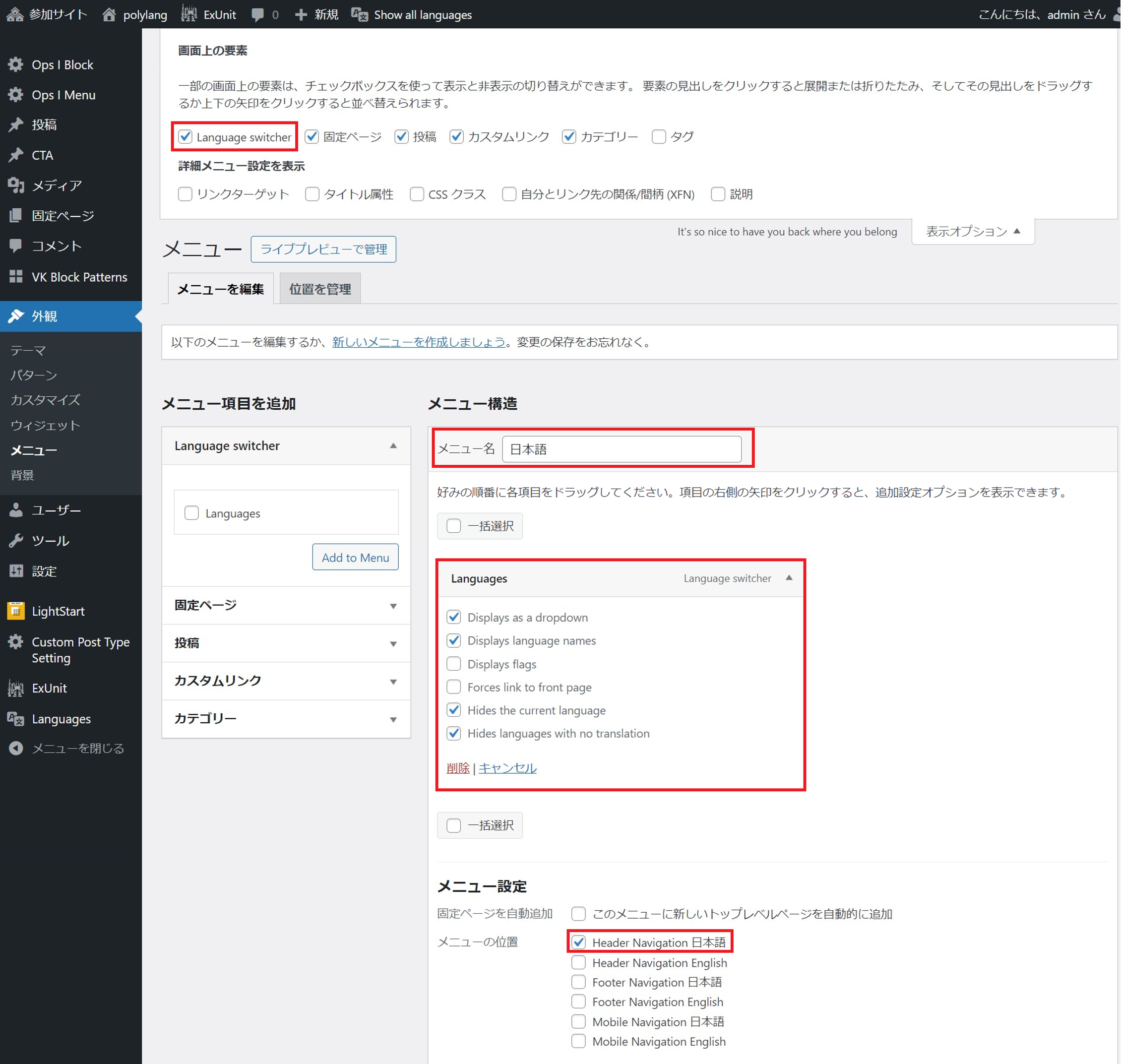
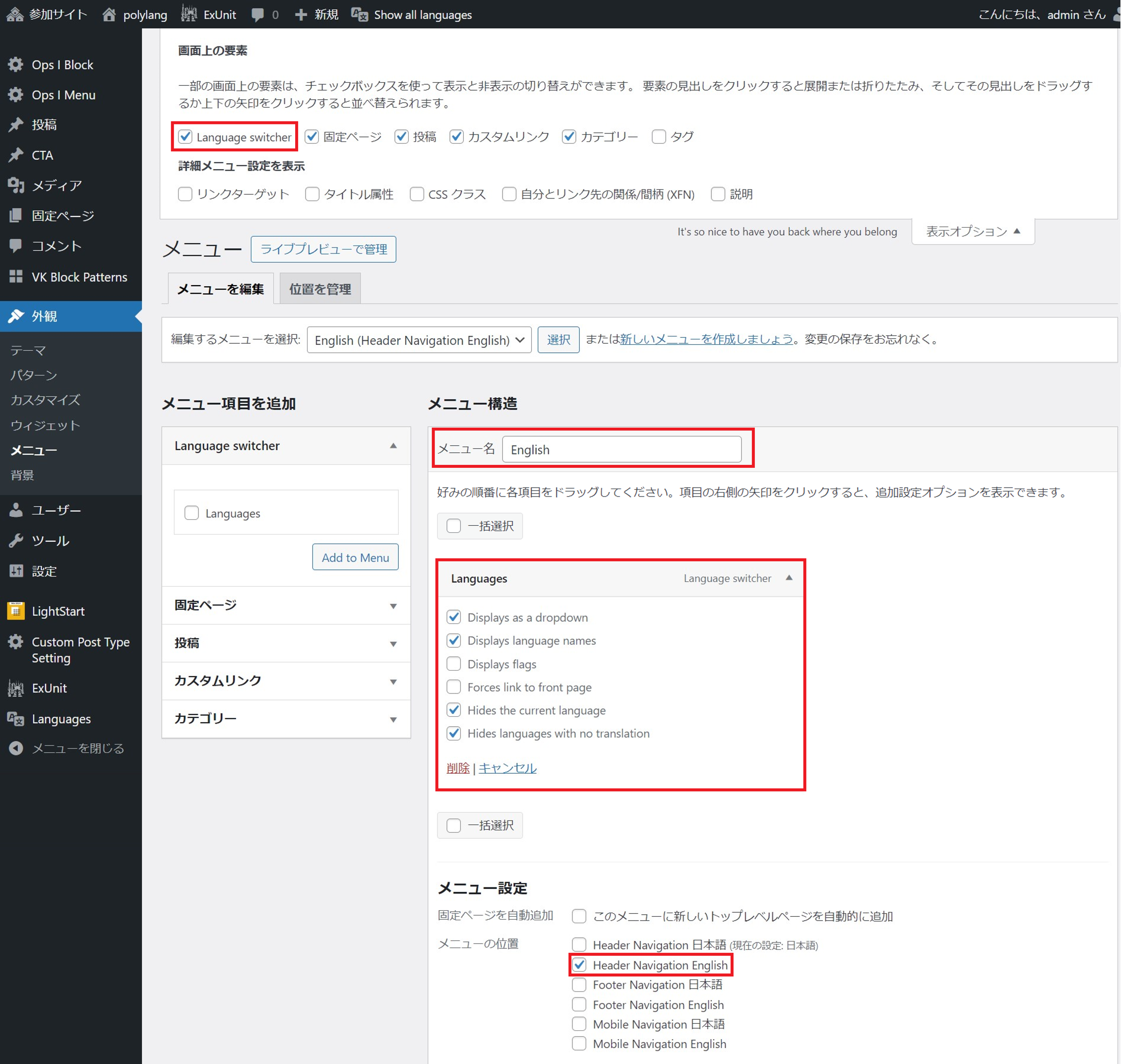
This setting allows users to switch languages within the page.
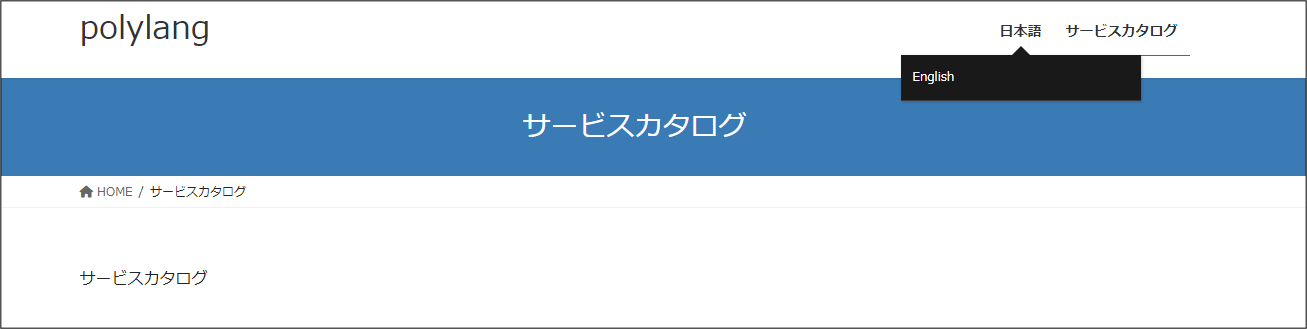
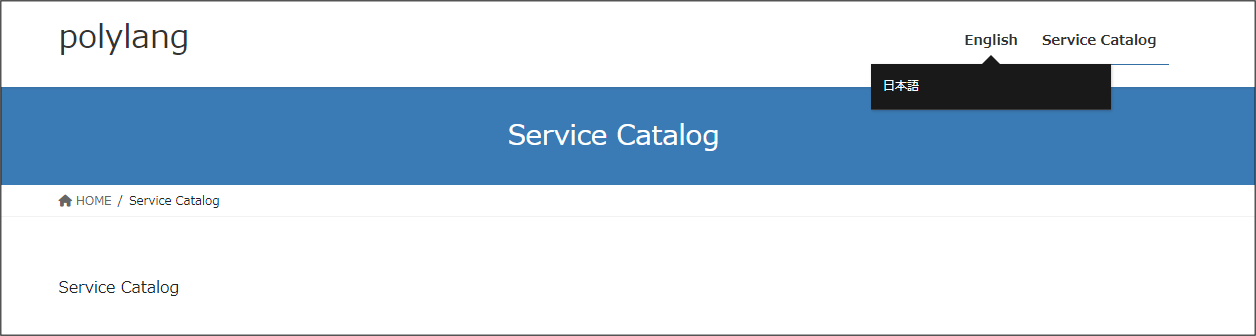
[Procedure for making sites multilingual: for existing sites]
To add languages to existing sites, go to the [Languages]-[Setup] menu and add languages. At this time, you can set the language for existing pages and posts by selecting the language you wish to assign in the setting called [Content].
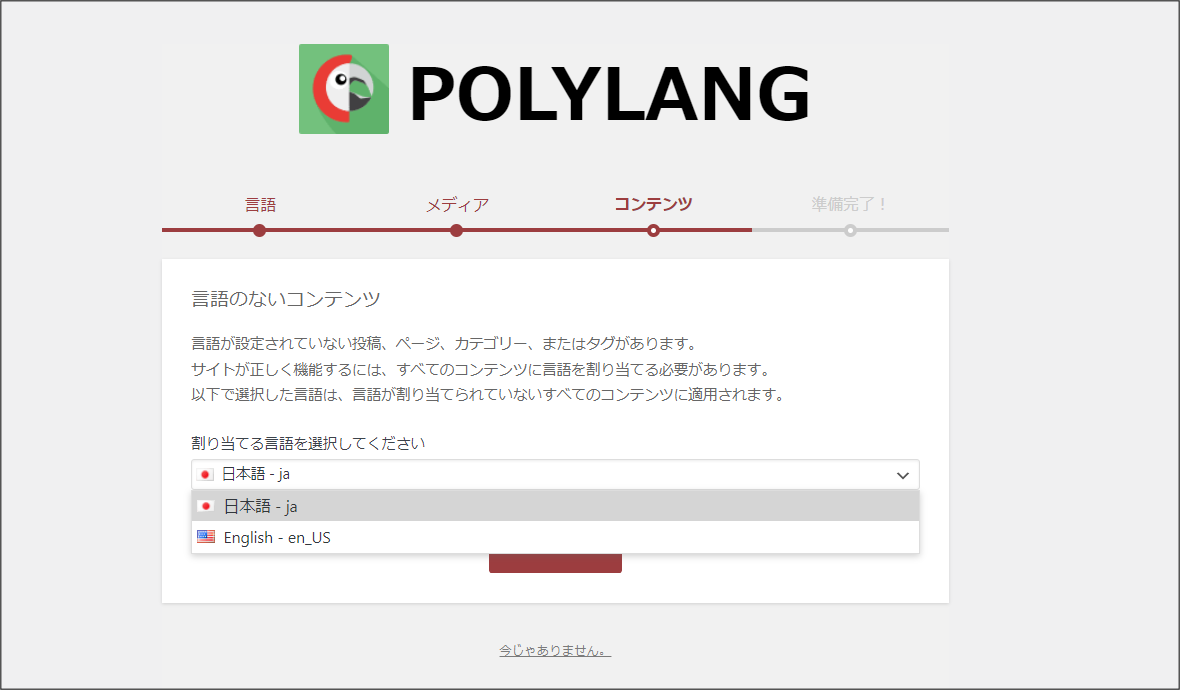
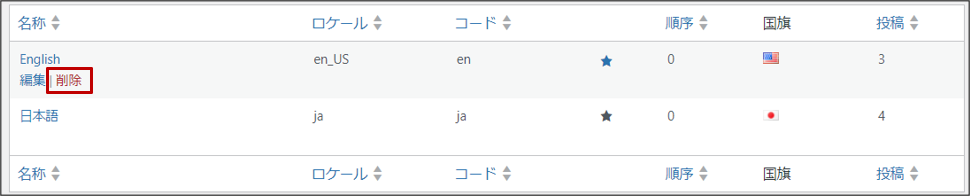
Languages can be deleted from [Languages]-[Languages]. However, deleting languages does not delete the pages or posts, which must be removed separately.
The procedure for updating pages and posts is as follows. When updating pages and posts, also update their translated versions.
The procedure for deleting pages and posts is as follows.
[Redirection on site access]
The user is redirected to a page or post in another language when the site is accessed and both of the following conditions are met.
- The language of the page or post differs from the browser language
- The version in the browser language of the page or site exists
 Notes
Notes
Make sure that the URL of the site you create and the URL created by the plugin [Polylang] do not duplicate.