4.3.8 Ticket management
Ops I enables efficient operation and management of IT services by using tickets to manage responses to requests and incidents that occur during operations. Ticket management is primarily performed from the Ticket tab of the Task or Request application, where tickets are created, reviewed, and updated. It also allows for associations between tickets.
By defining YAML files, executing the API, and connecting to the ITSM application OTOBO, you can also customize the ticket window and set up email notifications and receipts according to ticket operations.
(Table) Design items and outline of ticket management
| Item | Definition method | Key design points |
|---|---|---|
| Display and operation permissions based on roles | GUI | Organize the scope of ticket display and operation by user or group and consider the roles to be assigned. |
| Ticket types | GUI | Organize used ticket types in accordance with the event and response process for which the ticket is being managed. |
| Customizing the ticket window*1 | YAML file | Consider adding or deleting fields and changing statuses for ticket types that are prepared in advance. |
| Designing a contact person*2 | GUI | Consider the window (queue) responsible for ticket allocation. |
| Ticket watcher*3 | GUI | Consider ticket watchers who can view tickets and receive notifications other than Assigned To, Assignment Group, and Created By. |
| Notifications*3 | GUI, ITSM application | Consider the notification method, timing, recipients, and content of e-mail notifications. |
| Import and export | GUI | Consider whether or not tickets should be exported to csv and whether or not tickets should be imported when migrating from another product. |
| SLA management*4 | ITSM application | Consider SLA for incident tickets. |
| Approval flow*5 | Rest API, GUI | Consider the types that enable the approval flow, the statuses that require approval, and the status transitions after approval and declining. |
(1) Outline
In ticket management, tickets are created for each type of request, incident, etc., according to the ITIL process. The status of the ticket information and the person responsible for handling a particular ticket changes as the status progresses. In addition, users can communicate with each other using the work notes window of each ticket.
A ticket is closed when its purpose has been fulfilled or when the process is complete. For example, an incident type ticket is closed when the incident is resolved. What was discussed in the work notes for the incident, the results of the investigation, and the action taken can be recorded in the Close Notes field of the ticket detail information. This can also be used as reference information if a similar incident occurs again.
To search for reference information and relevant tickets among many tickets, a ticket browser window is provided with advanced filter functions and a GUI for searching and reviewing tickets. For details, see “Tickets”.
Incident type tickets can also be checked for compliance with target deadlines for resolution via the SLA management function.
(Figure) Ticket management conceptual diagram
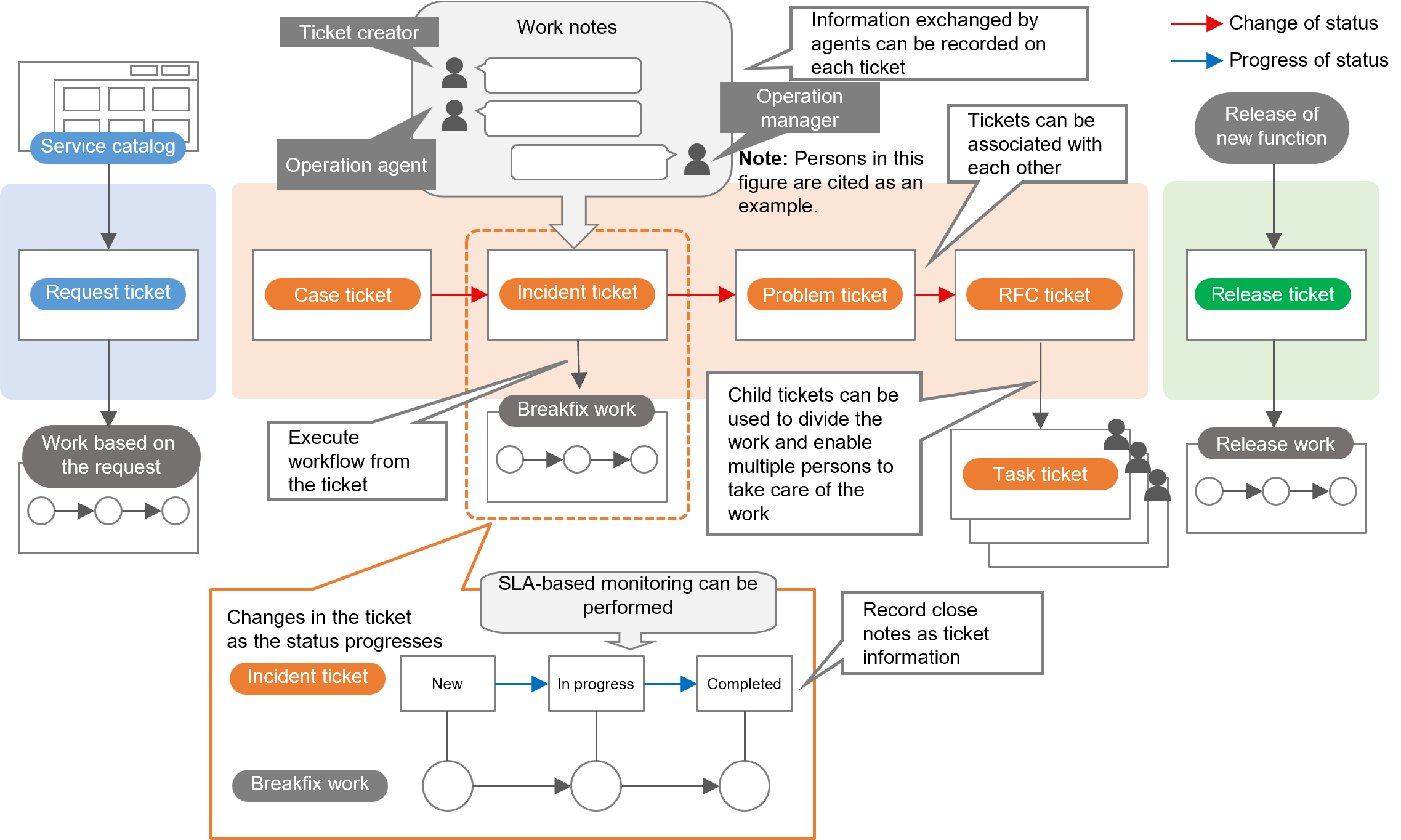
[Use cases for ticket management]
- A customer has a inquiry and creates a case ticket
- Materials are linked as attachments to tickets
- Related information is linked to tickets using related links
- The inquiry is checked and an incident ticket is created
- Work notes are used to share information between agents
- SLA management function is used to watch compliance with handling targets
- A RFC (breakfix) ticket is created to perform system failure recovery
- A plan is made for temporary coping
- The plan is approved and executed
- Check that temporary coping has been implemented
- A problem ticket is created to investigate the cause
- A task ticket is created for each task to be handled as needed
- A RFC (normal) ticket is created to address the root cause
- A change plan is made
- A task ticket is created to investigate the risk
- Agent conducts a risk investigation
- Investigation is completed
- A plan is made that reflects the investigation result
- The plan is approved and executed
- A change plan is made
- After completion of the related ticket, the case ticket is completed after confirming with the customer
(2) Ticket management basics
The basic knowledge of ticket management is as follows.
[Display and operating permissions based on roles]
The display of the Ticket tab, the display of tickets on the Ticket tab and the scope of operation are determined by the role assigned.
■ Applications with Ticket tab
The Ticket tab can be displayed from either the Task application or the Request application. The Ticket tab is the same for both applications with a few exceptions. Users who use the Task application are basically assigned the Primitive role “itsm_user” or higher. It is displayed for all users who use the Request application.
For details on the Task and Request applications and the corresponding roles, see “Tasks and Requests” and “Correspondence between roles and support functions in Ops I”.
■ Viewing and operating tickets
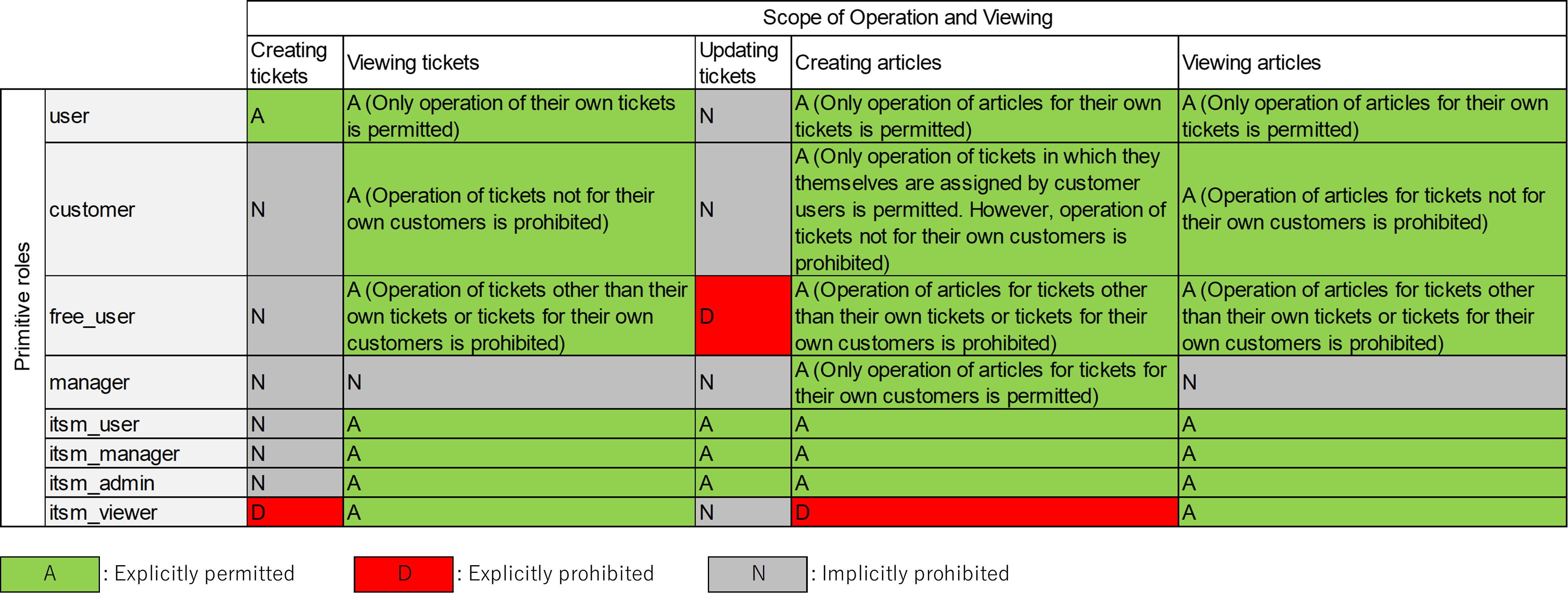
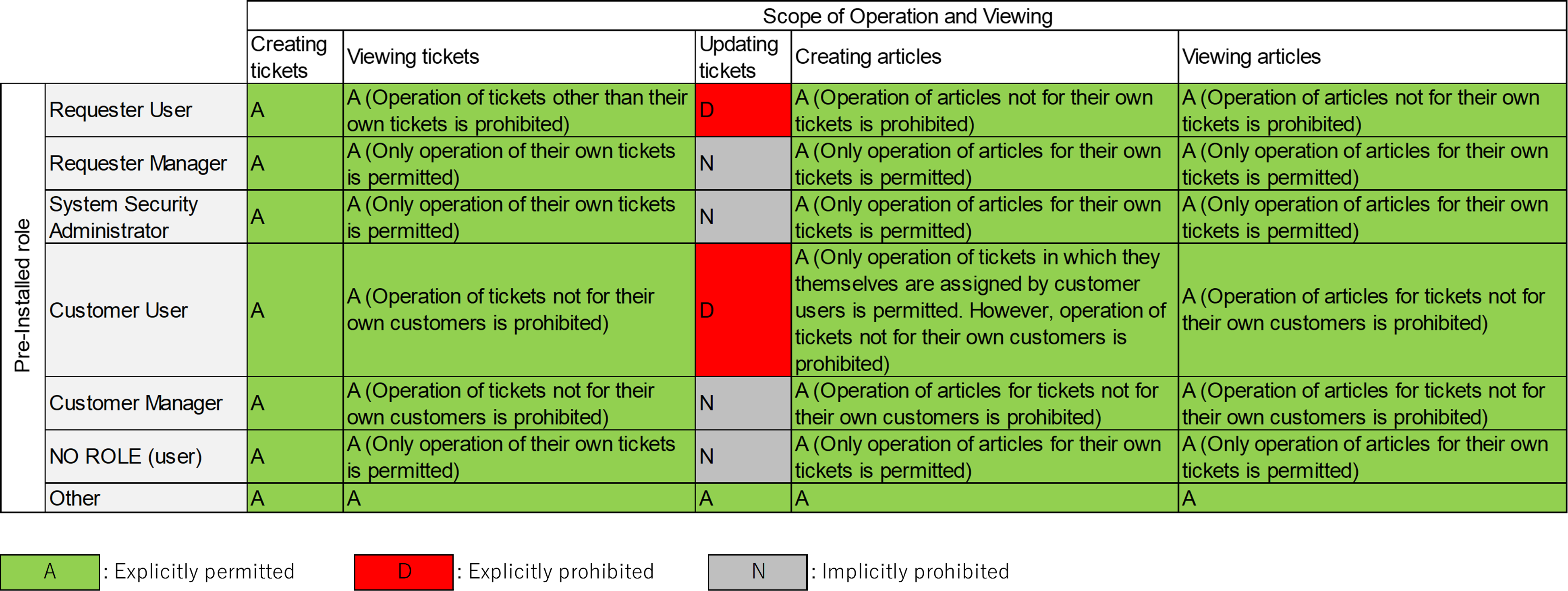
Users assigned the Primitive roles “itsm_user”, “itsm_manager”, or “itsm_admin” can view and operate all tickets. Other roles are restricted on a role-by-role basis from creating, viewing, and updating tickets, and from creating and viewing work notes.
The details of the view restriction and the scope of ticket operations for each role are as follows. When multiple Primitive roles are assigned to a single Pre-Installed role, access to each function is granted or denied in the following order of priority: explicitly prohibited > explicitly permitted > implicitly prohibited.
“Own tickets” are tickets that are self-assigned to either the “Agent”, “Assignment Group”, or “Created By” field of the ticket detail information. The “Assignment Group” refers to the group to which you are assigned.
“Own Customer” is a ticket where the customer to which you belong is assigned in the “Customer” field of the ticket detail information.
For how to read the table, see “Correspondence between roles and support functions in Ops I”.
(Table) ACLs (Primitive roles) for ticket operations
(Table) ACLs (Pre-Installed roles) for ticket operations
[Ticket types]
The following eight ticket types are available. As shown in “(Figure) Ticket management conceptual diagram”, the type is specified according to the task to be done for each ticket. Ticket types are described in the format “Ops I type variable name (Ops I type label name)”. The Ops I type variable name is used in YAML definitions and API settings. The Ops I type label name is the type name displayed in the Ops I GUI.
| Ticket types | Description |
|---|---|
| incident (Incident) |
Incident ticket Handles various events affecting IT services, such as user inquiries and system failures. |
| request (Request) |
Request ticket Manages user requests for IT services. You can tell the difference between request type tickets, which are automatically created when you create a workflow, and other tickets by looking at the "Source" field. |
| task (Task) |
Task ticket Manages work tasks required to handle other tickets. It is used as a child ticket of another ticket. |
| problem (Problem) |
Problem ticket Manages the problems that are occurring. |
| rfc (RFC) |
RFC ticket Manages changes to IT services. The following change types are used depending on the change content.
|
| release (Release) |
Release ticket Manages the implementation of permitted changes to IT services. |
| case (Case) |
Case ticket Maintains information to resolve customer questions and problems. |
| unclassified (Unclassified) |
Unclassified ticket Used for tickets that do not fall under any of the types. |
The fields displayed differs depending on the type of ticket. For details about each ticket type, see “Ticket types”.
All ticket types have the following functions.
- Work Notes: Allows users to communicate with each other. See “Work notes”.
- Attachments: Allows you to attach files to tickets. See “Work notes” and “Attachments”.
- Related Links: You can set links related to tickets. See “Related links”.
- Related Records: Displays related tickets and workflows. See “Related records” and “Relationships between tickets”.
- Service Catalogs: Displays a list of registered catalog items and enables the execution of workflows. See “Service catalogs”.
- Approval Flow: Allows you to set approval flows to tickets. See “Approval flow”.
Incident tickets have a management function for SLA. For details, see “SLAs” and “SLA management function”.
[Ticket automatically created when workflow is executed]
Turn on the column title “Ticket Number” on the Workflow List window on the Workflow tab to display the ticket number column. Clicking on a ticket number will take you to the ticket description window.
(3) Relationships between tickets
Tickets can be related to other tickets. For associated tickets of any ticket, go to [Ticket Tab]-[Ticket browser window]-[Ticket zoom window]-[Related Record].
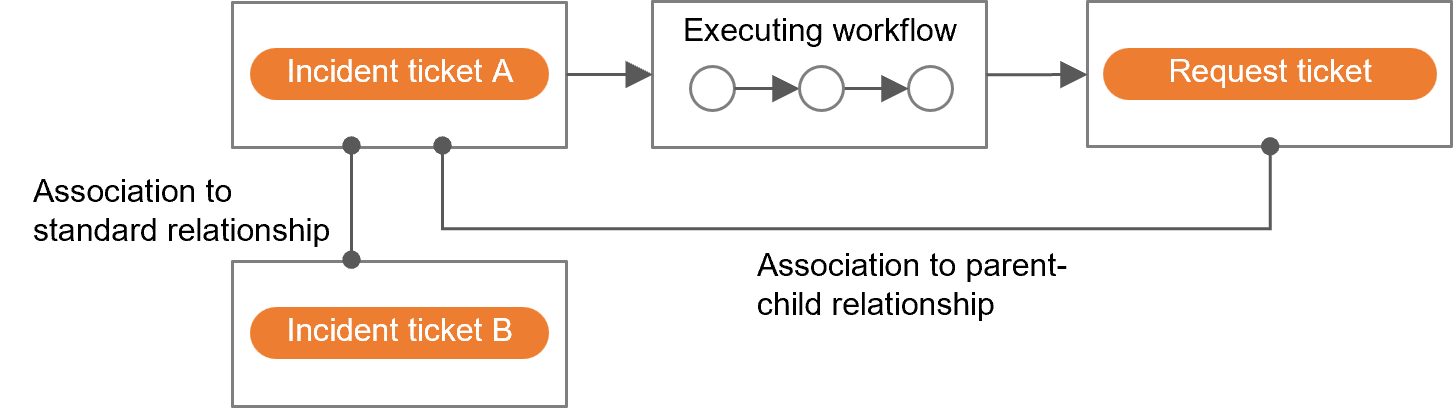
There are two types of relationships between tickets: parent-child relationships and standard relationships.
(Figure) Association between parent-child relationship and standard relationship between tickets
[Parent-child relationship]
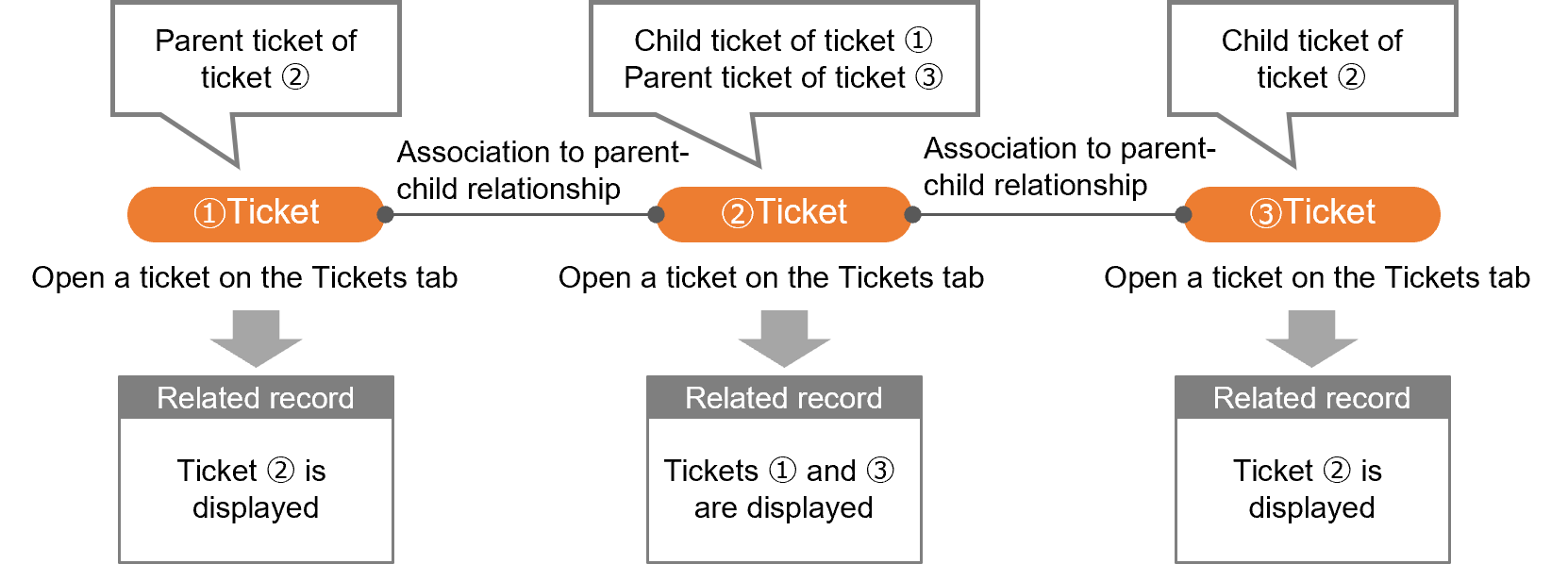
When a ticket is considered to be a parent ticket, the tickets that are derived as tasks in the course of working on the parent ticket become child tickets. For example, when a workflow is executed in response to an incident ticket, the incident ticket becomes the parent ticket and the workflow request ticket becomes the child ticket, and the two tickets are automatically associated. Thus, the parent-child relationship is dependent on the work of each of the associated tickets.
By specifying any ticket in the “Parent Ticket” field of the ticket detail information, two tickets can be associated as a parent-child relationship.
It is possible to associate multiple child tickets with one parent ticket, but not multiple parent tickets with one child ticket.
[Standard relationship]
A standard relationship is a relationship that is independent of the work of the individual tickets and associate tickets with similar reference information and content. For example, if the cause of an incident is a workflow execution with no dependency on ticket work, the standard relationship is the association of an incident ticket with a workflow request ticket.
Standard relationship associations are performed by OTOBO. For the operational procedures, see the OTOBO manual. For information on the OTOBO manual, versions, and editions, see “OSS version/edition and reference manuals” in the Appendix.
[Tickets tab on Related Records]
Associations between tickets are listed in the Ticket List in the Tickets tab on Related Records. When parent-child tickets are associated, a parent ticket and a child ticket are displayed for the open ticket. An example is illustrated below.
(Figure) Example of parent-child relationship tickets displayed in related records
(4) Other functions
Ticket import and export functions are also provided that can be utilized for creating and managing tickets via e-mail.
[Creating tickets via e-mail]
The email-based ticket creation function allows tickets to be automatically created upon receipt of an e-mail from a customer user.
By differentiating e-mail addresses for different contact persons, it is possible to assign the contact person for tickets according to the address that receives the e-mail. For details on how to create and edit contact persons, refer to “[Admin] > Create and edit the contact person” in the “JP1 Cloud Service/Operations Integration User’s Guide (ITSM Operation Manual)”.
Ticket creation by e-mail uses a mail server prepared by the customer to create tickets from received e-mails.
The sender e-mail address for automatic replies to received e-mails varies depending on the settings of the notification function.
- Ops I notification function:
noreply.opsi@itg.hitachi.co.jp - Notification function using mail server:
Receiving e-mail address prepared by the customer
For details, see “Use Cases > Use cases for notifications and email-based ticket creation” in the “JP1 Cloud Service/Operations Integration User’s Guide (ITSM Operation Manual)”.
The following are key points to consider when designing email-based ticket creation, as well as an example of the process flow.
(Table) Key design points for email-based ticket creation and sample process flow
| Key design points | Example of process flow |
|---|---|
| Organize information on the mail server and authentication method to be used, and the rules for sorting tickets in advance. |
1. Check POP3/IMAP on user's mail server once every 10 minutes
2. If there is mail on the mail server, OTOBO will receive it
3. If mail sort rules have been created, mail is sorted and a ticket is created
|
[Importing and exporting tickets]
OTOBO allows batch import of tickets managed in csv format files. This is useful when migrating from other products, for example. It is also possible to export entire tickets as a batch or by ticket type, etc., into a csv-formatted file. It can be used to obtain information needed for reports, such as the number of cases handled by each type.
The key design points for import and export are as follows.
(Table) Key design points for import and export
| Item | Key design points |
|---|---|
| Import | Organize the columns of the target tickets and their mapping to the ticket definitions on the OTOBO side. |
| Export | Organize the filter criteria for the target tickets and the columns and formats to be exported. |
For the operational procedures, see the OTOBO manual. For information on the OTOBO manual, versions, and editions, see “OSS version/edition and reference manuals” in the Appendix.
Subsection structure
4.3.8.1 Ticket notification function
4.3.8.2 SLA management function
4.3.8.3 Ticket approval function