9.2 Set calendars
When an SLA is created, items such as the number of days and the escalation are calculated based on the preconfigured calendar.
The same calendar can be specified for multiple SLAs.
Users edit and use 99 calendars prepared by default.
No new calendars can be created.
This section describes how to edit a calendar.
A calendar can be edited by performing the following steps.
1. Select [Admin] from the main menu.
2. On the screen that appears, click [Administration] - [System Configuration]. The [System Configuration] screen appears.
3. Select [Navigation] - [Core] - [Time], then from the expanded list, click the calendar you want to edit.
4. On the calendar editing screen, click [Edit this setting] for any information that needs to be set, and then specify the settings.
5. When you have finished editing, click ✓ on the right to save the settings.
Details of the setting items are as follows.
(Table) Calendar setting items
| Item | Description |
|---|---|
| CalendarWeekDayStart::CalendarX | Start day of the calendar week Select the day from the list. This item is not used for SLA calculation. Select any day of the week according to the calendar of the system you are using. |
| TimeVacationDays::CalendarX | Scheduled vacation days for each year such as statutory holidays Specify the month, day, and name of the vacation day. |
| TimeVacationDaysOneTime::CalendarX | One-off vacation day Specify the year, month, day, and name of the vacation day. |
| TimeWorkingHours::CalendarX | Working days and working hours (up to hourly units)
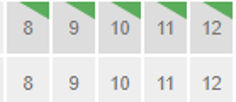 Select the working days and working hours. When you make a selection, the top right of the time display turns green. |
| TimeZone::CalendarX* | Time zone Select the time zone from the list. For example, specify "Asia/Tokyo” for Japan standard time. |
| TimeZone::CalendarXName | Calendar name Specify a name for the Incident Calendar. |
*The default value is Invalid.
6. Select [Actions] - [Deployment]. The [Changes Deployment] screen appears.
7. Confirm the specified settings, then click the [Deploy selected changes] button to apply the calendar settings.
 Note
Note
You must specify a time zone. If you do not specify a time zone, the correct time for the relevant region will not be applied.