2.7.3 Mapping attributes/groups/roles
To link IdP users with Ops I users, map attribute information, groups, and roles of Ops I users based on information of IdP users.
Multiple mapping configurations can be registered for each OIDC or SAML connection setting.
The mappings are configured by Ops I security administrators.
(Figure) Mapping outline
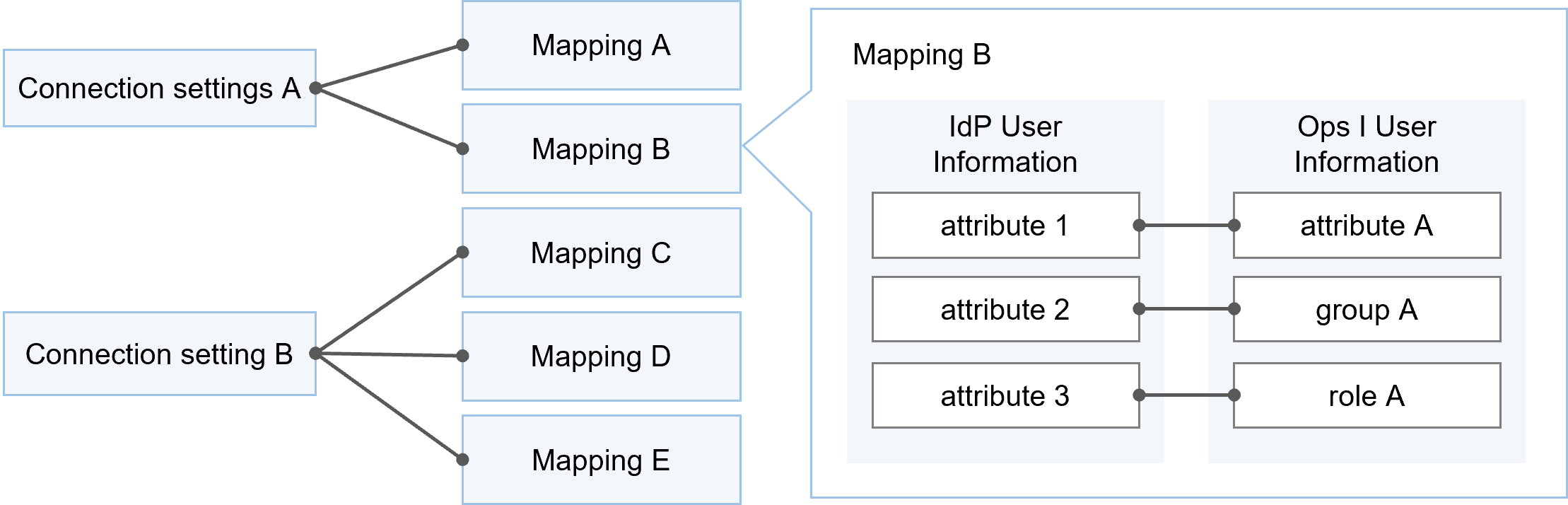
The following attributes are required in Ops I user profiles and must be assigned values by manual or automatic mapping. If any of the values are missing, a login error will occur.
- E-mail address
- First name
- Last name
Mappings are configured in the mapping tab on the "Advanced Connection Settings" window. For details, see “Mapping tab”. For information on setting up OIDC connection, see “Setting up OIDC connection” and “Adding OIDC”. For information on setting up SAML connection, see “Setting up SAML connection” and “Adding SAML”.
 Notes
- If you want to allow customer users to log in using a IdP, you need to set up a mapping so that the user attribute "Customer" is assigned to one of the following roles:
- Pre-Installed role "Customer Manager"
- Pre-Installed role "Customer User"
- Primitive roles "customer" and "free_user"
- Primitive roles "customer" and "manager"
- A custom role with one of the above roles set as a related role
- Users created when logging in via IdP will be billing users. If you want to create them as non-billing users, map a Pre-Installed role that includes the Primitive role "free_user".
- Ops I does not distinguish between uppercase and lowercase letters in email addresses. If your IdP uses email addresses in uppercase, you must convert them to lowercase via template mapping. For mapping types, select "Assign the claim to attributes using a template string" for OIDC or "Assign the attributes to attributes using a template string" for SAML, and perform the conversion as follows:
- For OIDC${authn_info["email"]?c_lower_case}
- For SAML${authn_info["email"][0]?c_lower_case}
- For OIDC
(1) Where to obtain and set attribute information
This section describes where to obtain and set information of IdP users.
[Obtaining attribute information]
Information of IdP users to be used for mapping can be obtained from the following.
- For OIDC:
Claim, which is a user attribute in OIDC, can be obtained from ID tokens or the UserInfo endpoint.
In the [Scope] item of OIDC connection settings, you must specify the scope that contains the Claim you wish to obtain. - For SAML:
Attribute, which is a user attribute in SAML, can be obtained from SAML assertions included SAML responses.
It is also possible to set fixed values without using IdP user information. When using fixed values, values can be specified for each connection setting. For example, a specific IdP user can be mapped as customer A.
[Where to set attribute information]
Below are where to set obtained attribute information.
- Attribute values of Ops I users
Attribute values that can be specified: e-mail address, first name, last name, company, department, address, phone number 1, phone number 2, memo, customer (customer ID) - For obtained attributes, configure conditions to assign to groups that meet them
- For obtained attributes, configure conditions to assign to roles that meet them
(2) Synchronization mode
Obtained IdP user information is set in Ops I user information according to the mapping settings. Synchronization modes refer to the timings when obtained attributes are set in Ops I user information. [Sync Mode] is selected from the following.
- Inherit: The synchronization mode set in the connection setting is inherited
- At creating user: Synchronization is reflected when creating a user in Ops I after logging in for the first time when there is no user in Ops I that is linked with an IdP
- Every logging in: Synchronization is reflected each time the user logs in to Ops I through an IdP. When an IdP user’s information is updated and then the user logs in to Ops I, the information of the linked Ops I user is also updated.
The synchronization mode can be set in the mapping tab. For details, see “Mapping tab”.
For information on configuring synchronization modes in connection settings, see “Adding OIDC” and “Adding SAML”. In both cases, the connection setting edition window is used.
(3) Automatic mapping
Some of information of IdP users is mapped without any manual settings. Automatic mapping operates in the same way as [When creating users] in [Synchronization Mode]. However, if mapping settings have been made by the user, those settings take priority.
Below are attributes that are automatically mapped for OIDC and SAML.
- For OIDC
For the following Claims, mappings are automatically applied.
*preferred_username overrides the user name.Claim name User attribute preferred_username* Username email E-mail address given_name First name family_name Last name - For SAML
If the following friendly names are set, the mapping will be applied automatically.Friendly name User attribute email E-mail address
(4) Value conversion
When Ops I user attribute information is configured through automatic or manual mapping, if the requirements of the allowed characters in Ops I are not met, values will be automatically converted or a login error will occur.
For information on the characters allowed for each attribute, see “Notes on characters that can be entered”.
(Table) Value conversion and login error for each user attribute
| User attribute | Value conversion and login error |
|---|---|
| E-mail address | A login error occurs |
| First name Last name Company Department Address Memo |
Trailing characters are trimmed if the maximum number of characters is exceeded |
| Phone number 1 Phone number 2 |
|
| Customer | A login error occurs in any of the following cases:
|