4.3.12 Designing a data model
Data model design involves the definition of data models.
(Table) Data model design items and outline
| Item | Definition method | Key design points |
|---|---|---|
| Datamodel | YAML file | Evaluate the type and structure of the datamodel based on your purposes. Also, organize the data records to be managed and design the datamodel, including tables and columns. |
Datamodels allow you to manage multiple tables collectively within a single datamodel framework.
Tables defined in the datamodel can be referenced by user-created applications and by each workflow step by linking them to the UI (UI version 1.1) YAML definition.
Configure the following labels the UI YAML definition:
- “dataSource” label
- The “source” label in the “fields” element of the Form component or in the “columns” element of the Table component
For details about the UI YAML definition, see “UI (UI Version 1.1)”.
In addition, user-defined data models and registered records can be viewed from the Datamodel application. For details, see “Managing datamodels”.
(1) Types of datamodels
There are three types of datamodels as listed below. These can be configured in the Datamodel YAML file. For details about Datamodel YAML definitions, see “Datamodel”.
- Custom tables: Single tables
Defined by using the "tables" label. - Custom views: Read-only tables created by joining multiple custom tables
Defined by using the "views" label. - Schema datamodel: Configured by using a JSON Schema file
Defined by using the "schemas" label.
Custom views consist of a single custom table or multiple joined custom tables. Custom views have the following features:
- Read-only.
- Can be displayed in any columns, like custom tables ("columns" label).
- Can be linked to a single custom table ("from" label).
- Can join multiple custom tables and select their respective layouts ("from" label, "join" label).
- Can specify join conditions ("conditions" label).
- Can specify display conditions for the joined custom tables ("where" label).
For definition examples, see “Custom view definition example”.
 Tips
- Custom views cannot be joined with custom tables.
- You can join the default user and group tables with custom tables.
For example, this is used when a custom table displays only user IDs, making it difficult to identify users at a glance. In such cases, you can join the user IDs in the custom table with the default user table to display information, such as user names and company names, in the custom table.
For details about the user table, see "(Table) user table"; for details about the group table, see "(Table) group table".
[Applying ACLs to datamodel records]
You can apply ACLs to records in custom tables and custom views.
ACLs are defined by specifying the YAML files for object-based authorization ACLs and Statement YAML files in the GraphQL API (/api/v1/graphql).
In the Statement YAML file, define the value that specifies the GraphQL object name or mutation field name (“resources.graphqlQuery.value”) so that it matches the internal name of the datamodel to which the ACL is applied.
This ensures that the effect (“resources.effect”) is applied to records that match the conditions (“resources.conditions”) when GraphQL operates on records.
Here, the text in parentheses () indicates the label name in the Statement YAML file. For details about ACL and Statement YAML definitions, see “ACL, Statement”. For details about the GraphQL API, see “Detailed API reference information > Standard API functions” in “JP1 Cloud Service/Operations Integration API Reference”.
For data in custom views, ACLs are applied in the order below. If conflicting effects “allow” and “deny” are applied to a record during the application process, the record is explicitly denied, and “deny” is applied.
- ACLs corresponding to GraphQL APIs that operate on records in the custom table before joining are applied to the records before joining.
- ACLs corresponding to GraphQL APIs that operate on records in the custom view itself are applied to the records after joining.
[Customer separation for datamodel records]
Datamodel records reflect the customer settings of the user who created them. For custom tables, you can change the customer settings from the [record details] window in the Datamodel application.
Custom view records are assigned a common customer selected from the customers set for the records in the custom tables joined to the custom view.
(2) Managing datamodels
Among the datamodels created by users, custom tables and custom views can be managed in the Datamodel application.
In the Datamodel application, you can perform the following actions:
- View a list of custom data models.
- View, add, update, and delete records in custom tables.
- View records in custom views.
Custom views are read-only, and records cannot be modified.
In addition, you cannot modify datamodels associated with workflows.
For details about using the Datamodel application, see “Custom data models”.
For details about the Datamodel YAML file used to define datamodels, see “Datamodel”.
To use the Datamodel application, you must be assigned the Primitive role “custom_data_model_admin”.
 Notes
You cannot control access to datamodels by group or customer. Users assigned the Primitive role "custom_data_model_admin" can access all datamodels available for display.
[Importing records from custom tables]
When setting up Ops I, you can bulk import records from a CSV file containing custom table records to create new records or update existing ones. To import records, you must register an Import YAML file in advance. Based on the settings in the registered Import YAML file, the system maps the columns in the uploaded CSV file to the custom table columns defined in the Datamodel YAML file and performs validation checks. For details about the window, see “Importing custom table records”; for details about Import YAML files, see “Import”.
(3) Datamodels linked to workflows
Datamodels allow you to manage multiple tables collectively within a single datamodel framework. To do this, you must define in a YAML file the data items shared across multiple applications. Define the information required for application processing in each column and manage it as a table.
(Figure) Data model conceptual diagram
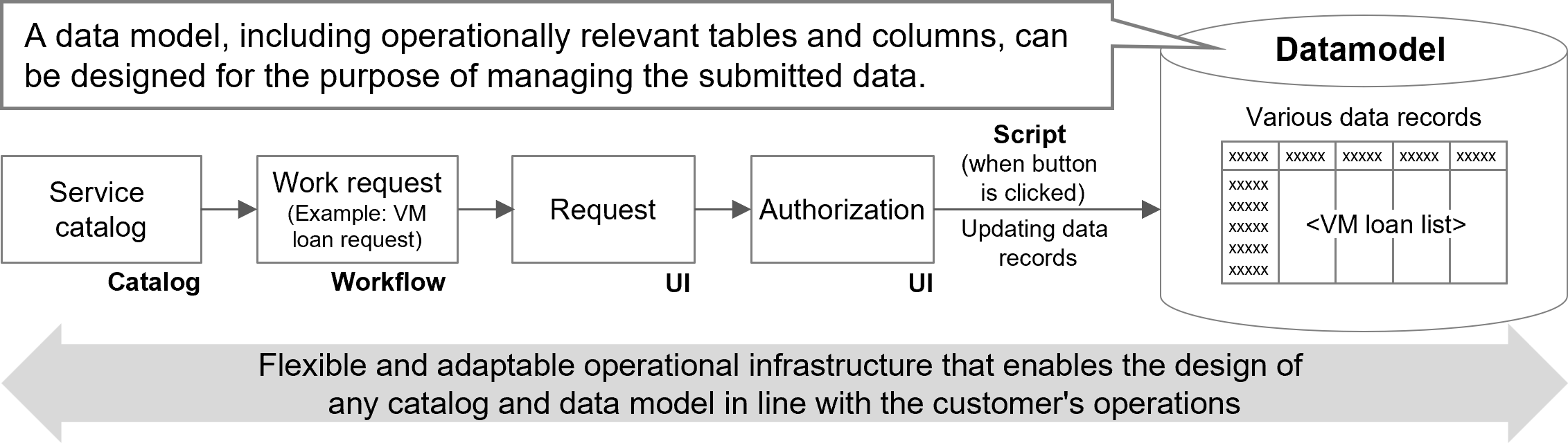
When designing a data model for a VM lending ledger for VM lending request handling, create catalog items for VM lending requests, identify the information required for the requests, and make YAML definitions for the data model for the VM lending ledger. Information required for the requests includes the serial number of the requests, the name of the system using the VM, and the name of the lent VM.
The following is a list of the information and columns as an example.
(Table) Example of columns in VM lending ledger
| Table | Column | Description | Data format | Default value | Entering NULL | enum list |
|---|---|---|---|---|---|---|
| VM lending ledger | Request number | Serial number of request | String varchar(32) |
- | Possible | - |
| System name | Name of the system using the VM | List enum |
- | Possible | Order management system Customer management system Production management system |
|
| VM name | Name of the lent VM | String varchar(32) |
- | Possible | - | |
| OS type | Select Windows or Linux | List enum |
- | Possible | Windows Linux |
|
| CPU | Number of vCPU cores used in the VM | Number integer |
- | Possible | - | |
| Memory | Memory size used by the VM | Number integer |
- | Possible | - | |
| Storage | Storage capacity used by the VM | Number integer |
- | Possible | - | |
| Requester | Name of the VM lending requester | String varchar(256) |
- | Possible | - | |
| Use start date | Start date of use of the VM | Date date |
- | Possible | - | |
| Messages | Messages | String text |
- | Possible | - | |
| Checklist (file) | Completed checklist | File document |
- | Possible | - | |
| Checklist (URL) | URL of the completed checklist | String text |
- | Possible | - |
For information on how the contents defined in the above list are represented on the window, see the section that explains UI design using VM lending requests as an example in “UI design”.