4.11 Collaborating with AI agents
By collaborating with your AI agent in Ops I, you can efficiently manage tickets and create or edit Ops I definitions.
To collaborate with Ops I, AI agents can use the Ops I MCP server. The MCP server for Ops I is referred to here as the “MCP server”.
First, configure the connection settings. Afterward, when a user enters a prompt into the AI agent, the AI agent executes the appropriate tools on the MCP server as needed.
The MCP server provides tools for performing the following operations:
- Searching for, creating, and updating incident tickets; searching for and updating case tickets; and searching for and creating knowledge articles.
For details, see "Ticket and knowledge article operations". - Retrieve information from the manuals regarding the Ops I definition file.
For details, see "AI-assisted coding of Ops I definition files".
(Figure) Relationship between the AI agent and the MCP server
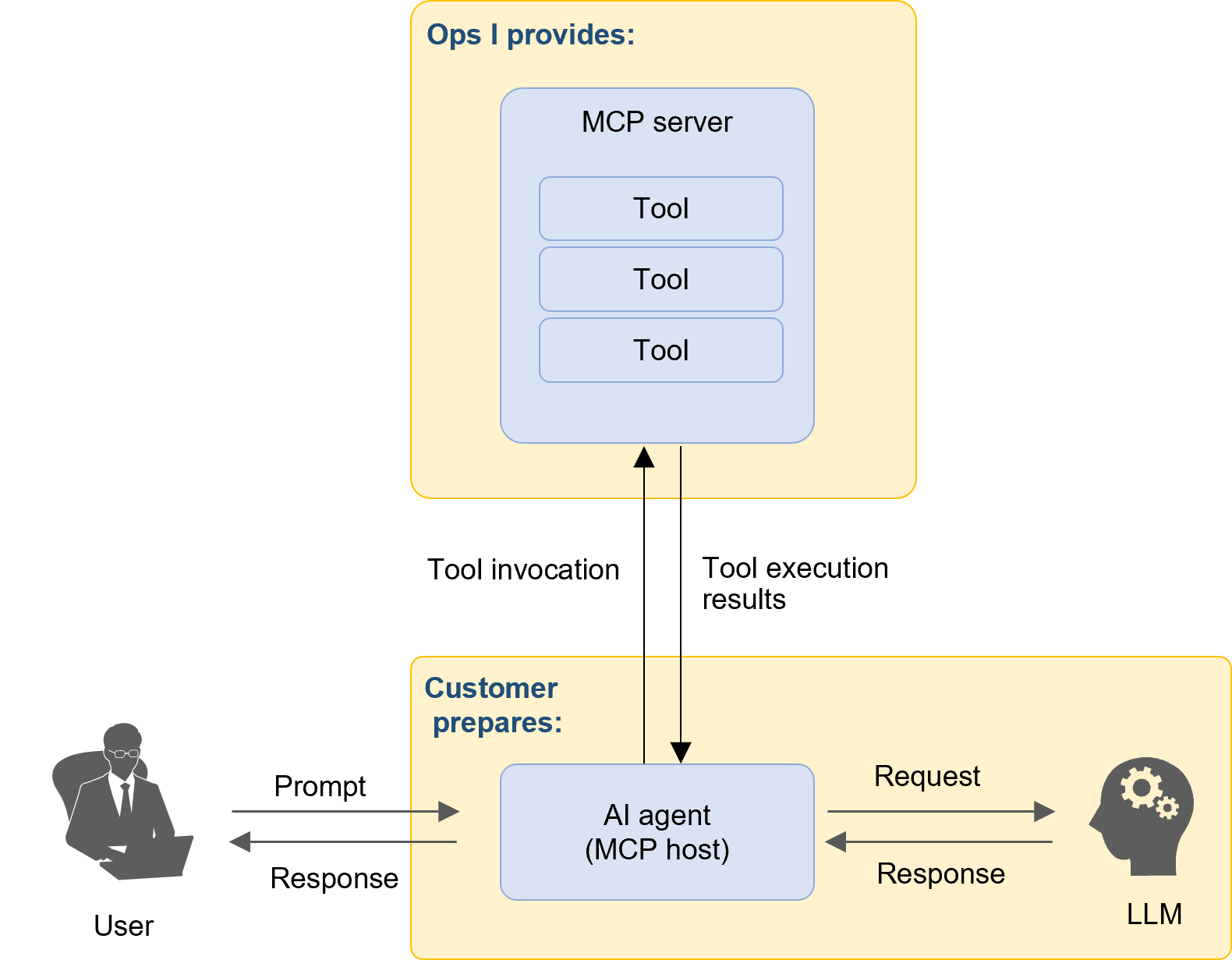
(1) Connection settings
To operate Ops I in conjunction with an AI agent, you must prepare your environment and configure the connection settings.
[Environment preparation]
Prepare the following in your environment:
- AI agent:
Select an AI agent suitable for the tasks you want to perform. - Environment capable of connecting to an LLM:
Select an LLM to be used by the AI agent and establish the connection.
[Connection settings for the MCP server]
Configure the following settings using the method specified for each AI agent to connect the AI agent to the MCP server.
- Endpoint settings:
For details about the endpoint, see "API reference overview > MCP server" in "JP1 Cloud Service/Operations Integration API Reference". - Ops I token authentication settings:
When connecting to the MCP server, use the Ops I token of the user who will be using the AI agent. The settings for groups and roles assigned to the user associated with the Ops I token determine which operations the AI agent can perform on Ops I and the targets of those operations. Configure the required groups and roles for each use case. For instructions on obtaining an Ops I token, see "API reference overview > Prerequisite knowledge > Obtaining Ops I tokens" in "JP1 Cloud Service/Operations Integration API Reference".
For connection setting examples, see “Examples of collaboration with AI agents”.
(2) Ticket and knowledge article operations
You can search for, create, and update incident tickets; search for and update case tickets; and search for and create knowledge articles. Enter the action you want to perform as a prompt to the AI agent. For examples of prompts, see “Examples of collaboration with AI agents”. For details about the tools, see “API reference overview > MCP server” in “JP1 Cloud Service/Operations Integration API Reference”.
[Required permissions]
To perform operations on tickets and knowledge articles, users must be assigned one of the following Primitive roles:
- itsm_admin
- itsm_manager
- itsm_user
In addition, to extract phenomena from incident or inquiry tickets and to create knowledge articles, users must be assigned the Primitive role “ai_extension_user”. For details about the Primitive roles, see “Correspondence between roles and support functions in Ops I”.
(3) AI-assisted coding of Ops I definition files
AI agents specialized in software development are referred to as coding agents.
By connecting the MCP server to your coding agent, developers can use the agent’s code generation and modification capabilities to efficiently develop Ops I definition files. In addition, by adding the agent skills provided by Ops I to the coding agent, the agent can understand Ops I-specific terminology, concepts, and development methods for development.
(a) Tools
Based on the prompt content, the coding agent uses the tools on the MCP server to retrieve the following information:
- Information on definition files for the following types:
- workflow
- ui
- uipath
- datamodel
- catalog
- script
- library
- attachment
- distribution
- acl
- statement
- notification
- notifier
- application
- Information on custom scripts
- Information on Playbook
(b) Agent skills
An agent skill is a mechanism that predefines knowledge, procedures, and decision criteria for specific tasks and embeds them into an AI agent as reusable functionality.
Ops I provides agent skills for developing definition files.
Agent skills can be downloaded from the location in GitLab shown in the table below.
Save the folder with the same name as the downloaded skill to the designated location for each coding agent.
The “system” repository can be shown by clicking [Explore projects] in the upper-right corner of the GitLab GUI.
(Table) Agent skill storage location
| Agent skill name | Group | Repository | Directory |
|---|---|---|---|
| jp1cs-opsi-customization-guide | system | system | ai-agent/skills |
For detailed instructions, see “Examples of collaboration with AI agents”.
 Notes
AI output might contain unintended implementations or incomplete code due to misunderstandings of context or insufficient input. Do not simply adopt AI output as-is. Always ensure that developers review and modify it.
[Example development workflow]
- Identify and organize the tasks performed by Ops I, along with any other necessary tasks.
- Create a specification document for the AI agent to reference.
- Enter a prompt instructing the AI agent to carry out development based on the specification document.
- A developer reviews the output generated by the AI agent. If there are any errors or discrepancies from the intended outcome, return to Step 2 and provide correction instructions to the AI agent.
- If there are no issues with the output, push the definition files to Ops I's GitLab.
- Verify that the YAML files have been registered. For verification instructions, see "Checking registration status of YAML files". If there are issues with the registration status, return to Step 2 and provide correction instructions.
- Verify the functionality of the output. If there are any errors or discrepancies from the intended outcome, return to Step 2 and provide correction instructions to the AI agent.
For workflows, verify the execution results. For workflow execution logs, see the "Workflow [Execution Log] window"; for automation feature output, see "Checking job execution results".
[Required permissions]
No additional Primitive roles are required for AI agents to use the MCP server and tools.
However, each of the following operations requires specific permissions:
- Registering with the Git application:
- Primitive role "git_user":
To access the Git application. - Git role:
To perform operations on the group to which the target repository belongs.
For details, see "Viewing group details".
- Primitive role "git_user":
- Viewing workflow execution logs:
- Primitive role "action_execution_viewer":
To view workflow execution logs.
- Primitive role "action_execution_viewer":
- Verify the output of the automation feature:
- Primitive role "automation_manager", "automation_auditor", or "automation_user":
To access automation applications. - Roles within the organization:
To perform operations on the registered organization.
For details, see "Organization management".
- Primitive role "automation_manager", "automation_auditor", or "automation_user":
Section structure
4.11.1 Examples of collaboration with AI agents