3.6.1 User management
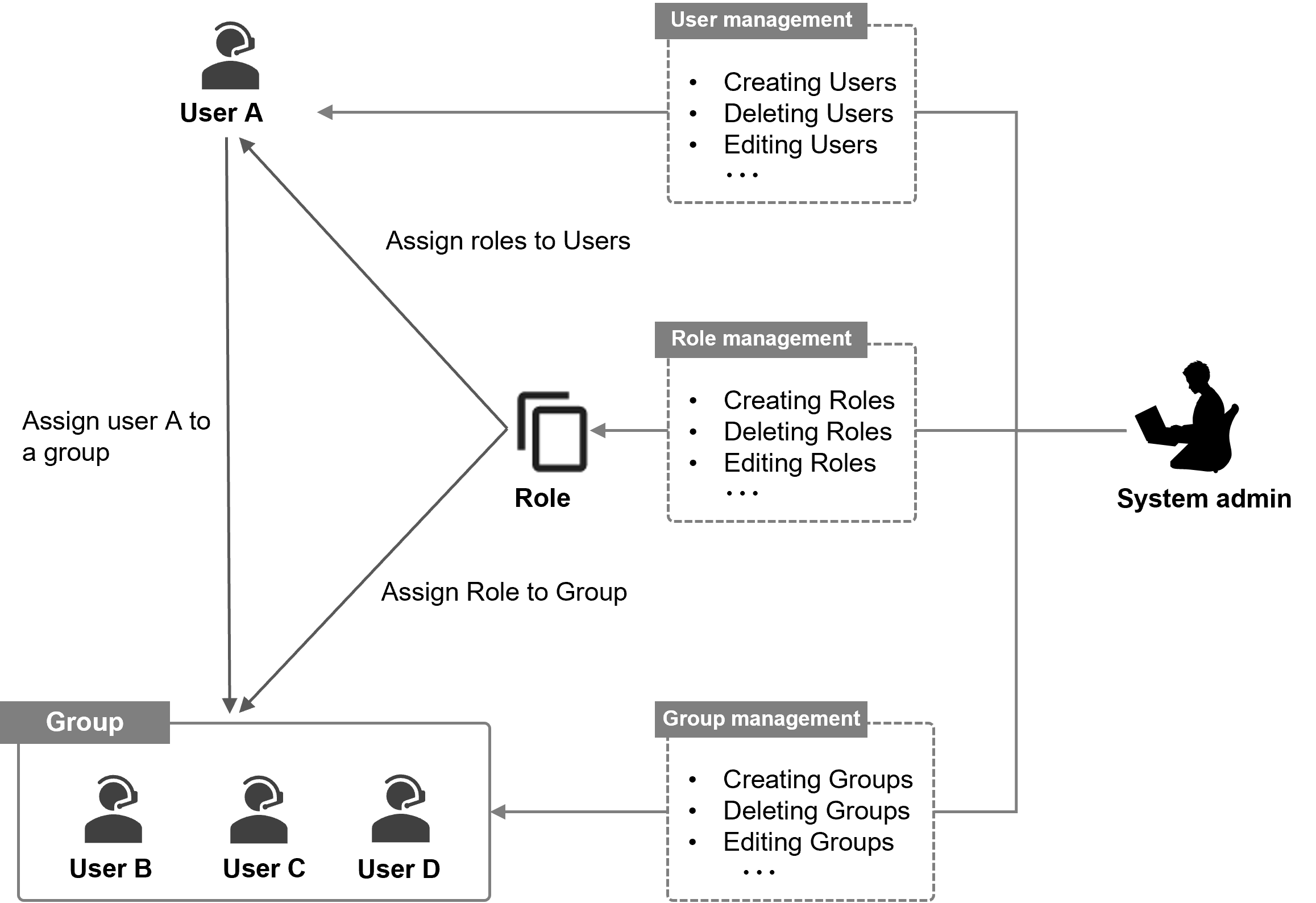
User management is achieved by the system administrator performing operations such as creating, deleting and editing users, groups and roles.
Roles can be assigned to users and groups, and determine things like Ops I operation permissions. Users who belong to a group to which a role has been assigned are granted the permissions for that role.
(Figure) Relationships between users, groups and roles
[Access control through user segregation]
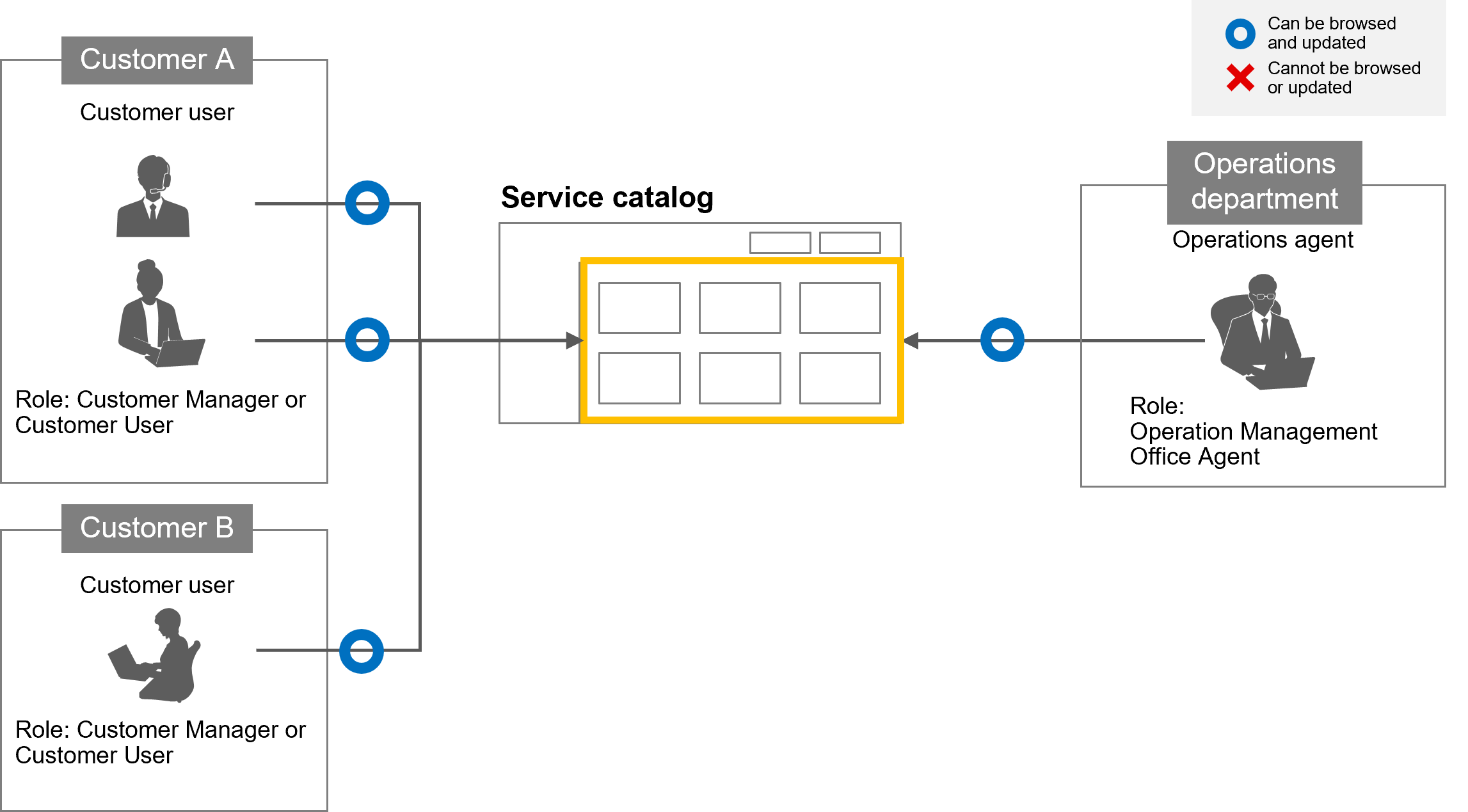
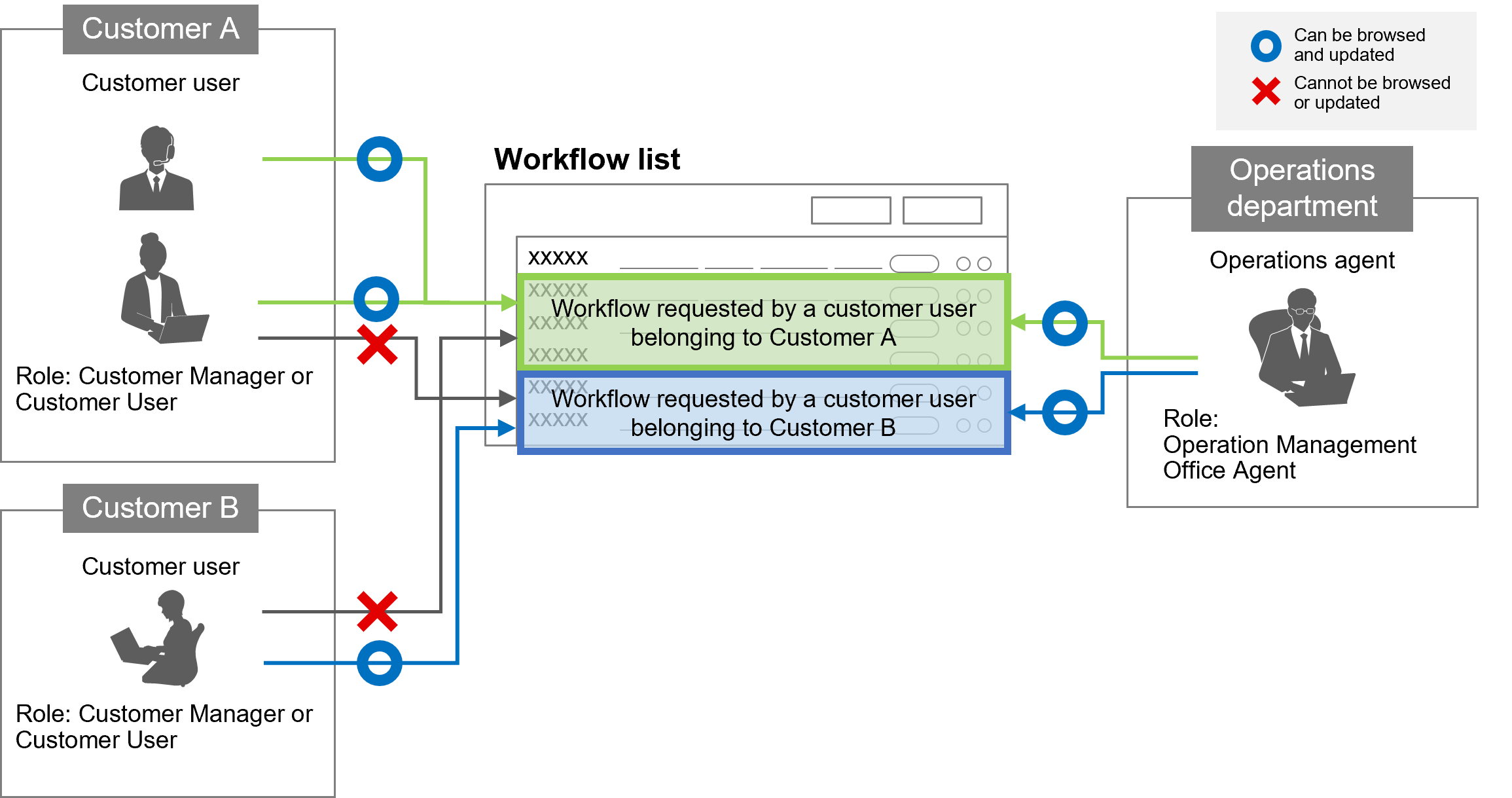
By setting roles appropriately, it is possible to restrict the windows each customer can operate and the viewing and updating of information displayed in the window. For example, controls such as only allowing customer users to see the workflows for the customer to which they belong in the “Workflow list” window.
To control access through customer segregation, users must be defined as customer users. To define a user as a customer user, set both of the following for the user.
- User profile is set to “Customer”
- One of the following roles is set:
- Pre-Installed role “Customer Manager”
- Pre-Installed role “Customer User”
- Primitive roles “customer” and “free_user”
- Primitive roles “customer” and “manager”
- A custom role with one of the above roles set as a related role
 Notes:
-
Use of users for whom "Customer" is set in the User Profile but none of the following roles are assigned is not supported. *
- Pre-Installed role "Customer Manager"
- Pre-Installed role "Customer User"
- Primitive roles "customer" and "free_user"
- Primitive roles "customer" and "manager"
- A custom role with one of the above roles set as a related role
If the appropriate Ops I role is not assigned to the user, the user might be able to view or update records (such as tickets and workflows) that are unrelated to the customer to which the user belongs. -
Use of users for whom "Customer" is not set but one of the following roles is assigned is not supported. *
- Pre-Installed role "Customer Manager"
- Pre-Installed role "Customer User"
- Primitive role "customer"
- A custom role with one of the above roles set as a related role
For details on the roles provided as standard, see "Correspondence between roles and support functions in Ops I". In addition, with regard to the service catalog, customer access control can be set for each YAML file in the Catalog. For details, see "Access control".
(Figure) Access control by role on the “Service catalog” window
By defining users as customer users, the “Workflow list” window can be controlled so that only workflows applied for by customer users belonging to the same customer as the operation target user can be operated. Users who are not customer users, such as operation agents, can operate all workflows.
Please note that non-billing users have some restrictions on their permissions, unlike billing users.
For details regarding non-billing users, see the following.
- User management: “Users”
- Description of role: “(Table) Special Primitive roles” and “(Table) Relationship between Primitive roles and supported functions”
- Supported functions: “(Table) Supported functions for free_user (non-billing user role)”
(Figure) Access control by role on the “Workflow list” window
[Configuring management relationships between groups]
By setting up a management relationship between groups, agents can be assigned to each step on the workflow tab and skills can be set on the resource tab.
(Figure) Management relationship between groups
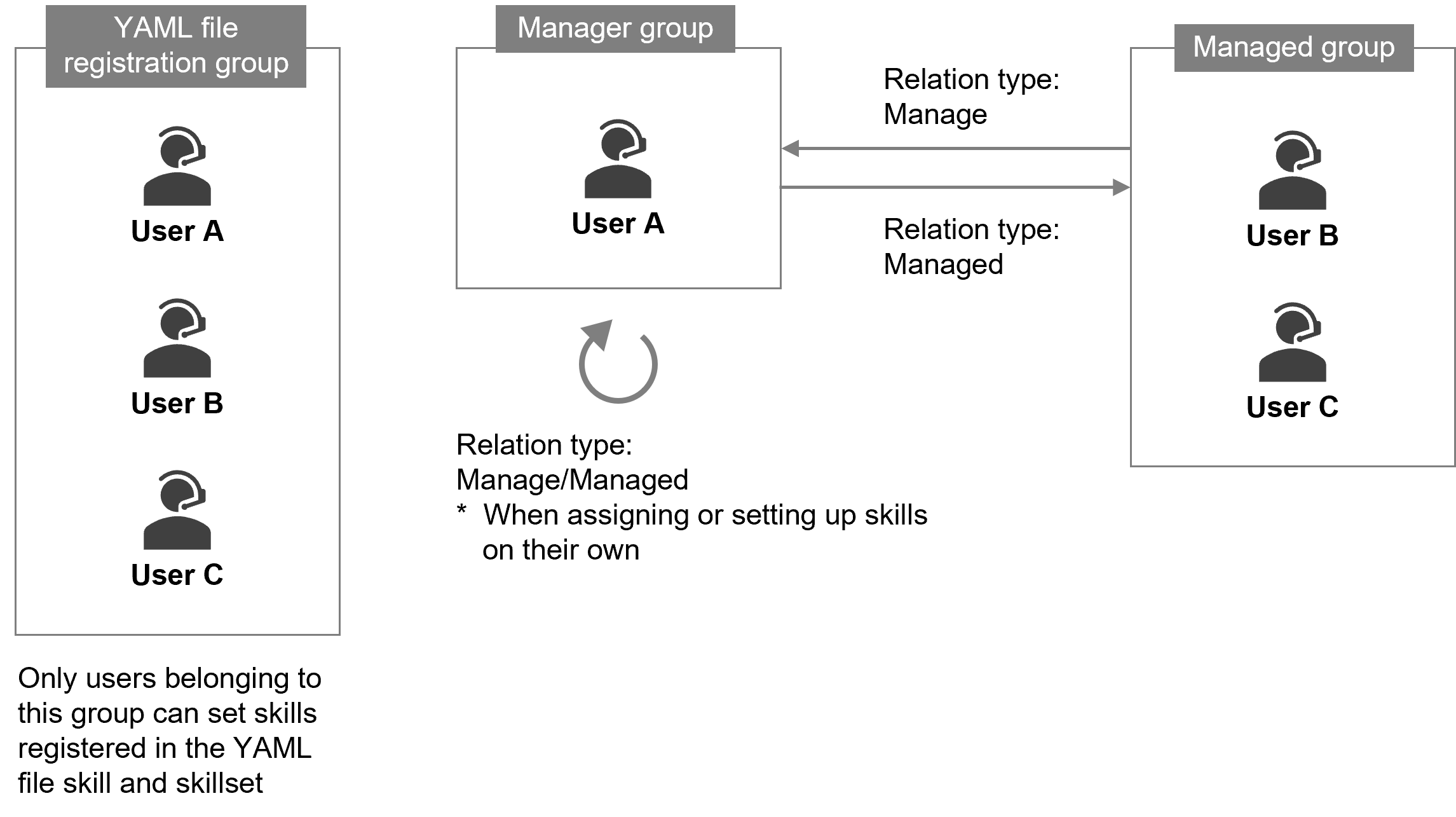
To use the skill setting function, the user you want to set the skill for must be set to the group where the YAML file (skill, skillset) is registered. In addition, management relationships between groups can be set to “Manage”, “Managed”, or “Manage/Managed” by specifying the relation type on the “Relate group settings” window, which can be displayed from the “Group management” window. The two cases where the relation type is Manage/Managed are as follows. For details on related groups, see “(Table) Related resources area tabs when adding a group”.
(Table) Cases where the relation type is Manage/Managed
| Origin group | Related groups | Relation type | Description |
|---|---|---|---|
| A | A | Manage/Managed | Group A makes itself the management target. To assign agents and set skills for your own group, your group must be set as a management target. |
| A | B | Manage/Managed | Groups A and B mutually manage and are managed by each other. |
Please do not set a relation type for the “global” group. Because this group is registered to all users by default, if set to “Manage/Managed”, all user information will be displayed on the “Resource list” window. For details on the “global” group, see “Groups”, and for an image of the resource list display, see “Resource list”.
Subsection structure
3.6.1.1 Users
3.6.1.2 Groups
3.6.1.3 Roles