4.3.1 Designing a service catalog
Service catalog design involves the creation of a service catalog.
(Table) Service catalog design items and overview
| Item | Definition method | Key design points |
|---|---|---|
| Catalog | YAML file | After identifying necessary catalog items, categorize them based on the patterns such as requests and data records. Then, organize the catalog items based on whether they are displayed or not and the order in which they are displayed. |
A service catalog consists of several catalog items. Catalog items are grouped by category.
Users can execute workflows from catalog items. Windows defined in UI YAML files can also be called from workflows and data records can be created or edited.
As such, service catalogs allow users to manage any tasks.
Categories and catalog items are defined in Catalog YAML files. For details, see “Catalog”.
(Figure) Service catalog outline
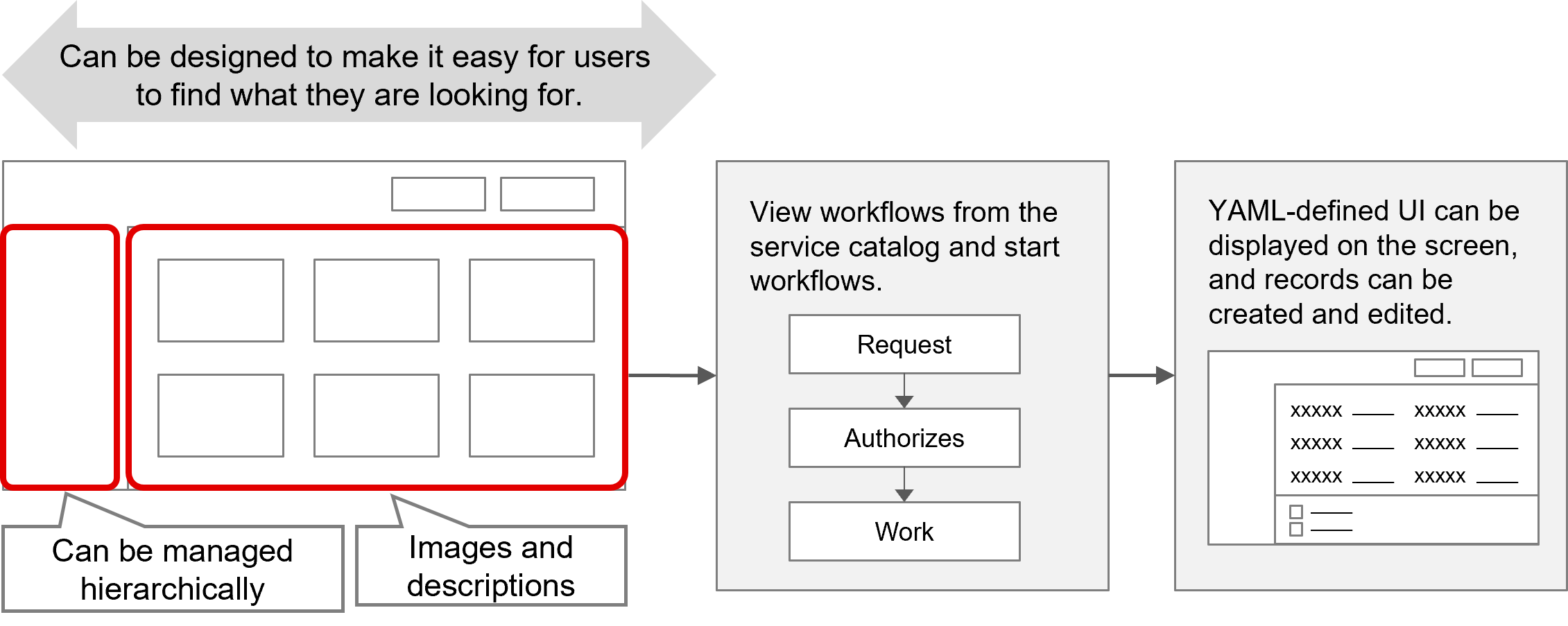
(1)Display settings for categories and catalog items
Multiple categories can be configured in a single Catalog YAML file. Also, multiple catalog items can be configured in a single category.
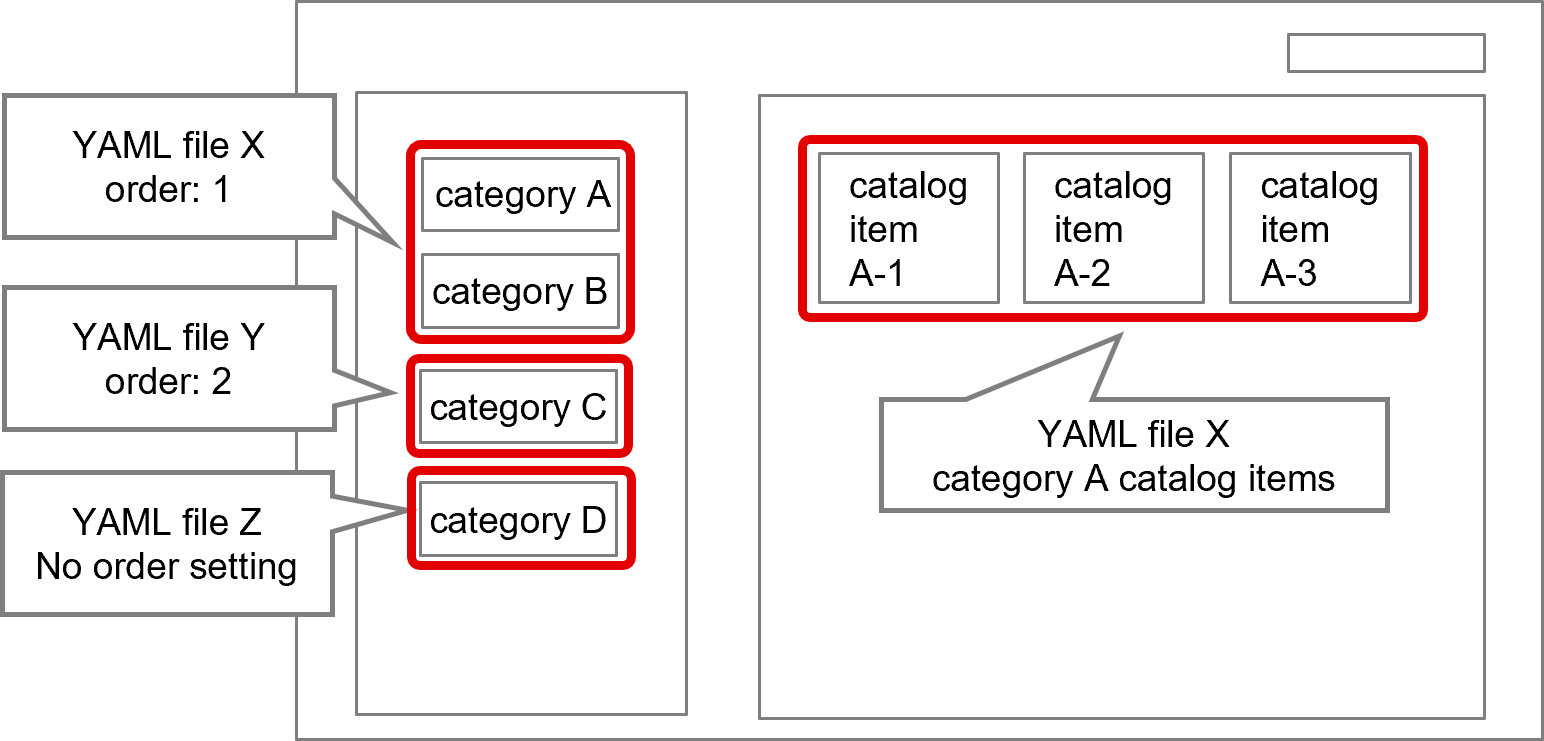
Categories and catalog items are displayed in the order in which they appear in the Catalog YAML file.
When service catalogs are configured in multiple Catalog YAML files, the catalogs are displayed in the order in which the YAML files were registered in the Git application. Updating registered YAML files does not affect the display order.
To display YAML files in an order other than the order in which they were registered, set the display priority. For details, see “Display order priority for categories (on a per-YAML file basis)”.
You can also restrict the display of catalogs by customer or group. For details, see “Access control”.
[Display order priority for categories (on a per-YAML file basis)]
In the category area, the order in which categories are displayed can be specified in the following ways.
If categories are listed in multiple Catalog YAML files separately, you can set the display order priority with the label “order” in the Catalog YAML files. If the same value is set, the items are displayed in no particular order. If no value is specified, they are displayed after the items for which a value has been specified. Categories listed in the same YAML file are displayed in the order in which they appear in the Catalog YAML file.
(Figure) Display of categories and catalog items
[Access control]
Access control allows you to specify who can view the catalog items on a per-Catalog YAML file basis. Without access control applied, all users can view all items.
There are two methods of access control: customer-based and group-based. When using customer-based access control and group-based access control at the same time, users who meet both conditions can view the items.
 Notes
The setting of users who can browse catalog items are specified in the Catalog YAML file. But the setting of users who can perform activities such as requesting, approving, and executing tasks in the workflow associated with the catalog item are specified in the Workflow YAML file.
- Customer-based access control
Customer-based access control is applied to customer users. For details on customer users, see "Users".
Customer-based access control is configured using the "customers" label in Catalog YAML files. With the "customer" label configured, only non-customer users and specified customer users can view the catalog items. Without the label specified, all users can view the catalog items. For details, see "Catalog".
(Table) Customer-based access control
User "customers" label Not configured Customer A specified Non-customer users Displayed Displayed Customer users belonging to Customer A Displayed Displayed Customer users belonging to Customer B Displayed Not displayed -
Group-based access control
Group-based access control is applied to all users.
Group-based access control is configured using the "groups" label in Catalog YAML files.
With the "groups" label specified, only the specified groups can view the catalog items. Without the label specified, all groups can view the catalog items. For details, see "Catalog".
(Table) Group-based access control
User "groups" label Not configured Group A specified Users belonging to Group A Displayed Displayed Users belonging to Group B Displayed Not displayed Only those users who belong to all groups specified in the “groups” label in each YAML file can view all registered catalog items.
[Obtaining service catalog information]
To obtain service catalog information, use the API “GET /api/v1/service-catalogs”. For details on the API and roles to execute it, see “Correspondence between API and Ops I roles” and “Detailed API reference information > Standard API functions” in the “JP1 Cloud Service/Operations Integration API Reference”.
(2) Pre-configuring workflow execution parameters
When executing a workflow from a catalog item, you can reference parameters configured in the Catalog YAML file from the Workflow YAML file or JavaScript file.
This allows you to define workflows whose behavior changes according to the parameters.
For example, you can use a single Workflow YAML file and JavaScript file to represent multiple workflows with similar content, and branch the individual processing according to the parameters. This allows you to reduce the effort required to create separate YAML and JavaScript files for each workflow.
To pass parameters when executing a workflow, specify the values to pass in the “parameters” label of the catalog item.
The files in the table below are used to define parameters.
The following is an example in which different processing is performed according to the value of a parameter named “workflow_type”. In this definition example, the “response_deadline” field is enabled when the workflow type is “contact”.
(Table) Files for defining parameters
| File | Description |
|---|---|
| Catalog YAML file |
Set the parameters and their values in key-value format under the "parameter" label for "items". The parameters must be predefined under the "parameters" label in the workflow YAML file. For details about the Catalog YAML definition, see "Catalog". <Definition example> categories: - name: main_category label: Check WF startup parameters items: - workflow: main_category_wf label: Request description: Application parameters: workflow_type: request - workflow: main_category_wf label: Contact description: Inquiry parameters: workflow_type: contact - workflow: main_category_wf label: Notification description: Notification parameters: workflow_type: notification |
| Workflow YAML file |
Set the parameters (keys) in the "parameters" label. For details about the Workflow YAML definition, see "Workflow". Also, specify the locations where workflow parameters are embedded in the "<% ctx().parameters %>" format. <Definition example> parameters: workflow_type: required: false type: string default: '' input: - workflow_type tasks: start: label: start step: start action: core.noop ui: catalog_start_ui next: - when: <% ctx().workflow_type = 'request' %> do: taskA - when: <% ctx().workflow_type = 'contact' %> do: taskB - when: <% ctx().workflow_type != 'request' and ctx().workflow_type != 'contact' %> do: taskOther - when: <% failed() %> do: fail |
| UI YAML file |
The UI used must be version 1.1. Also, for the UI used in the workflow, specify "uipath" for "type" and "workflow_detail_by_context_id" for "value". <Definition example> apiVersion: 1.1 kind: ui type: resource name: test_ui label: test_ui description: test_ui context: type: uipath value: workflow_detail_by_context_id |
| JavaScript file |
Use the action script "OIWorkflow.getParams" to retrieve the parameters configured in the Workflow YAML file, and configure the workflow to perform actions based on those parameters according to the user's requirements. <Definition example> async function handleAfterLoadData() { // Retrieve parameters const params = await OIWorkflow.getParams(); // Show or hide form fields based on variables if (params["workflow_type"] === "contact") { const form = new OIForm("contact_form"); await form.setFieldVisible("response_deadline", true); } } For details about the action scripts to specify in the JavaScript file, see "Action scripts (UI Version 1.1)". |
When using this feature, ensure that the JavaScript files specified in the UI YAML file and Script YAML file are written for UI Version 1.1. For details about UI Version 1.1, see the following: