3.1.2 AI extension function
The AI extension function enables you to enter simple instructions (prompts) to quickly search incident tickets, case tickets, and knowledge articles. If a failure occurs or you receive an inquiry, you can immediately consult similar tickets or knowledge articles from the past, so you will be able to respond more quickly. This function can also be used to generate knowledge articles automatically based on information in tickets, facilitating the efficient solution of problems.
The AI extension function is available on the chat panel (Co-Operator chat panel).
This section explains the components and operations of the chat panel.
Users of the AI extension function must be billing users who have “ai_extension_user” with Primitive role assigned.
Clicking the chat icon
 on the upper right corner of the Ops I window displays the chat panel in the right pane. You can adjust the panel width by dragging the frame border of the chat panel.
The chat panel allows you to do the following operations:
- Search for knowledge articles by phenomenon
- Search for incident/case tickets by phenomenon
- Search for knowledge articles by phenomenon in incident/case ticket
- Search for incident/case tickets for a similar phenomenon by phenomenon in incident/case ticket
- Create a knowledge article from an incident/case ticket*
- Create a summary of an incident/case ticket
 Notes
Notes
- The chat icon is also displayed in windows other than those for the task application and the knowledge application. These windows support only the operations explained here.
If no response can be provided, the following message is displayed: "Sorry, this is an unsupported question. Please review and submit again." - Only relevant phenomena or tickets can be specified as conditions for searching tickets or knowledge articles. Furthermore, conversations in the chat area are not reflected in the search results.
For example, this function does not support operations for addressing a request such as "Show five more tickets besides the displayed results." - The target tickets are incident tickets (incident) and case tickets (case) only.
- The chat language is determined by the language specified in the Ops I window by the user.
(1) Chat panel components
In the chat panel, you can start a conversation and check or delete the conversation history of the past.
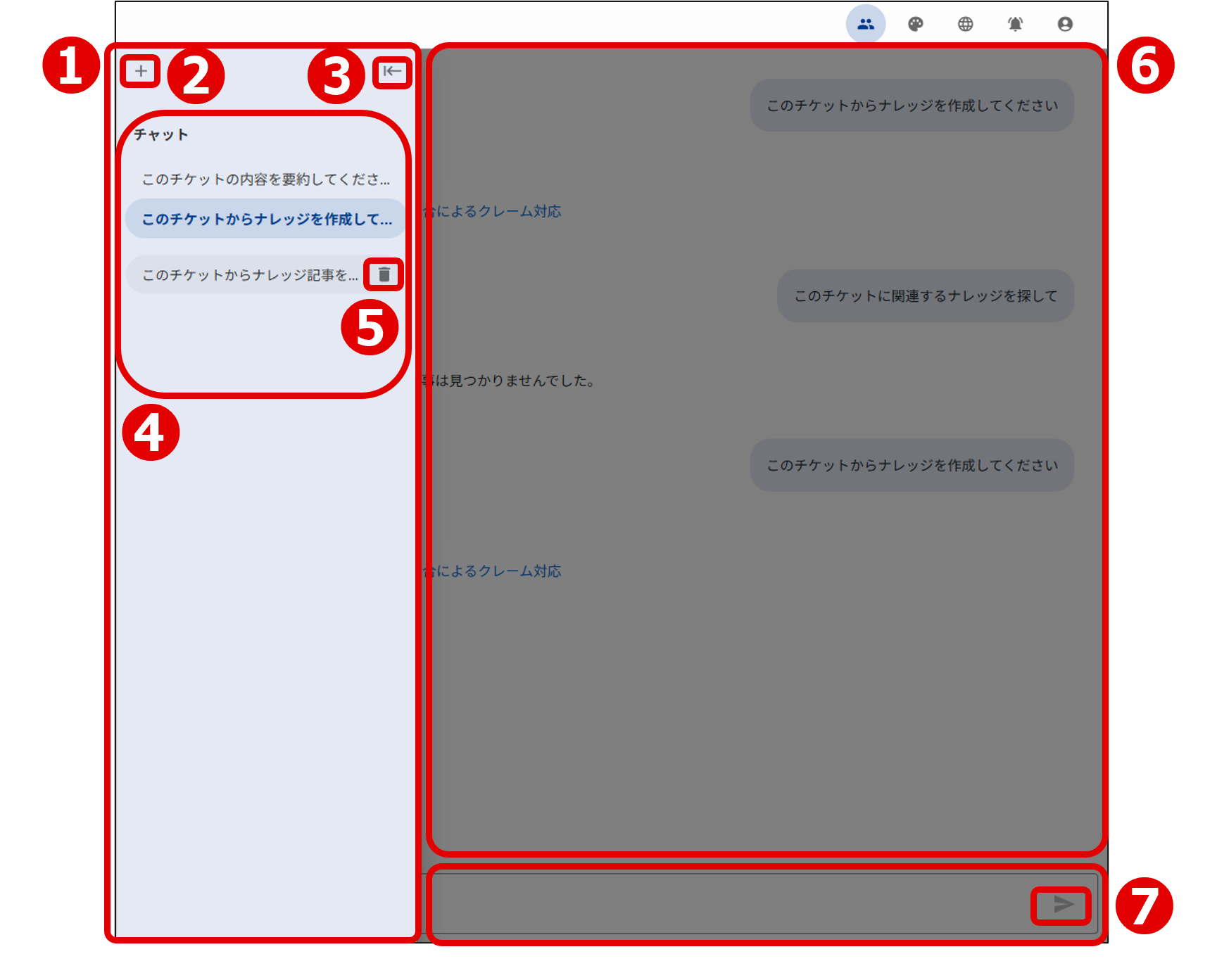
| Component | Description | |
|---|---|---|
| ① | Conversation history area | This displays operation buttons ② and ③ and the conversation history list ④. |
| ② | New Chat button | You can start a conversation. |
| ③ | Open sidebar button / Close sidebar button | You can display or close the conversation history area. |
| ④ | Conversation history list | This list displays the initial part of each conversation. Entries in the list are sorted in reverse chronological order of date and time of update. Up to 50 entries can be saved. If the number of entries exceeds 50, older entries in the conversation history will be deleted. |
| ⑤ | Delete button | You can delete a conversation. This button is displayed when you place the mouse cursor on the selected conversation. |
| ⑥ | Chat area | After clicking the New Chat button and entering a prompt in the input field in ⑦, you will see the new conversation in this area. If you select a conversation in the conversation history list, you will see the past conversation. |
| ⑦ | Input field | After you enter a prompt and click the  icon, it will be reflected in the chat area. icon, it will be reflected in the chat area. |
(2) Entering a prompt in the chat panel
Enter a prompt to search for knowledge articles or tickets, create a knowledge article, or summarize a ticket.
When you specify a ticket to perform the search, creation, or summarization, you can not only specify the ID directly but also provide an instruction such as “Information about the incident in the adjacent window” in the Ticket Zoom window.
Up to three search results are displayed.
The following are examples of a prompt that you can enter:
(Table) Examples of chat panel entries
| Prompt | Result | |
|---|---|---|
| ① Search for knowledge articles by phenomenon | ||
| I see a phenomenon that ... Show me a list of knowledge articles that seem to provide a solution. | The panel displays the message "X knowledge article(s) found." and also displays links to those articles below the message. | |
| ② Search for incident/case tickets by phenomenon | ||
| I see a phenomenon that ... Show me a list of tickets that can be used to solve the problem. | The panel displays the message "X ticket(s) found." and also displays links to the Ticket Zoom window below the message. | |
| ③ Search for knowledge articles by phenomenon in incident/case ticket | ||
| Give me knowledge about how to solve a phenomenon that is the same as the incident explained in ticket ID 3. | The panel displays the message "X knowledge article(s) found." and also displays links to those articles below the message. | |
| ④ Search for incident/case tickets for a similar phenomenon by phenomenon in incident/case ticket | ||
| Show me a list of tickets for a phenomenon that is the same as the incident explained in ticket ID 3. | The panel displays the message "X ticket(s) found." and also displays links to the Ticket Zoom window below the message. | |
| ⑤ Create a knowledge article from an incident/case ticket
|
||
| Create a knowledge article based on information about the incident explained in ticket ID 3. | The panel displays the message "I've created a knowledge article." and also displays a link to the [Add FAQ Article] window of the ITSM application below the message. Click the link, read the next FAQ information (Ops I knowledge article) generated automatically, and edit the information as needed.
For details on the procedure for creating an article, see "[FAQ] > [New]" in "JP1 Cloud Service/Operations Integration User's Guide (ITSM Operation Manual)".  Tips TipsIf there are any similar knowledge articles, links to those articles will also be displayed. Read information on the linked articles. If you think it is appropriate to update an existing article instead of creating a new knowledge article, you can directly edit and save the existing article. |
|
| ⑥ Create a summary of an incident/case ticket | ||
| Summarize incident information provided in ticket ID 3. | A summary will be displayed. | |
Notes
- Files attached to knowledge articles or tickets are outside the scope of the search. Only character strings will be searched.
- If you use a phrase such as "about this ticket" to indicate a specific ticket when the Ticket Zoom window is open, the system might not properly recognize whether the ticket is displayed on the Ticket Zoom window and whether the ticket exists in the conversation history.
- When you click a link to the [Add New FAQ] window to create a knowledge article, an error might occur if you are not logged in to the ITSM application. If an error occurs, you should open another window from the ITSM application, verify that you are logged in, and click the link again to create the knowledge article.
- If you close the chat panel or move to another page before the answer to your prompt is displayed, the processing will stop and the answer will not be displayed.
- The system builds a search index after a ticket or knowledge article is created or modified. For this reason, it might take some time until the results from the search from the chat panel change.
In addition, the processing for applying the registered work notes is performed at one-hour intervals. For this reason, it might take about one hour until the updates are reflected in the search results.
If the search does not produce the desired results, wait for a while and then perform the search again. If the search results do not change after one day, contact our support team.