4.3.10.3 Embedding the Ops I window in a site
The [Ops I Block] plugin allows you to embed an Ops I window (Ops I content) into your site. Embedding of windows is done by the site network administrator and site administrator.
The red framed area in the figure below is the window embedded using [Ops I Block].
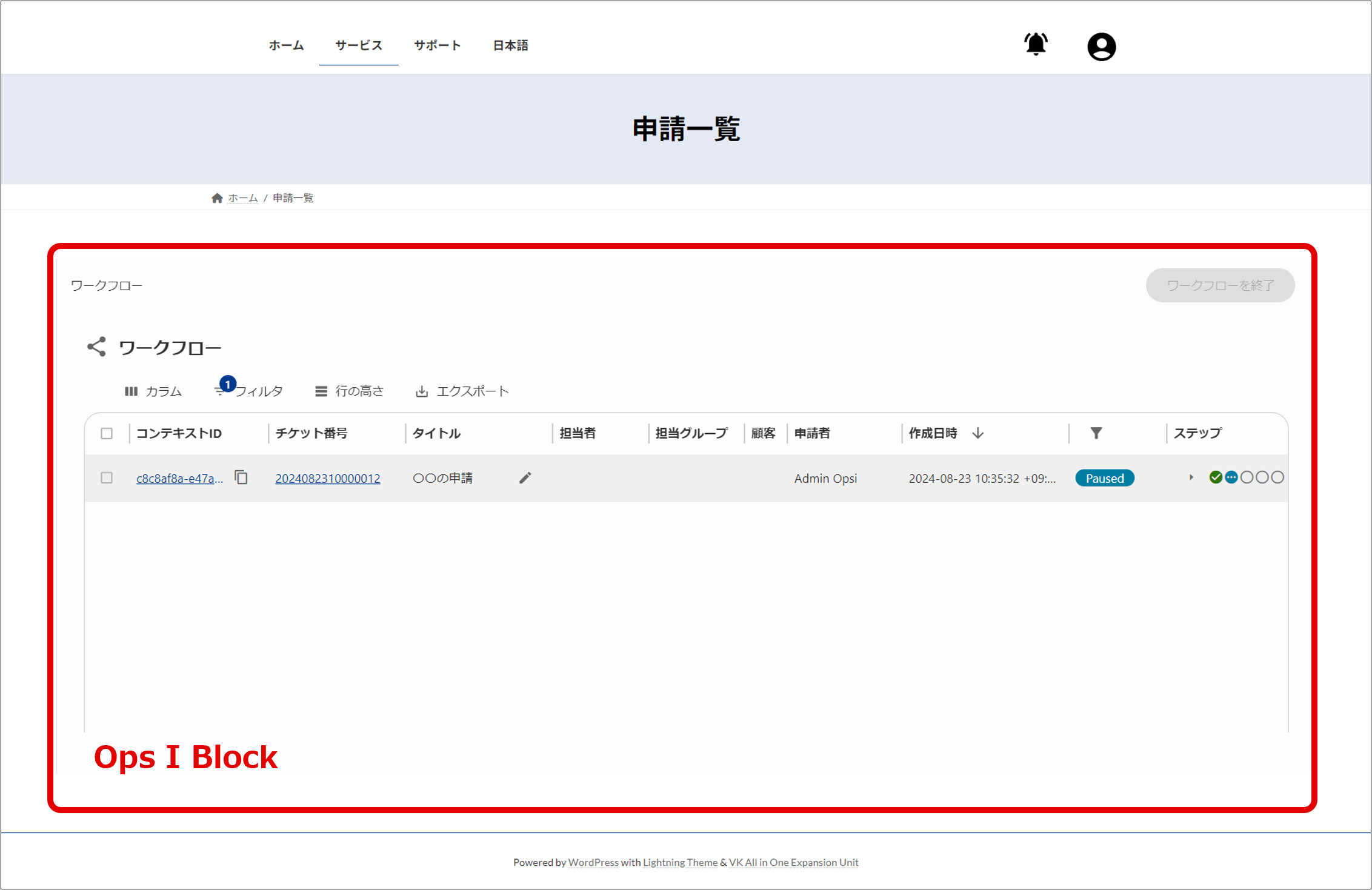
[Steps to embed the Ops I window]
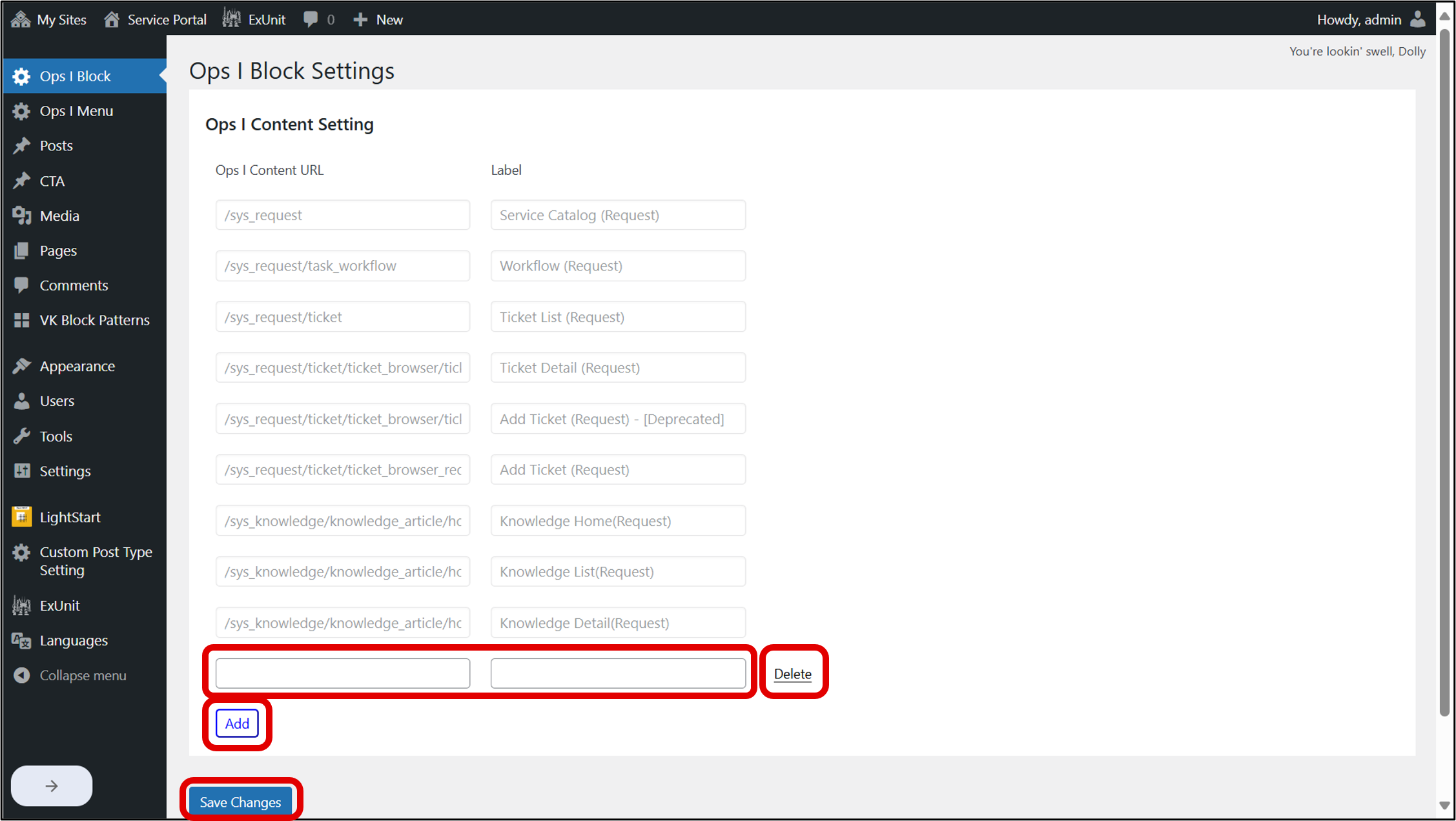
You can add, update, and delete the URL of the Ops I window used on the site as Ops I content from the [Ops I Content Settings] on the [Site Management] window - [Ops I Block].
By opening [Ops I Block], you can display the Ops I content prepared by default in Ops I, along with the Ops I content previously set by the user.
If you want to add Ops I content, click the [Add] button, enter the URL in "Ops I Content URL", and enter the label name displayed by the GUI in "Label". Additions, updates, and deletions (the [Delete] button) will be applied when you click the [Save Changes] button. For the Ops I Content URL, specify the relative path from "https://Ops I domain".
(Table) Default Ops I content
| Ops I Content URL | Label | Description |
|---|---|---|
| /sys_request | Service Catalog (Request) | Service catalog of the request application |
| /sys_request/task_workflow | Workflow (Request) | Workflow list window of the request application |
| /sys_request/ticket | Ticket List (Request) | Ticket browser window of the request application |
| /sys_request/ticket/ticket_browser/ticket_detail/{id} | Ticket Detail (Request) | Ticket zoom window of the request application |
| /sys_request/ticket/ticket_browser/ticket_new | Add Ticket (Request) - [Deprecated] | Add new ticket window of the request application, which can be used to add a new ticket of any type |
| /sys_request/ticket/ticket_browser_request/ticket_new | Add Ticket (Request) | Add new ticket window of the request application, which can be used to add a new ticket of the "request" type |
| /sys_knowledge/knowledge_article/home | Knowledge Home(Request) | Home window of the knowledge application |
| /sys_knowledge/knowledge_article/home/article_list | Knowledge List(Request) | Knowledge articles list window of the knowledge application |
| /sys_knowledge/knowledge_article/home/article_list/article/{id} | Knowledge Detail(Request) | Knowledge article window of the knowledge application |
If curly brackets ({}) are used for a parameter name specified in the Ops I Content URL (for example, {id}), the brackets indicate that the parameter is a dynamic value. The parameter will be specified when the web page is accessed later; information will be added to the URL of the web page.
For details on how to embed Ops I content in a web page, see “②”. For details on how the user can specify a specific value for a parameter name, see “③”.
If you want to embed, in a web page, an Ops I window that is not prepared by default, you should add Ops I content. You can also add Ops I content that includes a parameter. Examples of adding Ops I content are shown below.
- To display a window to create a new workflow (including a parameter):
/sys_request/task_catalog?workflowId={workflow_id}In this case, specify "/?workflow_id=workflow_id" in "③".
- To display the Ticket zoom window for a specific ticket ID (not including a parameter):
/sys_request/ticket/ticket_browser/ticket_detail/2
The site network administrator or site administrator can add an [Ops I Block] on the [Pages] edit page. The administrator must select the Ops I content and the language from [Ops I Block].
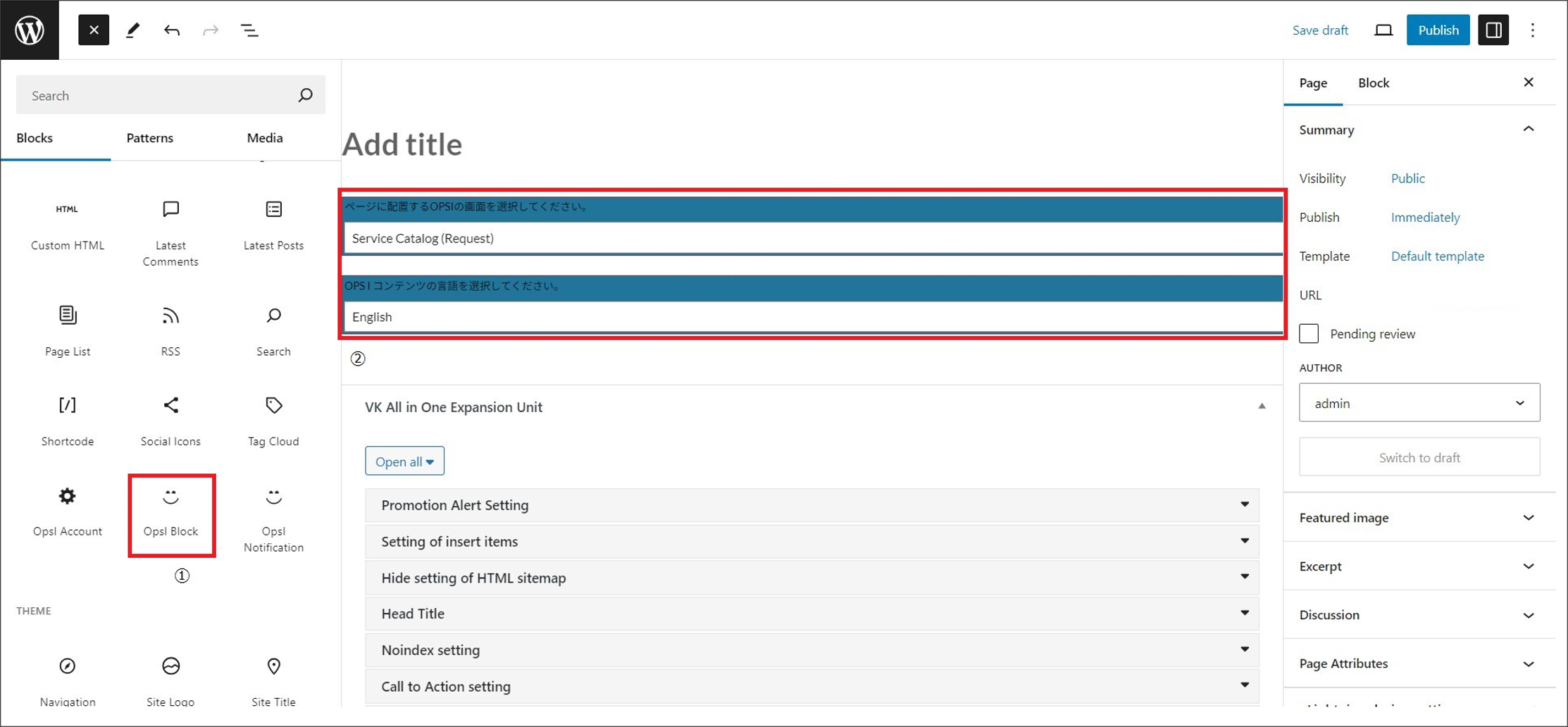
In this case, the URL of the web page will be as follows:
When the user opens the created page, the specified Ops I content is displayed. If the user clicks a link in the Ops I content, the user will be moved within the site. The user will not be moved within an Ops I page.
Ops I content that does not require any parameter name specification can be viewed by using the URL in "②".
If the URL in "②" is used to display Ops I content that requires a parameter name to be specified, the following error message will be displayed:
The page you requested could not be displayed.Please specify the query parameter ('parameter name') in the URL.
If a specific value is specified as a parameter name in the address bar as shown below, the specified Ops I content can be viewed.
For example, if the following URL is specified in a web page in which the Ops I content “Ticket Detail” is embedded, the Ticket zoom window will be displayed in which the ticket ID is “2”:
 Notes
Notes
- Only Ops I content can be specified for [Ops I Block].
- A 404 error window will be displayed if the website user does not specify any specific value in the parameter name or if the settings in [Ops I Block] are incorrect.
- Up to one [Ops I Block] may be embedded per page.